
Mood check-ins
Log how you feel from the Dashboard or in Slack, Teams and Telegram, and learn what admins can control and which notification settings apply.
On this page
A mood check-in takes under a minute. You pick how you feel today, and in the app you can also rate your energy, stress and workload and add a note. Your check-ins feed Wellness Insights. Everyone can log one, and you can log it from the Dashboard or from chat.
You can log one check-in a day. Logging again on the same day replaces that day’s entry.
Check-ins are linked to you, not anonymous. Your admins see company-wide trends and alerts that name people whose scores stay low. Read Who can see what before you log.
Log your mood on the Dashboard
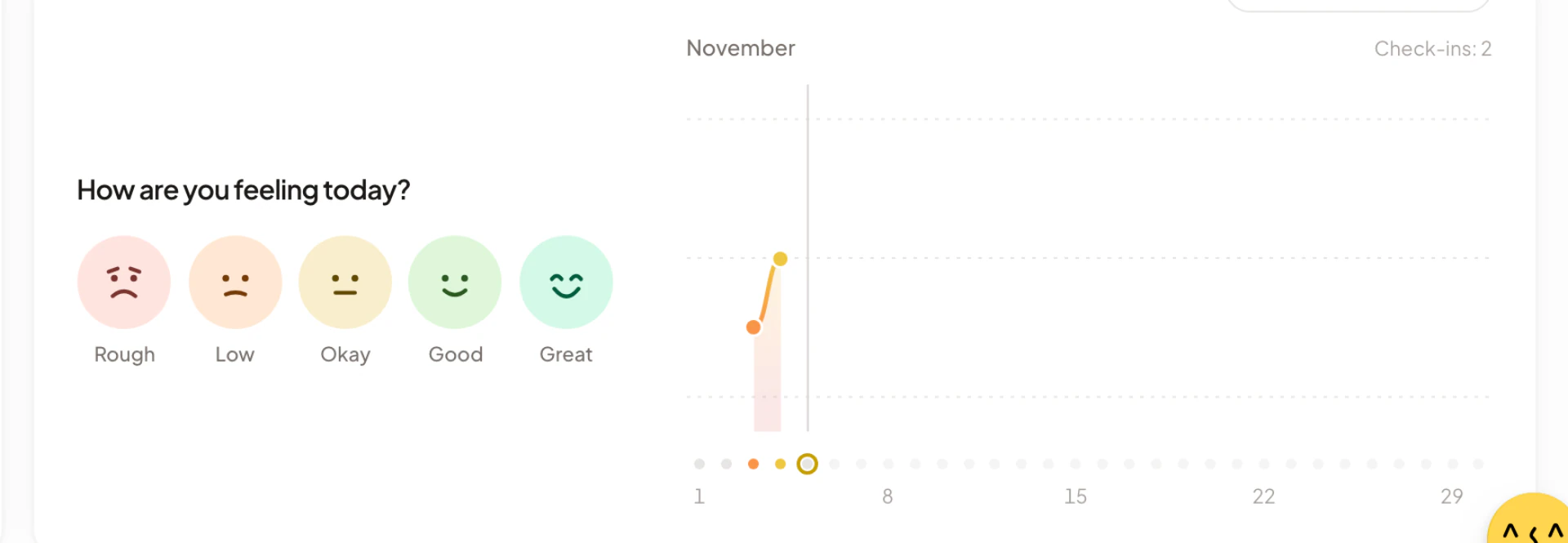
The Mood Tracker card is on every member’s Dashboard. Admins can add it to theirs. See Turn the Mood Tracker on or off.
- Open the Dashboard.
- In Mood Tracker, under “How are you feeling today?”, select a face: Rough, Low, Okay, Good or Great.
- Move the Energy, Stress and Workload sliders from 1 to 5. You can click or drag along a slider, or focus it and use the arrow keys.
- Optionally type a note under Quick note (optional). Notes can be up to 500 characters.
- Select Log Mood.
Asa shows “Mood logged successfully”. If it fails, you see “Failed to log mood”, and you can try again.
The sliders start at Energy 3, Stress 2 and Workload 3, and Asa saves the values they show. Move them to match how you feel before you select Log Mood.
Select Cancel to close the panel without saving.
Change today’s check-in
After you log, the card says, for example, “Feeling good today”, with your three scores. Select the face to open the panel again, change anything and select Log Mood.
See your month
The card also shows the current month as a row of dots, one for each day, and a line that follows your mood. The heading shows “Check-ins: {number}”, or “{number}-day streak” once you have logged on three or more days in a row. Select Wellness Insights on the card to open the full page.
If you are not on a team
When your company uses teams, you must be in one before you can log a mood. Until then the card says “No team assigned” and “Contact your admin to be assigned to a team before logging mood.” Selecting a face shows “You must be assigned to a team before logging mood. Contact your admin.”
Log your mood in chat
Asa asks in Slack, Microsoft Teams and Telegram once you are linked. WhatsApp has no mood prompts.
After your first clock-in of the day
The first time you clock in each day, Asa adds “How are you feeling today?” with five face buttons. They run from the most upset face (1) to the happiest (5). Tap one and Asa thanks you:
| App | Reply |
|---|---|
| Slack | “Thank you for logging your mood!” |
| Microsoft Teams | “Your mood has been submitted to Asa.” |
| Telegram | “Great! Thanks for logging your mood with Asa!” |
You can ignore the buttons. Nothing happens until you tap one.
Any time with /asa mood
In Slack, type /asa mood. Asa replies with “How are you feeling today?” and the numbered buttons 1 to 5. See Slack.
Microsoft Teams and Telegram have no mood command. Use the buttons after clock-in, or tell Asa in your own words.
In your own words
In any chat, or in the Asa chat in the app, you can write “I’m feeling great” or “Feeling a bit stressed”. Asa can also record energy, stress and workload when you describe them. It asks you to confirm before it saves anything. See Ask Asa.
Tapping a mood button in chat records only your mood. To add energy, stress, workload and a note, use the Mood Tracker on the Dashboard, or describe them to Asa.
If your company uses teams and you are not in one, chat says “You must be assigned to a team before you can log your mood. Please contact your administrator.” See Teams.
Messages from Asa about mood
Asa can also start the conversation.
- In the app. After 2 pm, Asa’s chat can show “How’s your day going?” with a Log mood button, unless you already logged today. It shows at most once a day, not on your workspace’s first day, and stops appearing once you have dismissed it three times.
- In chat. In Slack, Teams and Telegram, Asa can send a friendly message when you have not logged a mood for five or more days, or when your recent mood, stress or energy has been low. Asa sends these at most once a day, only on your working days and during your working hours, and never before 7:00 or after 20:59 in your time zone.
- From an admin. An admin can ask Asa to send everyone, or one person, a mood check-in. You get a message from Asa that says “{Name} sent a mood check-in” and “How are you feeling today?”, with the subject “Mood Check-in”. Reply with your mood, for example “I’m feeling great!” or “Feeling a bit stressed”.
Turn the Mood Tracker on or off
Asa.Team has no company setting that switches mood check-ins on or off, or that sets how often they appear. Check-ins are optional for every member, and each person can log one a day.
What admins can control:
- Your own Dashboard. The Mood Tracker card is not on an admin’s Dashboard until you add it. Select Edit widgets, open Add widgets, choose Mood Tracker under You and select Save layout. To hide it, remove it the same way. See Edit widgets. Members cannot rearrange their Dashboard, so the card stays.
- Who can log. If your company uses teams, a person without a team cannot log a mood. Add them to a team. See Teams and Members.
- A check-in on request. Ask Asa to send a mood check-in to the team, or to one person. Only admins can do this, and it works in the app and in Slack, Teams and Telegram, but not WhatsApp. See Ask Asa.
- Which chat apps people use. Asa only sends mood messages in the apps people have linked. See Integrations overview.
Notification settings
Each person chooses what Asa sends them under Profile > Notifications. In Slack, /asa notifications opens the same choices. See Notifications.
| Group | Switches |
|---|---|
| Where we reach you | Microsoft Teams, Slack, Telegram |
| What we send | Workday reminders, Clock in and out, Holiday reminders, Product updates |
| Admin alerts (admins only) | Admin briefings, First clock-in alerts, Feature alerts |
There is no switch just for mood. How they apply:
- Turning a chat app off under Where we reach you stops Asa’s unprompted messages in that app, including the mood check-in messages above.
- The mood buttons after your first clock-in arrive as part of the reply to your own clock-in. None of the switches controls them.
- Feature alerts also controls the “Wellness Alert” messages admins get in chat when someone’s scores stay low. See Wellness Insights.
For app-specific steps, see the reminders sections for Slack, Microsoft Teams and Telegram.