
Find your way around Asa.Team
Learn the sidebar, the search and command palette (Ctrl+K or Command+K), the notifications bell, the account menu, language, dark mode and the phone layout.
On this page
Everything in Asa.Team is reachable from the sidebar on the left. Search, notifications and your account menu sit in the same place, so you can move between pages without hunting for them.
The sidebar
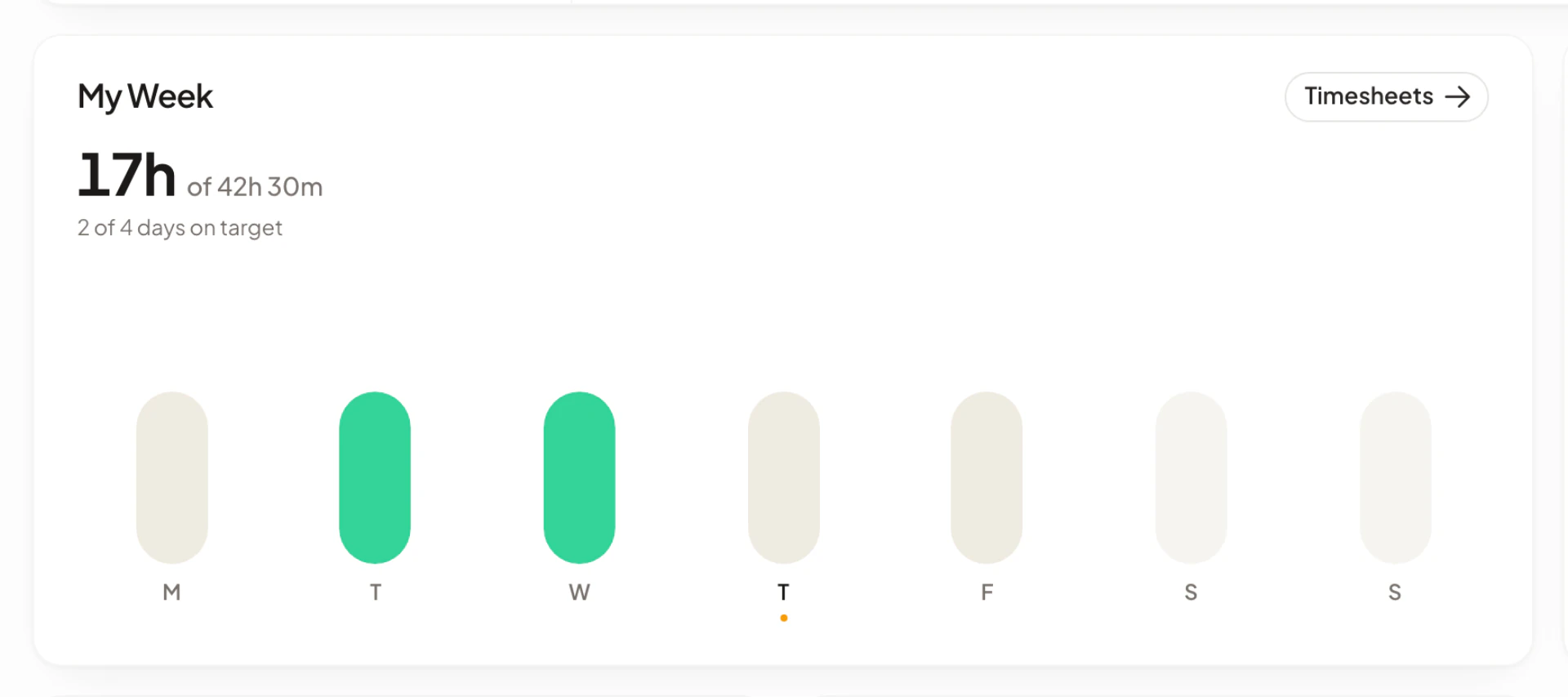
From top to bottom, the sidebar has:
- Company name. Select it to switch company or create a new one. See Switch between companies.
- Search. Opens the command palette. See Search and the command palette.
- Main pages. Dashboard, Projects, Tasks and Calendar. Projects only appears when your plan includes project tracking.
- Time & Reports. Timesheets, Payroll and Wellness Insights. Payroll only appears for admins on a plan that includes payroll preparation.
- Company. Members, teams, amendments, schedules, leave, payroll settings, integrations and general settings. Admins see every section. Members see Members, Amendments, Schedules and Integrations.
- Your name, plan and the notifications bell. Select your name to open the account menu.
| Page | What it is for |
|---|---|
| Dashboard | Your day, week and, for admins, the team. See Dashboard. |
| Projects | Projects and the hours logged to them. See Projects. |
| Tasks | The task board. See Tasks. |
| Calendar | Leave, holidays and schedules. See Calendar. |
| Timesheets | Hours by day, week or month. See Timesheets. |
| Payroll | Pay runs. See Pay runs. |
| Wellness Insights | Mood, workload and punctuality trends. See Wellness Insights. |
| Company | People and company settings. See Company settings. |
Select Collapse sidebar (the button on the sidebar’s edge) to shrink it to icons. Asa remembers the choice on that browser. Select Expand sidebar to bring the labels back.
Switch between companies
If you belong to more than one company, select the company name at the top of the sidebar. Select Company lists each company with Admin or Member beside it. Choose one to switch. Choose Create Company to start another workspace.
Search and the command palette
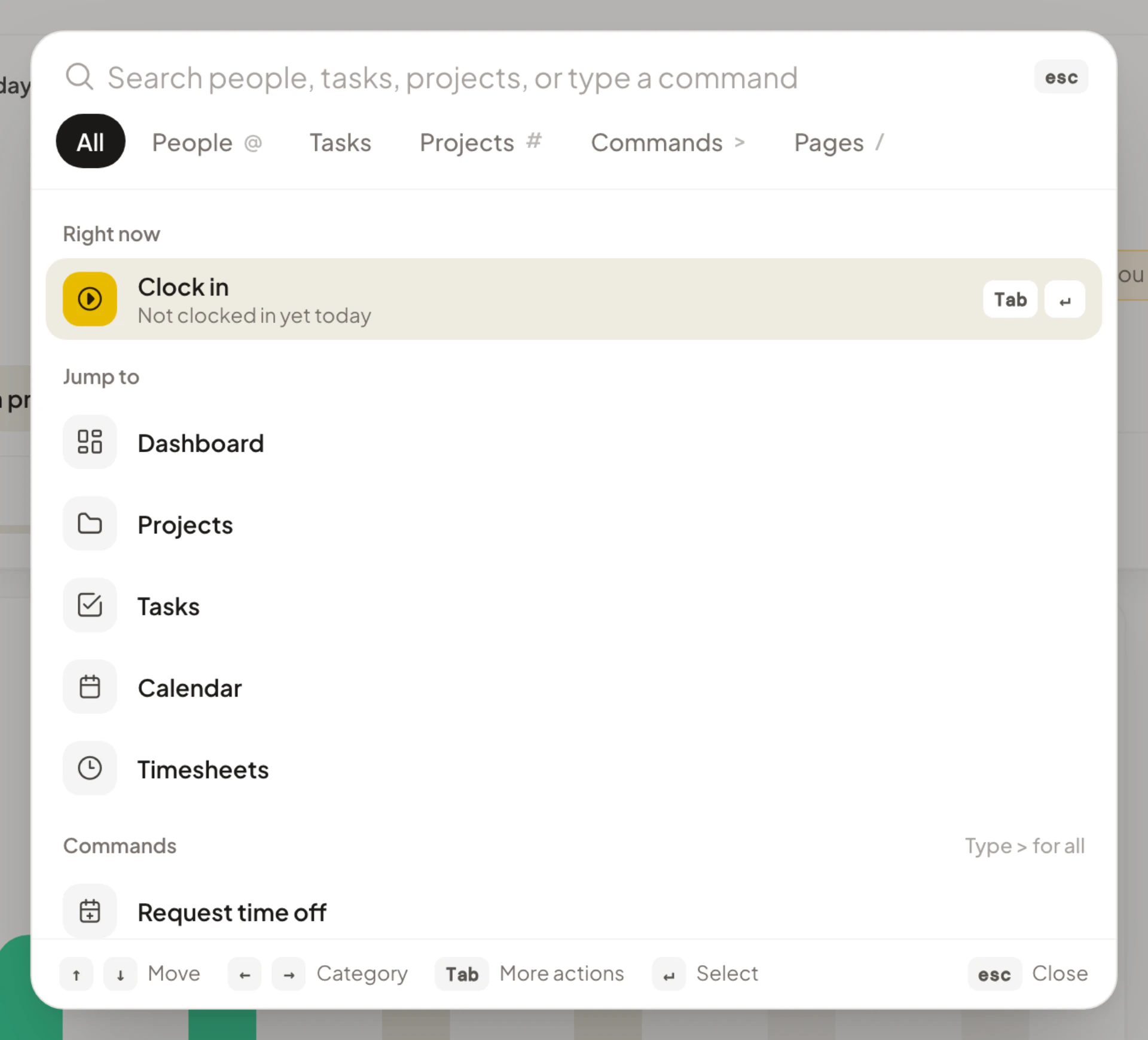
Select Search in the sidebar, or press Ctrl+K on Windows and Linux or Command+K on a Mac, to open the command palette. Press the shortcut again to close it, or press Esc.
Start typing a name, a project or a task. Results are grouped into People, Projects, Tasks, Commands and Pages and settings. If nothing matches, the last row offers Ask Asa about your search so you can put the question to the Asa assistant.
Narrow the search
Press the left or right arrow key to change category, or start your search with a symbol:
| Type | Searches |
|---|---|
@ |
People |
# |
Projects |
> |
Commands |
/ |
Pages |
With a result highlighted, press Enter to open it. Press Tab to see more actions for that result, such as viewing a person’s timesheet or opening a project’s hours.
Commands you can run
Commands do things without leaving the page you are on:
- Clock in, Clock out, Start break and End break, under Right now. If your company tracks projects you can also switch project or stop tracking. See Clock in, take breaks and clock out.
- Request time off and New task.
- Switch to dark mode or Switch to light mode.
- Switch company and Create a company, when they apply.
- Send feedback.
- Admins also get Invite teammates and Customize dashboard.
Searching for a settings section, such as Amendments or Schedules, takes you straight to that part of Company.
Notifications
The bell next to your name opens Notifications. A number on the bell is the count of unread items, and unread rows have a dot.
- Select a notification to open the page it is about. Leave requests and decisions open Calendar. A new correction request opens Company > Amendments, and a decision on your own correction opens Timesheets. Task notifications open the task on the task board.
- Select the x on a row to delete that notification.
- Select Clear all, then Delete at Delete all notifications?, to remove everything. This cannot be undone.
When there is nothing new you see “You’re all caught up!”. Choose which reminders and alerts you receive, and where, under your account settings. See Notifications.
The account menu
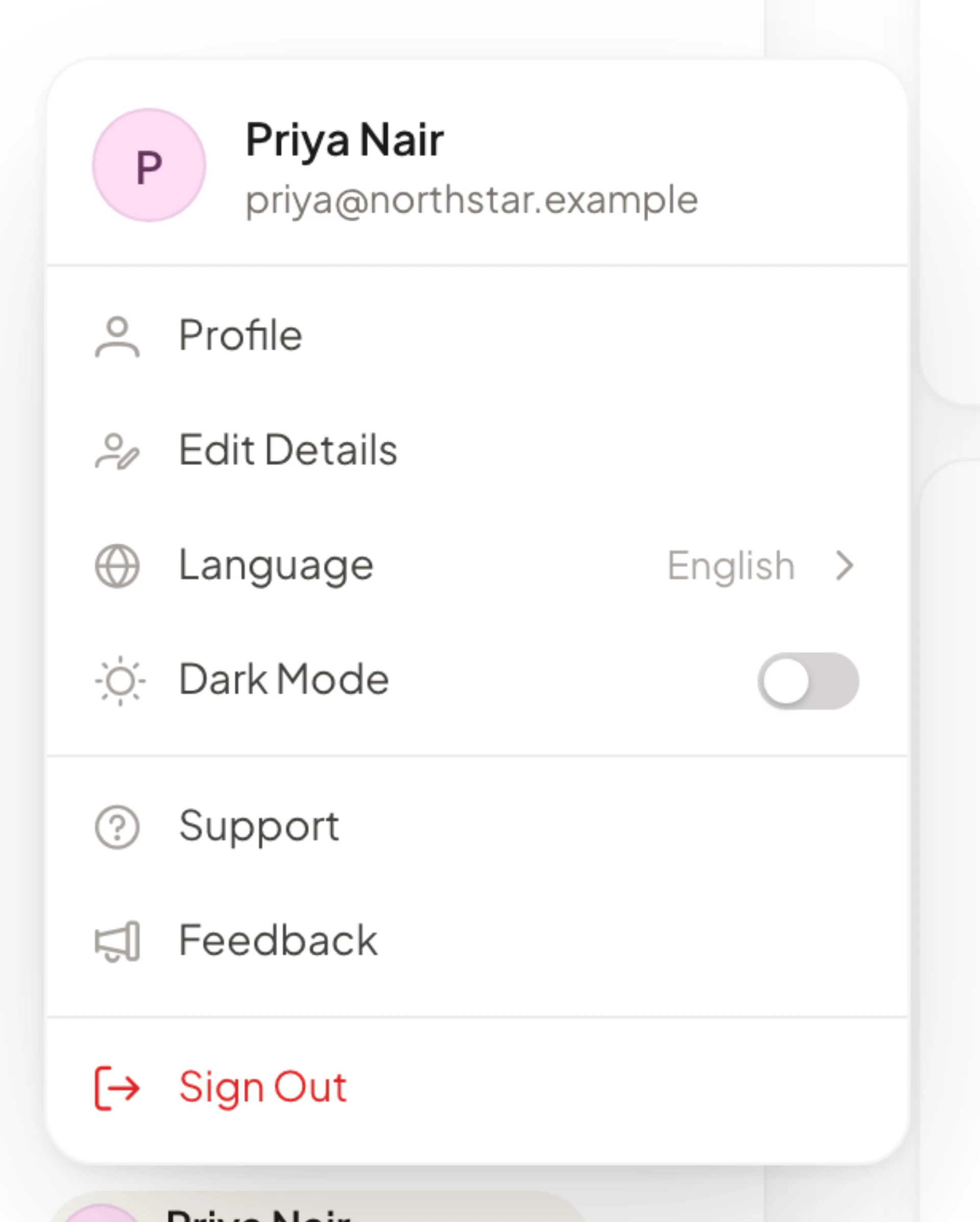
Select your name at the bottom of the sidebar to open the account menu:
| Item | What it does |
|---|---|
| Profile | Opens your account settings, including preferences and notifications. See Account settings. |
| Edit Details | Edit your name, date of birth, gender, country and time zone, and the sign-in methods connected to your account. |
| Language | Choose the language Asa is shown in. |
| Dark Mode | Switches between light and dark. |
| Upgrade plan | Opens the plans. Only shown while your company is on the free plan. |
| Setup guide | Brings back the setup guide on the dashboard. Admins only. See Set up your company. |
| Support | Opens live chat with support. |
| Feedback | Sends feedback to the Asa team. |
| Sign Out | Signs you out. |
Change the language
Open the account menu, select Language and choose one of English, Chinese (中文), French (Français), Filipino, Hindi (हिन्दी) or Spanish (Español). A check mark shows the language in use.
Switch between light and dark
Turn on Dark Mode in the account menu, or run Switch to dark mode in the command palette. Asa saves the choice to your account, so it follows you to other devices.
Use Asa on a phone
On a narrow screen the sidebar becomes a menu. Select Open menu in the top bar to show it, then use it as you would on a computer. The top bar also shows the notifications bell, and the name of the page once the page’s own heading scrolls out of view. While you are clocked in or on a break, a small clock chip appears there too; select it to go to the dashboard.
Ask Asa from any page
The round Asa button in the bottom-right corner of every page opens the assistant, where you can ask about your hours, tasks, leave or team. See Ask Asa.