
Tasks
Create and assign tasks, move them across the To Do, In Progress and Done board, set due dates and priorities, filter the list and work in bulk.
On this page
- Switch between the board and the table
- Create a task
- Add a task quickly
- Add a task with all the details
- Task limit on Starter
- Assign a task
- Change a task’s status
- Set a due date
- Set a priority
- Open and edit a task
- Link a task to a project
- Filter and search tasks
- Change many tasks at once
- Tasks from chat and from Asa
Tasks are your team’s shared to-do list. Each task has a title, an optional description, an assignee, a priority, a status, a due date and an optional project. You can see them as a board with three columns, or as a sortable table.
Select Tasks in the sidebar to open the task board. Assigned tasks also appear in My Tasks on the Dashboard.
Switch between the board and the table
Use the Board and Table switch at the top right.
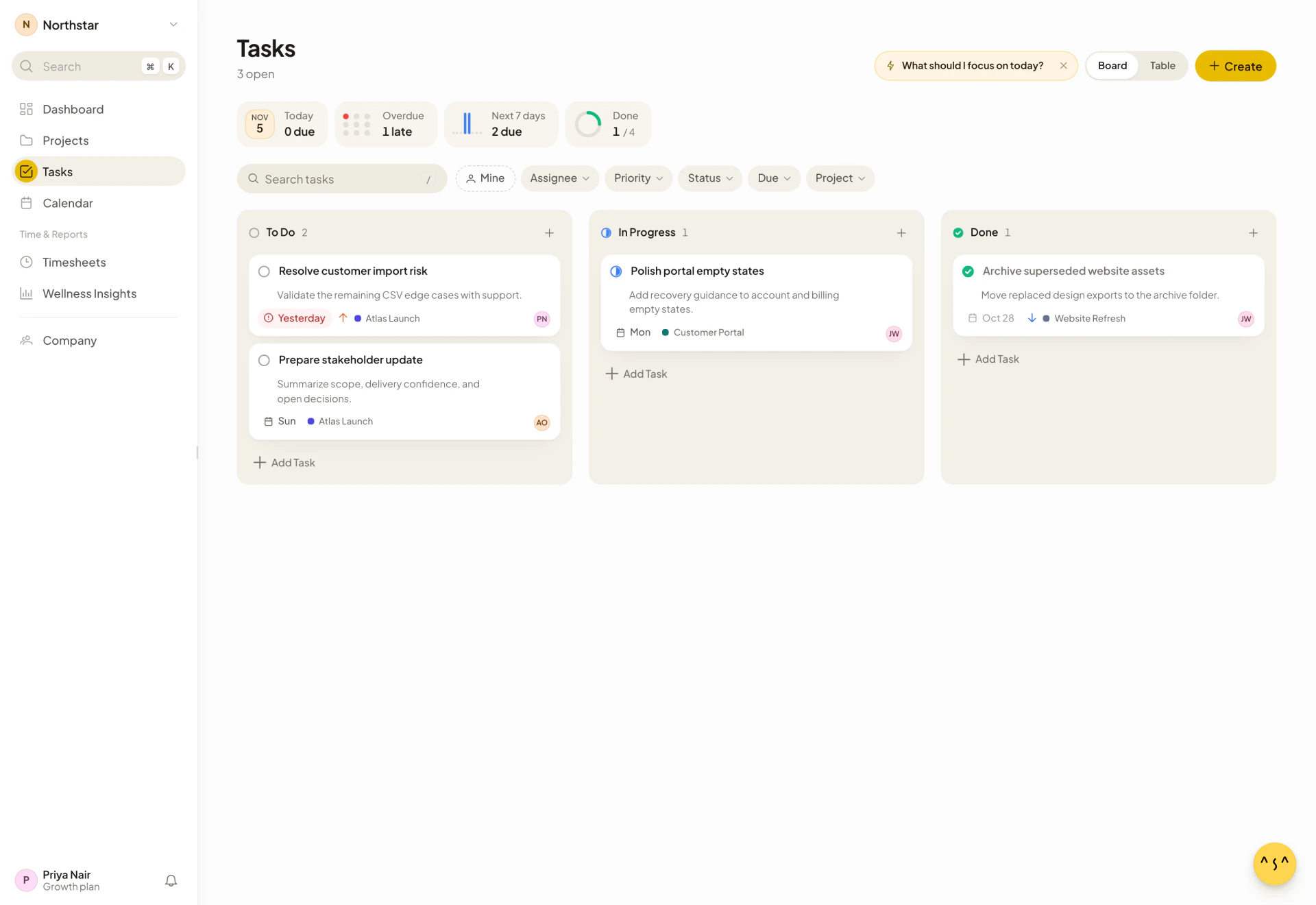
- Board shows one column for each status: To Do, In Progress and Done. On a phone it shows one column at a time. Use the status tabs or swipe sideways to change column.
- Table lists the tasks with the columns Task, Assignee, Priority, Status, Project and Due Date. Select a column heading to sort by it. Drag a row to put it in a different place.
The header shows how many tasks are open, for example “7 open”, or “Nothing open”.
What should I focus on today? asks Asa to look at your tasks, priorities and deadlines and suggest where to start.
Create a task
Add a task quickly
- In the column where the task belongs, select Add Task.
- Type the Task title.
- Press Enter to add it. The box stays open for the next title. Press Esc to close it.
A quick task gets the title, the status of the column you added it in and Medium priority. To add more detail, select Open full editor in the box before you press Enter.
Add a task with all the details
- Select Create at the top of the page, or press C when you are not typing in a field.
- Enter a Title. It is required.
- Optionally add a Description, an Assignee, a Priority, a Status, a Due Date and a Project.
- Select Create.
New tasks start as To Do, Medium priority and Unassigned unless you change them. You can also search for New task in the command palette. See Find your way around.
Task limit on Starter
The Starter plan allows 20 tasks in total, counting done ones. At the limit, selecting Create opens an upgrade prompt and the page shows Task Limit Reached: “You have reached your Starter plan limit of 20 tasks (currently 20). Upgrade to create more tasks or delete existing ones.” Delete tasks you no longer need, or select Upgrade. Growth and above have no task limit.
If a company moves down to Starter with more than 20 tasks, tasks cannot be edited until some are deleted. The page says “Your Starter plan allows up to 20 tasks. You currently have {number} tasks. Please delete some tasks to continue editing, or upgrade your plan.”
Assign a task
You can set the assignee in several places:
- In Create or Task details, use the Assignee menu.
- On a board card, select the assignee’s avatar.
- In the table, use the Assignee menu in the row.
- For several tasks at once, see Change many tasks at once.
The person you assign gets a notification titled “New Task: {task title}” with the message “New Task Assigned To You”. They see it in the app and, if they are linked to Slack, Microsoft Teams or Telegram, in that app too. See Notifications.
If your company uses teams, members see only tasks assigned to people on their own team, so tasks with no assignee are hidden from them, and they can only assign to their teammates. Admins see everyone and can narrow the board with the Team filter.
Change a task’s status
The three statuses are To Do, In Progress and Done.
- On the board, drag a card to another column, or select the status icon at the top left of a card and pick a status.
- In the table, use the Status menu in the row.
- In Task details, use the Status menu.
When a task’s status changes, admins are notified in the app, and in their connected chat apps when Feature alerts is on. See Notifications.
Done tasks are never counted as overdue.
Set a due date
Due dates are calendar days with no time.
- On a card or in the table, select the date chip. If the task has no date, hover the card to find Set due date.
- Choose Today, Tomorrow or a day on the calendar. Select Clear to remove the date.
The chip reads Today, Tomorrow or Yesterday, a weekday name within the next week, or a date such as “Sep 27”. It is red when the task is overdue and amber when it is due within the next two days. A done task’s date is shown in grey.
Set a priority
There are five priorities: Highest, High, Medium, Low and Lowest. Medium is the default.
- On a board card, select the three dots, then Priority, then pick one.
- In the table, use the Priority menu.
- In Task details, use the Priority menu.
A board card shows a priority icon only when the priority is not Medium. Hover it to read the name.
Open and edit a task
Select a card or a row to open Task details. Click the title or description to edit it. Press Enter in a field to finish editing it. Shift+Enter adds a line to the description.
- Change any field.
- Select Save. It is only enabled when something changed. Pressing Enter when no field is being edited also saves.
- Select Cancel, press Esc, or select the close button to leave without saving.
To remove a task, select Delete in Task details, or open the three dots on a card and choose Delete. Asa asks “Are you sure you want to delete this task? This action cannot be undone.”
The board does not restrict editing to the assignee or to admins. Any member who can see a task can change or delete it.
Link a task to a project
In Create or Task details, choose a Project. The menu lists active projects, plus No Project. Board cards and the table then show the project’s color and name. Open a project’s Tasks card to see only its tasks, or use the Project filter below.
Filter and search tasks
Above the board there is a search box and a row of filter chips.
| Control | What it does |
|---|---|
| Search tasks | Matches the title, description and assignee name. Press / to jump to it. |
| Mine | Shows tasks assigned to you. |
| Assignee | Pick one or more people. |
| Priority | Pick one or more priorities. |
| Status | Pick To Do, In Progress or Done. |
| Due | Overdue, Due today, Due this week or No due date. |
| Project | Pick one or more projects. |
| Team | Admins only, when teams are on. Show one team’s tasks. |
| Clear | Remove all filters and the search. |
Above the filters, four tiles are one-click shortcuts: Today, Overdue, Next 7 days and Done. Each shows a count. Select a tile to filter, and select it again to remove the filter. The tiles appear once the board has at least one task.
Every filter and the search text are saved in the page address. Copy the address to share a filtered view.
If nothing matches, the board says “No tasks match your filters” with Clear all filters. An empty board says “No tasks yet” and “Add your first task to start planning and tracking work here.”
Change many tasks at once
- Tick the box on each task. On a card the box appears when you hover. In the table, tick Select all tasks in the header to pick every task shown.
- A bar at the bottom shows “{number} selected”. Choose one of:
- Set status…
- Assign to…
- Delete
- Select the clear button, or press Esc, to deselect.
Asa confirms with a message such as “Updated status for 3 selected tasks” or “Assigned 3 selected tasks”. Delete asks you to confirm first: “Delete 3 selected tasks? This action cannot be undone.” If some changes fail, the message says “{failed} of {total} failed”.
Tasks from chat and from Asa
You can create and update tasks without opening the board.
- In Slack, Microsoft Teams, Telegram or WhatsApp, ask Asa in your own words, for example “Create a task to send the invoice, due Friday”. Members create tasks for themselves. Admins can assign tasks to anyone. Chat supports the Low, Medium and High priorities, and a status of to do, in progress, review or done. Review is saved as In Progress.
- In the web chat, Asa shows what it wants to change and waits for you to confirm. See Ask Asa.
- If an admin has connected a chat channel to a project, Asa can suggest tasks from the conversation. Under Needs you on the project, select Create task. The task form opens filled in. Check it and select Create.
- On a project with no tasks yet, an admin may see Suggested tasks, marked “Suggested by Asa”. Set a priority, due date and assignee if you want, then select Use to open the task form.
See Projects for how project channels work.