
Notification settings
Choose which chat apps Asa messages you in, which reminders and admin alerts you get, and how to change them from Slack, Microsoft Teams or Telegram.
On this page
- Open your notification settings
- Choose where Asa reaches you
- Choose what Asa sends
- Workday reminders
- Clock in and out alerts
- Admin alerts
- Morning briefing and daily summary
- First clock-in alerts
- Feature alerts
- How saving works
- Change settings from chat
- What these settings do not change
- If you are not getting messages
Asa sends reminders and, for admins, alerts as direct messages in the chat apps you have linked. Every message type has its own switch, so you can keep the ones you find useful and mute the rest.
Notifications only reach you in an app once you have linked your account to it. See Integrations to link Slack, Microsoft Teams or Telegram.
Open your notification settings
- Open the account menu and select Profile.
- In the left list under Account, select Notifications.
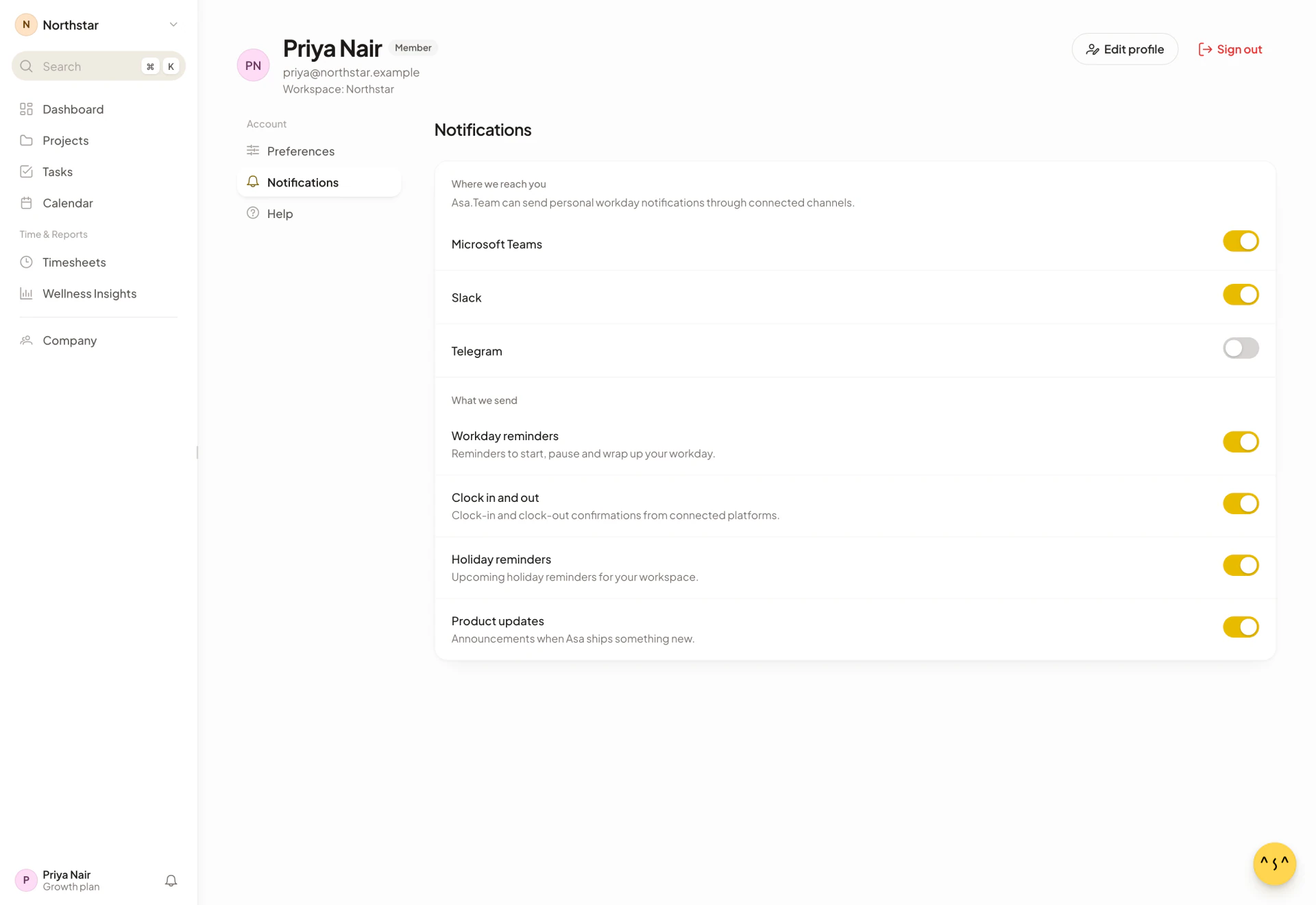
The page has three groups: Where we reach you, What we send and, for admins only, Admin alerts. Each switch saves the moment you flip it.
Choose where Asa reaches you
Where we reach you reads “Asa.Team can send personal workday notifications through connected channels.” It has one switch per chat app:
- Microsoft Teams
- Slack
- Telegram
A switch controls everything Asa sends you on that app. Turn Slack off and Asa stops messaging you in Slack, while Teams and Telegram carry on. The switches start on. Turning one on or off has an effect only if you have linked that app.
If you are linked to the same app in more than one company, the switch applies to each link you have.
There is no switch for WhatsApp. Asa only replies to you there and does not send scheduled messages, so there is nothing to turn off. See WhatsApp.
Choose what Asa sends
What we send has four switches. They are all on until you change them.
| Switch | What it does |
|---|---|
| Workday reminders | “Reminders to start, pause and wrap up your workday.” See below. |
| Clock in and out | Alerts when a teammate clocks in or out. Only admins receive these. See Clock in and out alerts. |
| Holiday reminders | “Upcoming holiday reminders for your workspace.” |
| Product updates | “Announcements when Asa ships something new.” A message from Asa with a See what’s new button that opens the changelog. |
Workday reminders
Asa sends these around your own schedule:
- Morning. “Good morning! Your work day starts at 9:00 AM. Don’t forget to clock in!” with a Clock In Now button. It arrives at the hour your day starts, and only if you have not clocked in yet.
- Evening. Still clocked in? “Your work day ended at 5:00 PM. Don’t forget to clock out!” with a Clock Out Now button. It arrives at the hour your day ends, and only if you are still clocked in.
- Break start and end. Break time! and Break ending soon! with Start Break and End Break buttons. They are sent only when breaks are set up with a start and end time.
You get each one at most once a day on each app. Workday reminders are not sent when your schedule is flexible, because there is no fixed start or end to remind you about. See Work schedules and Clock in and out.
Clock in and out alerts
On the web page, Clock in and out is described as “Clock-in and clock-out confirmations from connected platforms.” In practice the alert goes to admins: when a teammate clocks in or out, every admin who has the switch on gets a message such as “Alex Tan clocked out at 5:31:02 PM”. The person who clocked is not alerted about themselves. If you are not an admin, this switch has no alerts to send you.
Admin alerts
Admins see a third group, Admin alerts. Members and team leads do not see it.
| Switch | What it does |
|---|---|
| Admin briefings | “Daily summaries of team activity and items needing review.” Two messages: a morning briefing and an end-of-day summary. See below. |
| First clock-in alerts | “A heads-up when the first teammate starts their day.” |
| Feature alerts | “Task updates and amendment requests from your team.” Wellness alerts use this switch too. |
Morning briefing and daily summary
Both come from Admin briefings.
- Morning briefing. Good morning, {company name} with a line such as “2 pending approvals need attention this morning.” or “No pending approvals this morning.” It lists Team size, Leave requests and Amendments and has an Open Dashboard button. It can include a project briefing too. It is sent at the hour your work day starts, and is skipped when the company’s schedule is flexible.
- End-of-day summary. Daily Summary - {company name} with the date and Team Active, Total Hours, On Time, Late, Clock Ins and Clock Outs, plus a View Full Report button. It goes out once a day, at the hour the company’s work day ends in the company time zone, to admins who are working that day.
First clock-in alerts
When the first person of the day clocks in, admins get a message such as “Alex Tan clocked in on time at 9:02:11 AM”, or “late” when they started after the start time and grace period. If no start time applies, it reads “Alex Tan clocked in at 9:02:11 AM”. An admin who is the person clocking in is not alerted about themselves.
Feature alerts
Admins are told about task updates and about new time correction requests from their team.
How saving works
Changes save as you make them. A small status in the page header reads Saving…, then Saved. If it fails, it reads Couldn’t save with a Retry button, and the switch goes back to its earlier position. Select Dismiss save status (the cross) to close it.
Change settings from chat
You can change the same switches without opening the web app.
| App | How |
|---|---|
| Slack | Send /asa notifications and use the window that opens. See Slack. |
| Microsoft Teams | Message Asa notifications or settings and use the card that appears. |
| Telegram | Send /notifications to the bot in a private chat with it. In a group, the bot tells you to message it directly. |
In Slack and Teams the top switch is Enable all notifications, and in Telegram it is All notifications. It mutes everything Asa sends you in that app without changing your individual choices. In Teams the card says “Turn this off to pause every Teams notification from Asa.” This is the same control as the app’s switch under Where we reach you.
What these settings do not change
The bell in the app header lists notifications inside Asa. It is not controlled by these switches.
If you are not getting messages
- Check that Where we reach you has the right app turned on.
- Check What we send for the message you expect.
- Confirm your account is linked to the app: open Company > Integrations.
- If you are an admin and expect an alert, check Admin alerts.
See Troubleshooting if it still does not arrive.