
How to connect Microsoft Teams to Asa.Team
Install Asa from the Teams app store, add it to your team’s channel, link your account and clock in, take breaks and check hours from Microsoft Teams.
On this page
Once Asa is in Microsoft Teams, people can clock in, take breaks, check their hours, ask about leave and log how they feel from Teams. They can message Asa directly, or mention it in a channel or group chat. An admin can also point Asa at team channels so Project Intelligence can read them.
Teams is one of five integrations. See Chat apps and integrations for how it compares with Slack, Telegram and WhatsApp.
Before you start
- To set up a team or group chat for your company, you need to be an admin of your Asa.Team company.
- To install Asa, you need permission to add apps in Microsoft Teams. If your organisation restricts apps, ask your Teams admin to approve Asa.
- Anyone in the company can link their own Teams account. You do not need to be an admin for that.
Install Asa from the Teams app store
- In Asa.Team, open Invite team member and select the Team chat tab. You can also use the Add Asa to your team’s chat step in your Dashboard’s setup guide.
- Select Add to Teams. The Microsoft Teams app store opens in a new tab.
- Add the Asa app in Teams.
If you are not an admin, open Company > Integrations, select the Microsoft Teams tab and select Get Asa for Teams. It opens the same app page.
The first time Asa is added to a chat, it greets you in that chat. In a direct chat, the greeting shows Connect Account, Sign Up and Help buttons.
Link your account
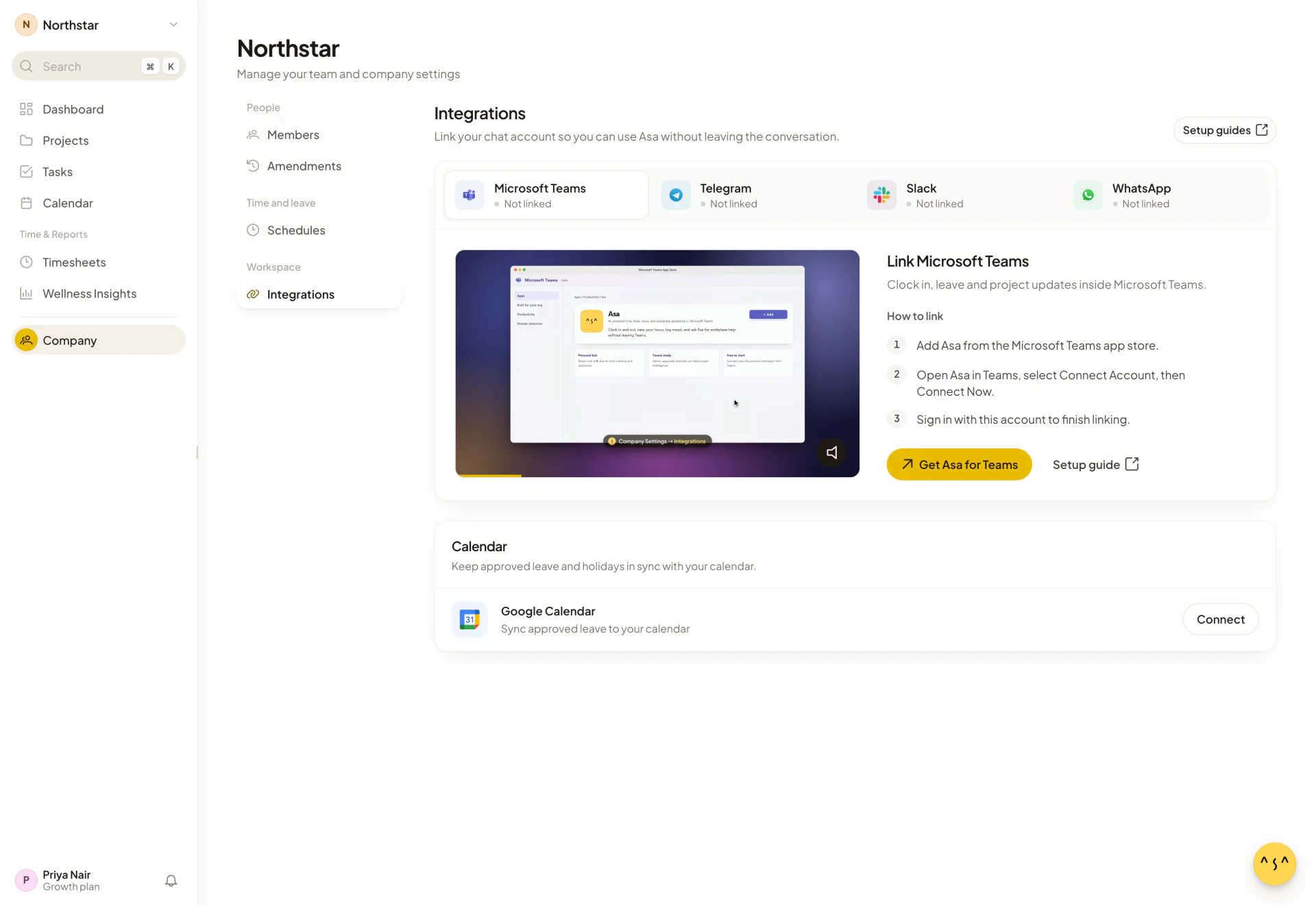
Everyone links their own account once.
- In Teams, open Asa and send
connect, or select Connect Account on the greeting. - In Asa’s reply, select Connect Now. A browser page titled Connect to Asa opens.
- Sign in to Asa.Team.
- If you belong to more than one company, choose one under Select a company you wish to connect to and select Link Company.
The page then says “Your account has been linked to” your company, and you can close it and return to Teams.
connectonly works in a direct chat with Asa. In a channel or group chat, Asa answers with setup instructions instead, so your personal link is never visible to others.
The Microsoft Teams tab under Company > Integrations repeats these steps and shows Linked when it works.
Add Asa to a team channel or group chat
Do this when you want staff to clock in from a shared channel, or when you want Project Intelligence to read it. Only an admin can set it up, and only once per team or group chat.
- Install Asa as described above, then add Asa to the team or group chat in Teams. In the setup dialog this step is Add Asa to your staff team.
- Open a direct chat with Asa and link your own account, if you have not already.
- Come back and post any message in the channel or group chat. Asa notices the channel as soon as a linked admin writes in it.
Asa then posts one welcome message in the channel with a Join {company} on Asa button (your company’s name in place of {company}), so people can join Asa.Team. If you see “Hi everyone, I’m Asa. To set up clock-ins here, a workplace admin does this once”, nobody has finished the setup yet.
A team counts as one space: setting up one channel connects the team’s other channels too. A group chat is its own space.
A team or group chat belongs to the first company that sets it up. Another company cannot take it over.
Clock in and use Asa in Teams
In a direct chat, type a command or just say what you want. In a channel or group chat, mention Asa first, for example @Asa in. Asa ignores channel messages that do not mention it.
| Message | What it does |
|---|---|
in or clock in |
Clock in |
out or clock out |
Clock out |
breakstart or break start |
Start a break |
breakend or break end |
End a break |
notifications or settings |
Open your notification settings |
help |
Show what Asa can do |
connect |
Link your account |
disconnect |
Unlink your account |
Asa confirms each entry, for example “Clocked in at 9:02 AM.” (with “(late)” when you are past the grace period), “Clocked out at”, “Break started at” and “Break ended at ... Welcome back.”
For everything else, ask in your own words, for example:
- “Who’s online right now?”
- “How are my hours this week?”
- “I need to take annual leave next Friday”
- “Show my projects”
Teams has no separate commands for hours, logs or mood. Asa answers those questions in plain language. When Asa is about to change something for you, such as submitting a leave request, it posts a card to confirm first. See Ask Asa and Request and approve time off.
The first time you clock in each day, Asa also asks how you are feeling, with a mood card. See Mood check-ins.
When Asa says no
Asa quotes the same reasons everywhere you clock in:
- “You are already clocked in.” or “You are not currently clocked in.”
- “You are currently on a break. End your break before clocking out.”
- “You must be clocked in before starting a break.”
- “Breaks are not enabled for you. Please contact your administrator to configure break settings.”
- “You must be assigned to a team before you can clock in or out. Please contact your administrator.” This appears when your company uses Teams and you are not in one.
- “Your account has been disabled. Please contact your administrator.”
If your company is on the Starter plan, Asa stops answering plain-language messages after the company’s 15 daily AI messages and shows “Daily AI Limit Reached”. The commands in the table above still work. See Chat apps and integrations.
Choose which reminders Asa sends
Asa sends workday reminders, holiday reminders and mood check-ins to you in Teams. Each person controls them:
- In Asa.Team, open the account menu, select Profile, then Notifications. Under Where we reach you, turn Microsoft Teams on or off, and under What we send, choose the reminders you want.
- In Teams, send
notificationsto Asa. The card has an Enable all notifications switch and a switch for each type. Select Save Preferences to apply them. Asa then replaces the card with a summary that says “Notifications are on.” or “All notifications are paused.” and a Change settings button.
Admins also see Admin alerts such as admin briefings and clock in/out alerts. See Notifications.
Use a channel for Project Intelligence
Once a channel is connected as above, an admin can attach it to a project. In Projects, open the project and select Connect a conversation (or Add source next to Listening to), then choose the channel or group chat from the list. If the list says “Microsoft Teams is connected, but Asa has not detected any usable conversations yet. Add it to a channel and refresh.”, add Asa to the channel, post a message there and select Refresh list.
Asa reads only the channels you connect and never reads direct messages. See Projects and Project Intelligence.
Disconnect Microsoft Teams
- Unlink yourself. Send
disconnectto Asa in Teams, or open Company > Integrations, select the Microsoft Teams tab and select Unlink Microsoft Teams. Asa replies “Your Microsoft Teams account has been disconnected from” your company. Your company’s connected channels stay connected, and you can runconnectlater to link to a different company. - Disconnect a team or group chat (admins). Open Company > Integrations, select the Microsoft Teams tab, find the space under Connected chats and select Disconnect. Asa stops reading and posting in it. For a team, that includes its other channels. People stay linked and can still message Asa directly.
- Connect it again. Remove Asa from the team or group chat in Teams and add it back, then post a message as a linked admin.
- Remove Asa from Teams. If Asa is removed from a team or chat in Teams, Asa releases that space and stops reading it.