
Project Intelligence, project status from your team chats
Connect a Slack, Teams, Telegram or WhatsApp channel to a project and Asa turns the conversation into project health, blockers, decisions and suggested tasks.
On this page
- What Project Intelligence watches
- Turn on Project Intelligence for a project
- From an existing project
- While creating a new project
- Pause, resume or change the conversations
- What you see
- Resolve a blocker
- Turn a suggestion into a task
- Ask Asa about a project
- When updates appear
- Who sees the output
- Plan limits
- Limits and good to know
Project Intelligence reads the chat channels where a project is discussed and turns them into a plain-language picture of the project: how it is going, what is blocking it, what was decided and what needs a task. You connect a channel to a project once. After that, Asa keeps the project’s status up to date without anyone writing a report.
Admins set it up and see the full output. Anyone can ask Asa how a project is going.
Asa is read-only in your channels and never reads direct messages. It reads only the channels and group chats you attach to a project.
What Project Intelligence watches
You attach one or more conversations to a project. Asa supports:
| App | What you can attach |
|---|---|
| Slack | Channels |
| Microsoft Teams | Channels and group chats |
| Telegram | Groups |
| Groups, connected by scanning a QR code |
Asa listens to new messages as they arrive. It does not need to be mentioned. In Slack it can also read recent history when you attach a channel: up to 3 days and 100 messages. Microsoft Teams, Telegram and WhatsApp are live only, so Asa sees messages from the moment you attach the conversation.
One conversation can feed several projects, and one project can have several conversations.
When you attach a Slack channel, a Teams conversation or a Telegram group, Asa posts a short note there:
Note: this conversation is now linked to “{project name}” in Asa. Helpful project updates and discussion shared here may show up in the project summary so everyone stays on the same page.
Asa posts nothing in WhatsApp groups.
Turn on Project Intelligence for a project
Only admins can do this. Before you start, connect at least one chat app and add Asa to the channel or group you want to watch. See Integrations for each app, for example Slack.
From an existing project
- In the sidebar, select Projects, then choose the project.
- Select the More actions (three dots) button next to the project name, then choose Project Intelligence.
- Under Pick the chats Asa should read for this project, tick the conversations to watch. If an app is not connected yet, select Connect next to it.
- If a chat is missing, add Asa to it in the chat app and select Refresh list.
- Select Turn on Project Intelligence.
The footer shows how many conversations Asa will read, for example “Asa will read 2 conversations”. Once on, the project shows Listening to with the connected conversations.
While creating a new project
- In Projects, select the Create a new project button.
- Enter a Project name and a short description, then select Next. The description is required here, and a fuller one helps Asa decide which messages are about the project.
- On the next step, tick the conversations to watch, then select Create project.
You can create the project without picking a conversation. The page then says “Project created. Connect a chat source anytime to turn on Project Intelligence.”
Write a clear project description. Asa uses it to separate project messages from general chatter in the same channel.
Pause, resume or change the conversations
Open the project, select More actions, then Edit project. Next to Intelligence, the status shows Connected, Paused, Plan blocked, Project inactive or Not connected.
- Select Pause to stop Asa reading new messages. The conversations stay linked. Select Resume to start again.
- Select Configure (or Set up if nothing is connected yet) to change which conversations Asa reads.
Only active projects are watched. If you complete or archive a project, its status becomes Project inactive.
What you see
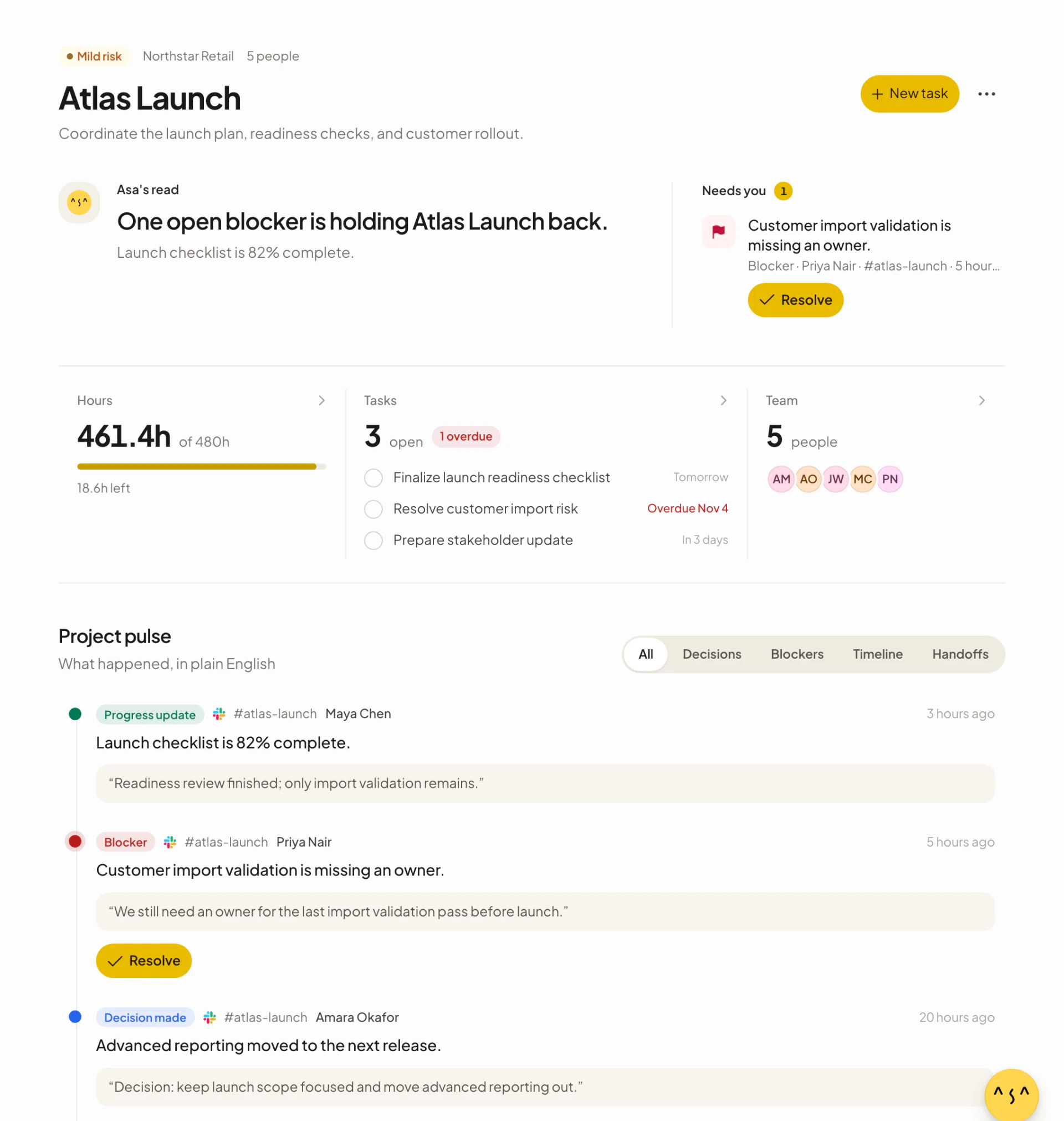
Open Projects and select a project. Admins see:
- Asa’s read: a sentence or two on where the project stands, with when it was last updated. With open blockers it reads, for example, “2 open blockers are holding {project} back.” With no activity it says the project is quiet and suggests connecting conversations.
- Health: On track, Mild risk, Needs attention or Quiet next to the project name. While Asa is still learning a project, the explanation can read “Project Intelligence is still building context from recent conversations.”
- Needs you: open blockers and tasks Asa suggests. It shows up to three, with Resolve and Create task buttons. When there is nothing to act on it says “Nothing needs you right now.”
- Project pulse: “What happened, in plain English”. Each entry shows its type, the chat app and channel, who said it, when, a one-line summary and a quote of the original message. Filter with All, Decisions, Blockers, Timeline and Handoffs, and select Load earlier signals for older entries.
Each entry is one of these types: Progress update, Work completed, Blocker, Waiting on dependency, Risk, Decision made, Open question, Handoff, Timeline change, Scope change, Release, Incident, Positive momentum or Slowdown.
The admin Dashboard also has a Project Intelligence card with the latest entries for a project you choose. Where nothing is connected, it shows a button that starts setup.
Resolve a blocker
Select Resolve next to a blocker, under Needs you or in Project pulse. Asa marks it resolved (“Blocker marked as resolved.”) and it leaves the list.
Turn a suggestion into a task
When a conversation names a clear next step, Asa attaches a suggested task to the entry. Select Create task to open the task form with Asa’s suggestion filled in. Review it, change what you need and save. Asa never creates the task by itself. See Tasks for the task board.
Ask Asa about a project
You can ask in the Asa chat in the app, or in Slack, Teams, Telegram and WhatsApp direct messages with Asa. For example, “How is the launch project going?”, “What is blocking the website redesign?” or “Which projects need attention?”. Asa answers from the project’s recent entries, and from its hours and tasks where available.
Answers cover the projects the person asking can access, so a member only hears about projects they are on or that are open to everyone.
When updates appear
Asa collects messages in daily batches and turns them into entries once a day, around midnight in your company’s time zone. When you open a project or ask Asa about it, Asa first catches up on anything it has not processed yet, so a fresh question reflects recent messages.
Asa leans towards missing an unclear message over inventing an entry. Small talk, and general updates that do not name the project, are usually left out. Where a message says “tomorrow” or “next Monday”, the entry records the actual date.
Who sees the output
| Output | Who sees it |
|---|---|
| Project pulse, Needs you, Listening to, suggested tasks | Company admins |
| Project Intelligence card on the Dashboard | Admins |
| Answers from Asa about a project | Anyone who can access that project |
Project pulse shows an admin note to everyone else: “Project pulse is visible to company admins only.”
Plan limits
How many projects you can watch, and how many chat messages Asa reads each month, depend on your plan:
| Plan | Watched projects | Messages read per month |
|---|---|---|
| Starter | 1 | 1,000 |
| Growth | 20 | 100,000 |
| Scale | Unlimited | 300,000 |
| Enterprise | Unlimited | Unlimited |
If you reach the limit when you turn it on, you see “Your plan includes Project Intelligence on 1 project. Upgrade to add more.” A watcher blocked by the plan shows Plan limit reached. See /pricing for the full comparison.
Limits and good to know
- A project you watch must be active.
- Telegram groups must let Asa see all messages. In BotFather, turn off Privacy Mode for the bot, or make the bot an admin of the group.
- Only Slack imports past messages. In Teams, Telegram and WhatsApp, anything said before you attached the conversation is not read.
- Microsoft Teams channel reading also needs a Teams admin to approve the extra permission when the app is added to the team.
- If an app shows “{app} is connected, but Asa has not detected any usable conversations yet”, add Asa to a channel or group, post a message there, and select Refresh list.
- A conversation marked Needs attention in the list has a problem. Hover over the label to see the reason.
Project Intelligence reports what people wrote in chat. It does not replace the hours and tasks recorded in Asa, and its health label is a signal for you to look closer, not a verdict.