
How to connect Telegram to Asa.Team
Link your Telegram account to the Asa bot, add Asa to your staff group and clock in, take breaks and check hours with slash commands or plain messages.
On this page
Asa is a Telegram bot, @AsaTeamAssistantBot. Once your Telegram is linked, you can clock in, take breaks, check your hours and ask about leave in a private chat with Asa. An admin can add the bot to your staff group so everyone sees who is in, and so Project Intelligence can read the group.
Telegram is one of five integrations. See Chat apps and integrations for how it compares with Slack, Microsoft Teams and WhatsApp.
Before you start
- Everyone needs a Telegram account and an Asa.Team account in the same company. If your workplace sent you an invite link, open it first. Otherwise you land in no company.
- Asa is one shared bot, so there is nothing to install. To connect a group, you need to be an admin of your Asa.Team company and a member of that group.
Link your account
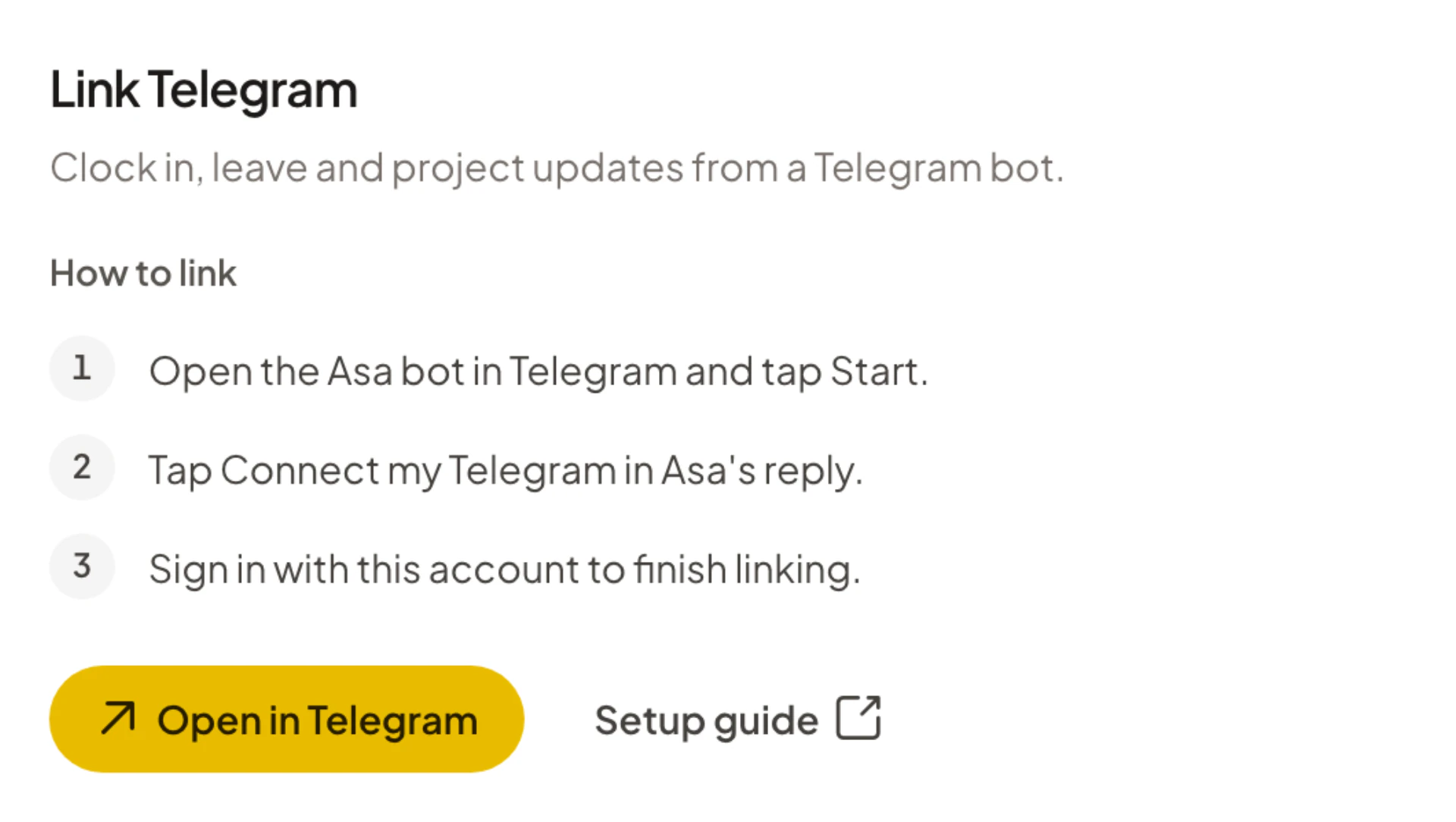
Everyone links their own Telegram once.
- Open Company > Integrations in Asa.Team and select the Telegram tab.
- Select Open in Telegram. Telegram opens a chat with Asa.
- Tap Start.
- In Asa’s reply, tap Connect my Telegram. A browser page titled Connect to Asa opens.
- Sign in to Asa.Team. If you belong to more than one company, choose one and select Link Company.
The page says “Your account has been linked to” your company, and you can go back to Telegram. The Telegram tab now shows “Telegram is linked”.
You can also search for @AsaTeamAssistantBot in Telegram, tap Start and carry on from step 4. Sending /connect later does the same thing. If you are already linked, Asa says “You’re connected to” your company and offers Switch company.
Never link from inside a group. Asa sends the personal link only in a private chat, because everyone in a group would see it.
Add Asa to your staff group
An admin does this once per group.
- In Asa.Team, open Invite team member and select the Team chat tab. You can also use the Add Asa to your team’s chat step in your Dashboard’s setup guide.
- Select Add to Telegram. In the Add Asa to your team’s chat dialog, this step is called Add Asa to your staff group with the button Add to a Telegram group.
- In Telegram, pick the group your staff already use and add Asa as a member.
- Wait for Asa to join. The dialog says “Waiting for Asa to join your group…”, then “Asa is in” followed by the group name.
- Select Post the invite link there (or Post invite in the Team chat tab) so Asa posts a Join button in the group.
Asa greets the group with “Hi everyone, I’m Asa. {name} added me so the team at {company} can clock in right here.” and a join button. Everyone in the group can see the invite, and seats go to whoever joins first. See Members.
If the dialog stays on the waiting message, check that Asa is a member of the group, then send any message in the group.
If someone else added the bot
When a person who is not a linked admin adds Asa, it posts “Hi everyone, I’m Asa. To set up clock-ins in this group, a workplace admin taps below once.” with a Connect this group button. An admin taps it, which opens a private chat with Asa and connects the group.
- If the admin has not linked Telegram yet, Asa first says “First, link this Telegram to your Asa account. As soon as you do, I’ll connect the group.”
- A non-admin gets “Only an admin of” the company “can connect a group. Ask your manager to tap Connect this group.”
- If the admin is not in the group, Asa says “I couldn’t find you in that group. Check that Asa is still in it, then tap Connect this group again.”
- A group that another company connected first replies “This group is already connected to” that company. The first company to connect a group keeps it.
Clock in and use Asa in Telegram
In a private chat with Asa you can use commands or write naturally. These commands are in Telegram’s command menu:
| Command | What it does | In the group command menu |
|---|---|---|
/in |
Clock in | Yes |
/out |
Clock out | Yes |
/breakstart |
Start a break | Yes |
/breakend |
End a break | Yes |
/status |
See who on your team is clocked in and out | Yes |
/teams |
See your teams and who is in each | No |
/logs |
See today’s entries | No |
/hours |
See this week’s hours | No |
/notifications |
Open your notification settings | No |
/connect |
Link your Telegram, or switch company | Yes, and in a group it shows the group’s connect prompt |
/disconnect |
Unlink your Telegram | Yes, and in a group an admin uses it to disconnect the group |
/help |
Show the commands | Yes |
Plain messages work too, for example “Clock me in”, “How are my hours this week?”, “Who is online right now?” or “I need to take annual leave next Friday”. Asa asks you to confirm before it changes anything, such as submitting a leave request. See Ask Asa and Request and approve time off.
Asa confirms each entry, for example “Clocked in at 9:02 AM.” (with “(late)” when you are past the grace period) or “Break ended at ... Welcome back.” The first time you clock in each day, Asa adds “How are you feeling today?” with mood buttons. See Mood check-ins.
/teams replies “Teams feature is not enabled for this company” when your company has not turned on Teams.
In a group
In a group, the commands marked Yes above work for the person who sends them. Mention @AsaTeamAssistantBot to ask Asa a question in plain language.
If you ask Asa to clock you in with a plain message in a group, Asa does not clock you in there. It replies with “Message me privately and I’ll clock you in” and a link to the private chat. Use /in in the group, or message Asa privately.
Your notification settings are private. /notifications in a group replies “Your notification settings are private. Message me directly and send /notifications.”
When Asa says no
Asa gives the same reasons in every chat app:
- “You are already clocked in.” or “You are not currently clocked in.”
- “You are currently on a break. End your break before clocking out.”
- “Breaks are not enabled for you. Please contact your administrator to configure break settings.”
- “You must be assigned to a team before you can clock in or out. Please contact your administrator.”
- “No Asa Company connected, please use the /connect command and try again.” You used
/logs,/status,/hoursor/teamsbefore linking. Clocking in before linking sends the Connect my Telegram button instead. - “Your account has been disabled. Please contact your administrator.”
If your company is on the Starter plan, plain-language messages stop after the company’s 15 daily AI messages. Slash commands still work. See Chat apps and integrations.
Choose which reminders Asa sends
Asa sends workday reminders and holiday reminders as private messages, with buttons such as /in and /out to act on them. Each person controls them:
- In Asa.Team, open the account menu, select Profile, then Notifications. Under Where we reach you, turn Telegram on or off, and under What we send, choose the reminders you want.
- In Telegram, send
/notificationsin a private chat. Tap All notifications to pause or resume everything, or tap a type to turn it on or off. Open Asa Settings opens the same settings on the web.
Admins also see admin alerts such as admin briefings and clock in/out alerts. See Notifications.
Use a group for Project Intelligence
After Asa is in a group, an admin can attach it to a project. In Projects, open the project and select Connect a conversation (or Add source next to Listening to), then pick the group. If the list says “Telegram is connected, but Asa has not detected any usable conversations yet. Add it to a group and refresh.”, add Asa to the group, send a message there and select Refresh list.
Asa reads only the groups you connect and never reads private chats. Telegram only passes a group’s ordinary messages to a bot that is allowed to see them. If Asa does not pick up messages that do not mention it, make Asa an admin of the group. See Projects and Project Intelligence.
Disconnect Telegram
- Unlink yourself. Send
/disconnectto Asa in a private chat, or open Company > Integrations, select the Telegram tab and select Unlink Telegram. Asa replies “Your account has successfully disconnected from” your company. Your company’s connected groups stay connected. - Disconnect a group (admins). Send
/disconnectin the group, or open Company > Integrations, select the Telegram tab, find the group under Connected chats and select Disconnect. Asa stops reading and posting in the group, but everyone stays linked and can still message Asa directly. Asa posts a Connect this group button so an admin can connect it again. - Not an admin. If you send
/disconnectin a group and are not an admin of the company that owns it, Asa says so and reminds you to message it directly to unlink your own Telegram.