
Add and manage members
Invite people by email, link or team chat, review pending invites, make admins, pause or remove members, and see how your plan limits seats.
On this page
- Read the member list
- Search for a member
- Invite people
- Invite by email
- Invite with a link
- Invite through a team chat
- Invite from Slack
- What invited people see
- Review pending invites
- Resend an invite
- Copy an invite link
- Revoke an invite
- Make someone an admin
- Pause a member
- Restore a paused member
- Remove a member
- Seats and member limits
- When your plan gets smaller
The member list shows everyone in your company. Admins use it to bring people in, give or take away admin access, pause people and remove them. Everyone else can see who they work with.
To open it, select Company in the sidebar, then Members under People.
Read the member list
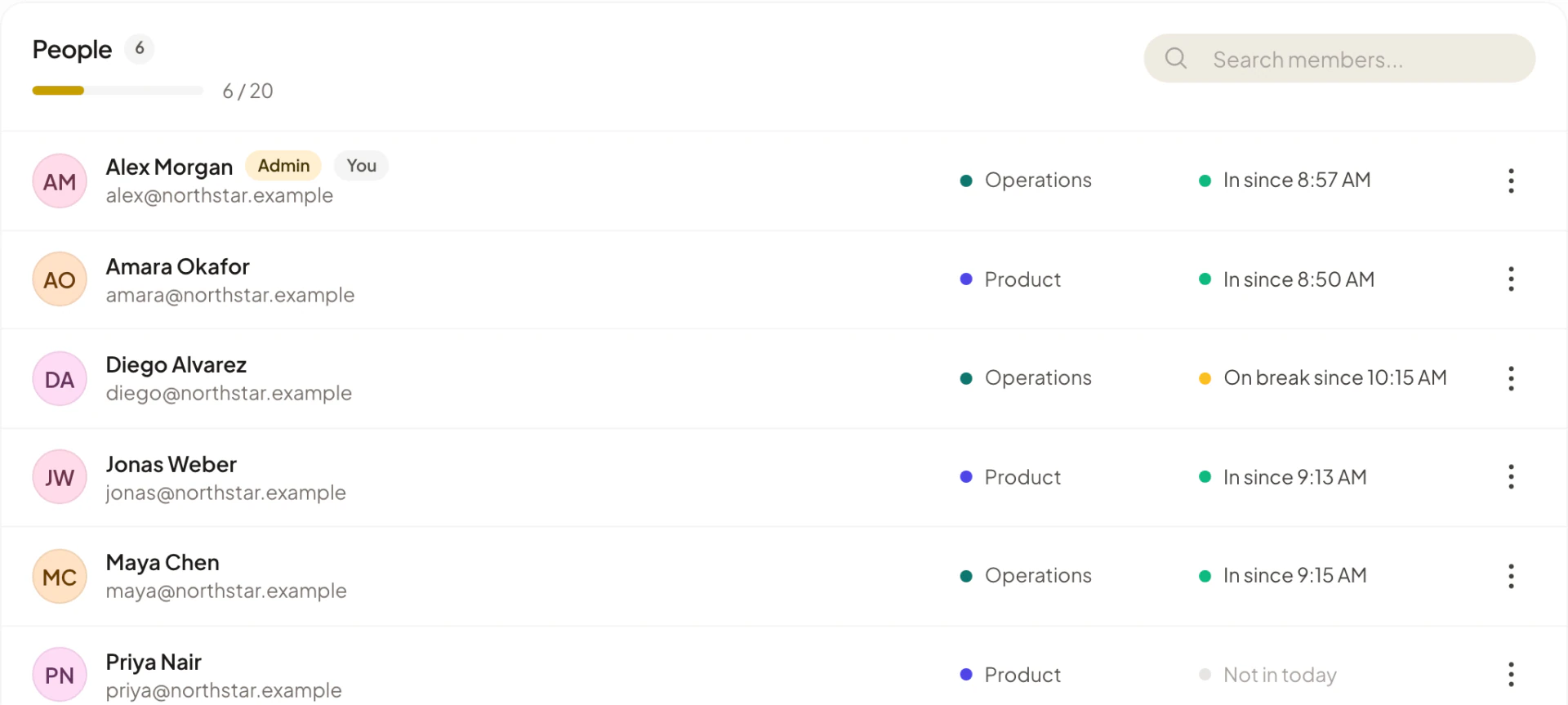
Admins see the title Members and the line “Everyone in your workspace, their role and whether they are working today.” Each row shows:
- The person’s name, an Admin tag if they are an admin, and a You tag on your own row.
- Their email address.
- Their team, if your company uses teams, or No team.
- Today’s clock status: In since 9:02 AM, On break since 12:30 PM, Clocked out at 5:30 PM or Not in today. Times use the company time zone.
Members and team leads see the same list without the team, status and menu columns. If your company uses teams, they see only the people in their own team, under the team’s name.
Search for a member
Type in Search members... above the list. The search matches names and email addresses. If nothing matches, the list shows “No members match your search”.
Invite people
Only admins can invite. Select Add Member at the top of the page. The Invite team member dialog opens with the subtitle “Add members to” and your company name. When you are the only member, an Invite your first teammate card offers the same button.
| Tab | Use it to |
|---|---|
| Send each person a secure invite link by email. | |
| Team chat | Post a join button into a Slack, Microsoft Teams or Telegram chat that Asa is already in. Marked Recommended. |
| Link | Copy one link and share it anywhere. |
| Slack members | Pick people from your Slack workspace and Asa sends each a join link. Appears only after Asa is installed in Slack. |
You can also reach this dialog from the setup guide and from the command palette. Set up your company walks through a first invite.
Invite by email
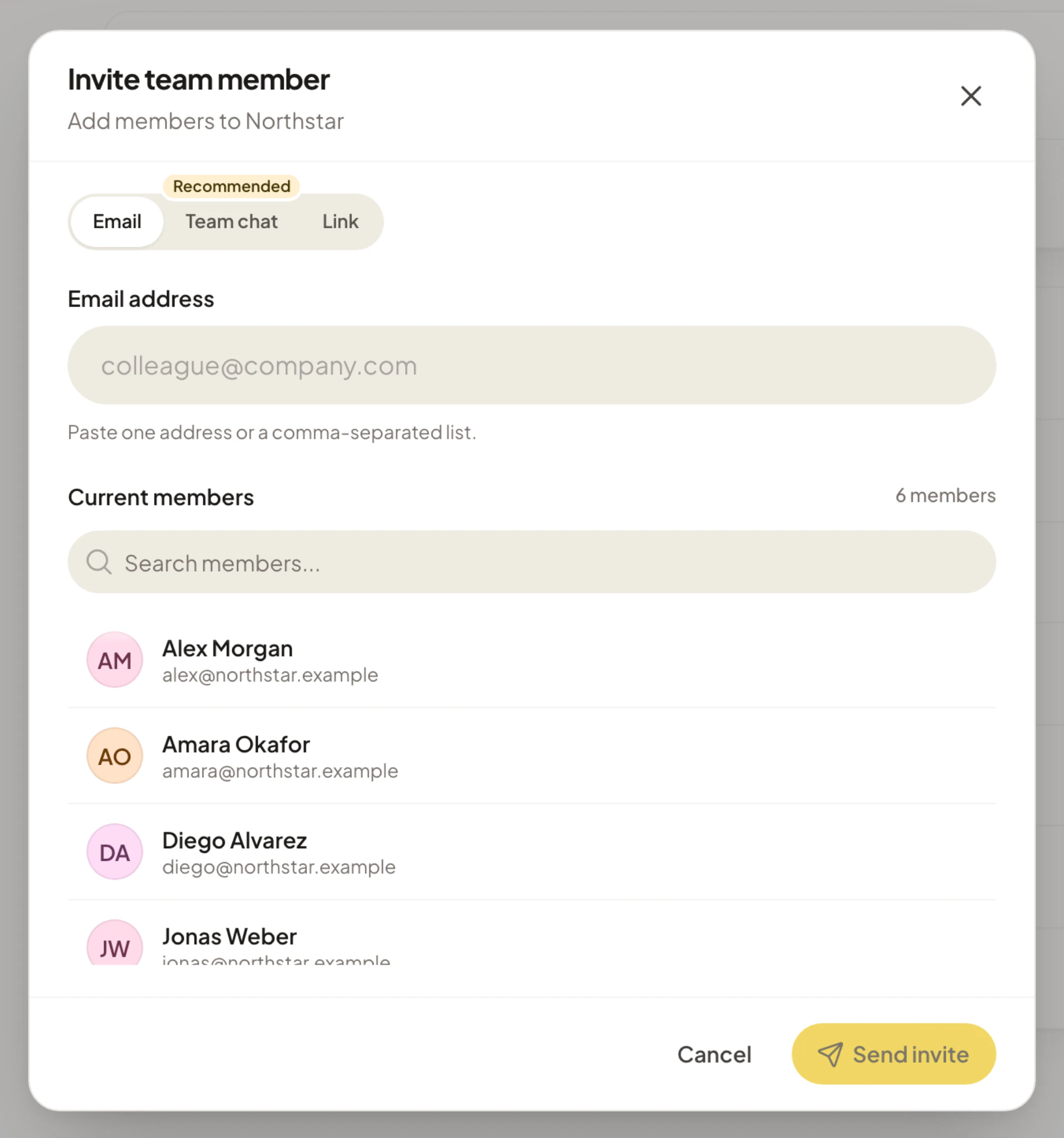
- In the Email tab, enter one address or several in Email address. Separate them with commas, spaces or semicolons.
- Check the line under the field. It reads “1 invite ready” or “3 invites ready” when every address is valid, and “1 address needs a fix” when one is not.
- Select Send invite.
Addresses that already belong to a member or have a pending invite are marked Already a member and skipped. Send invite stays disabled until at least one address is valid and none is invalid.
When the emails go out, the dialog shows “1 invite sent” or “3 invites sent” with “They will receive an email with a secure link.” and a Done button. If an email cannot be delivered, you see “Email delivery failed, but secure invite links are ready to copy.” Select Copy next to the link and send it yourself.
Invite with a link
- Open the Link tab. Asa creates the link and shows it under Invite link.
- Select Copy link. The button changes to Copied.
Anyone with the link can join your company. Seats go to whoever joins first, and the link stops working 7 days after it is created. If an unexpired link already exists, Asa shows the same one again.
Invite through a team chat
- Open the Team chat tab.
- If Asa is not in a chat yet, choose Add to Telegram, Add to Teams or Add to Slack and finish adding Asa there. The dialog shows “Waiting for Asa to join your chat. This updates on its own.” and switches to the chat list once Asa arrives.
- Under Choose a chat, select the chat.
- Select Post invite. Asa asks “Post the invite in” that chat. Select Post invite again.
Asa posts a Join button for your company in the chat. Everyone in the chat can see the link, and seats go to whoever joins first. See Integrations for connecting chats.
Invite from Slack
Once Asa is installed in your Slack workspace, the Slack members tab lists people who are not in Asa yet.
- Select each person you want to invite. The count shows as “3 selected”.
- Select Send invite.
Asa sends each person a direct message with the join link. The tab also notes how many teammates already have access and are not shown. If you select more people than your plan has seats for, Asa shows “Your plan allows 2 more member(s). Deselect some teammates or upgrade your plan.” See Slack.
What invited people see
People who open an invite see Company Invitation with the name of the person who invited them and your company, and they accept or decline. These messages can appear instead:
| Message | Meaning |
|---|---|
| Invitation Expired: “This invite has expired. Please request a new invite from an admin.” | The 7 days are up. Resend the invite or send a new one. |
| “Invitation not found or already used.” | An email invite works once. |
| “The company has reached its member limit. Please contact an admin to upgrade the plan.” | Your company has no free seat. |
Review pending invites
Admins see a Pending invites card above the member list while any invite is waiting. It reads “Invitations that have not been accepted yet.” Each row shows:
- The email address, or Shareable link with a Link invite tag for link invites.
- Sent (email invites) or Created (link invites) followed by the date.
- When it ends: Expires in 3d, Expires today or Expires with a date.
- For link invites, Not used yet or Used 2x.
Resend an invite
Select Resend on an email invite. Asa sends the email again and starts a new 7-day window. You see “Invite resent”. Link invites have no Resend button.
Copy an invite link
Select Copy invite link on any row. You see “Invite link copied!”
Revoke an invite
- Select the trash icon labelled Revoke invite.
- Read “This invite link will stop working immediately.” and select Revoke invite.
You see “Invite revoked”. The person cannot use that link any more. An email invite leaves the list once it is accepted. A link invite stays until it expires or you revoke it.
Make someone an admin
- In the member’s row, open the three-dot menu (Actions followed by their name).
- Select Make admin.
- Read the confirmation and select Confirm.
The message reads “{name} will be able to manage members, schedules, leave policy, and company settings.” You see “Admin status updated”. To take it back, choose Remove admin from the same menu. The message then reads “{name} will lose admin access and become a regular member.”
A company must always have an admin. If you try to remove the last one, Asa shows “Cannot remove the last admin”. See Roles and permissions for what admins can do.
Pause a member
Pausing a member turns off their access without deleting anything.
- Open the member’s three-dot menu and select Disable member.
- Read “{name} won’t be able to access this workspace until re-enabled. Their data is kept.” and select Disable member.
You see “Member disabled”. The person moves to the Disabled Members card, which reads “These members cannot clock in/out or access company features”. When they open Asa they see Your access is paused, “An admin turned off your account.” and “A company admin can restore your access.”
Disable member does not appear on your own row or on the last admin. A paused member does not use a seat.
Restore a paused member
In Disabled Members, select Restore next to the person. You see “Member enabled”.
Restoring needs a free seat. When your company is full, Restore is disabled and Upgrade to restore appears. If a restore is attempted anyway, Asa shows “Seat limit reached. Upgrade your plan to enable more members.”
Remove a member
Removing takes someone out of the company.
- Open the member’s three-dot menu and select Remove member.
- Read “They will be removed from this company and can only rejoin with a new invite.” and select Remove.
You see “Member removed”, and the seat is freed.
Removing a member deletes their membership and any admin access in this company. It does not delete their Asa account, so they can still sign in and use any other company they belong to. To bring them back, invite them again.
If you may want the person back, pause them instead. A paused member keeps their data and you can restore them in one click.
You cannot remove yourself from a company.
Seats and member limits
Every plan caps how many active members a company can have. Plans are priced per company, not per person.
| Plan | Members included |
|---|---|
| Starter (free) | 5 |
| Growth | 20 |
| Scale | 50 |
| Enterprise | Unlimited |
Only active members count. Paused members and invites that nobody has accepted do not use a seat, but a person can only join while a seat is free. See Pricing for what each plan includes.
Admins see seat usage next to the member count, for example “3 / 5” with a progress bar, or “3 / ∞” on an unlimited plan. When the company is full the bar turns amber and an Upgrade button appears.
If you try to invite while the company is full, Asa opens Seat Limit Reached: “You have reached your Starter plan limit of 5 team members (currently 5). Upgrade to add more members.” Select Upgrade to compare plans, or Cancel. Plan and billing explains how upgrading works.
When your plan gets smaller
If the company moves to a plan with fewer seats, for example when a paid plan ends, Asa pauses the extra members automatically. It pauses the newest members first and always keeps at least one admin on. Paused people see “This company is over its member limit after a plan change.”
After an upgrade, Asa turns paused members back on automatically, starting with the ones paused longest, up to the new limit. Check the Disabled Members card afterwards and restore anyone who is still waiting.