
How to request and approve time off
Request leave from the Calendar, check your balance, and review pending requests as an admin or team lead.
On this page
The Calendar shows who is out and holds every leave request. This guide covers asking for time off and, for admins and team leads, answering requests.
An admin has to set up leave first, with leave types, allowances and holidays. Until then, the Request Leave button is hidden and the Calendar shows a Finish setting up leave checklist, with “Your admin still has to finish setting this up.” for members.
Request leave
- Open Calendar from the sidebar.
- Select Request Leave. You can also select a day and then Request leave on {date} in the day panel, or, with a mouse, drag across the days you want on the calendar. On a large screen a hint under the calendar says “Drag across days to request leave”.
- Choose a Leave Type. Types with an allowance show how much you have left, for example “16 left”.
- Pick your Dates. When you pick a single day, you can also choose Full day, Morning or Afternoon.
- Add a Note (optional) for the person approving.
- Select Submit request.
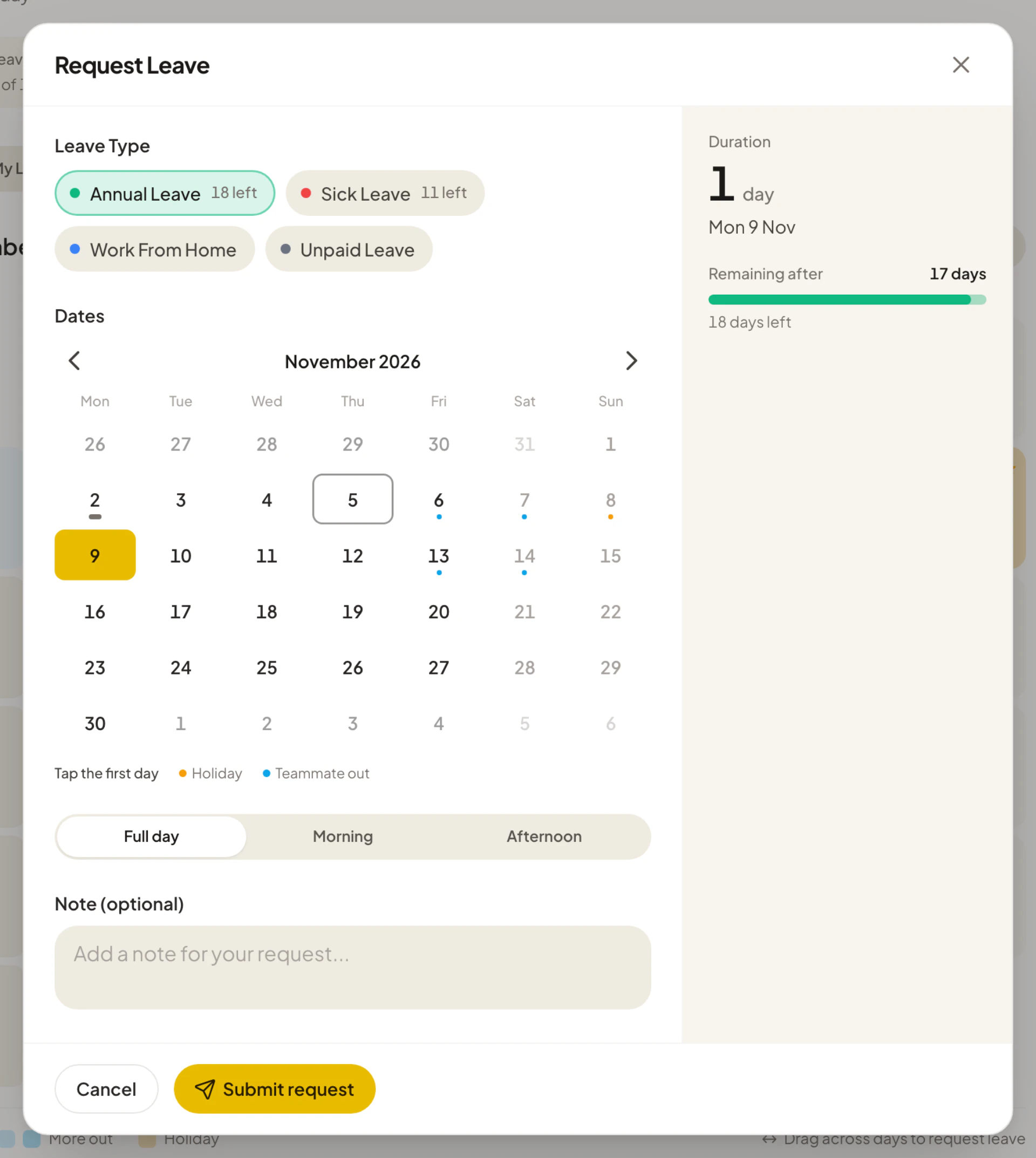
After you submit, Asa shows “Leave request submitted”. If the leave type does not need approval, the leave is approved straight away. Otherwise it waits as Pending until an approver decides.
Before you submit, the dialog warns you about anything that could block the request, such as not enough balance, too little notice, too many consecutive days, a blocked period or days you already booked. Public holidays and days your work schedule marks as off do not count against your balance.
Dates that have already passed need approval, even for a leave type that is normally approved automatically. Admins can turn this kind of request off with Allow backdated requests in the leave rules.
Leave types
When an admin sets up leave, Asa starts them with these leave types. Your admin can rename them, add others and change their rules and allowances in the leave policy, so your company may have different ones.
| Leave type | Allowance | Approval |
|---|---|---|
| Annual Leave | 14 days | Needs approval |
| Sick Leave | 14 days | Approved automatically |
| Work From Home | None | Approved automatically |
| Unpaid Leave | None | Needs approval |
| Compassionate | 3 days | Needs approval |
Check your balance and requests
The chips above the Calendar tabs show what you have left for each leave type with an allowance, such as Annual leave “16 left” “of 18”, then Your next time off and, for approvers, how many requests are waiting. Select a balance chip to start a request for that type.
Select the My Leaves tab to see your own requests and their status. For how the rest of the page works, see Use the Calendar to see who is out.
Cancel a request
On My Leaves:
- For a pending request, select Cancel Request. It is cancelled immediately.
- For an approved request, select Request Cancellation. An approver must agree before it is cancelled, and your balance is refunded once they do.
Leave that has already ended cannot be cancelled, unless you recorded it after the dates had passed.
Approve or reject requests
Admins, and team leads for their own team, see a Requests tab with the number of pending requests. Approvers are notified when a request needs a decision.
- Open the Requests tab. It opens on Pending. Use All, Pending, Approved and Rejected to filter.
- Read the request. A line such as “Also out” shows teammates who are away on the same days.
- Select Approve or Reject. Select a request to open its details first, with the note, the dates and the person’s history.
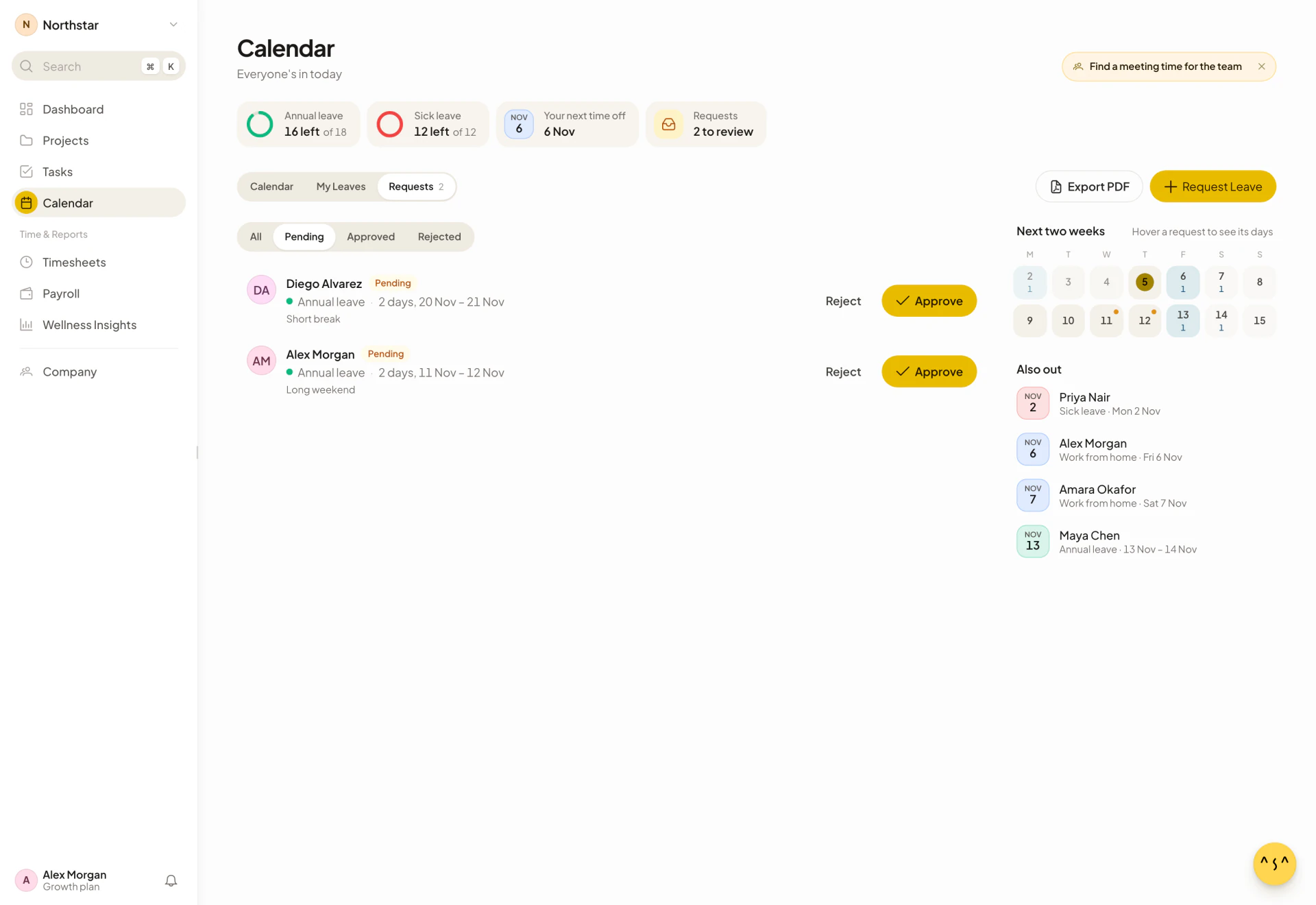
Approving checks the balance again for leave types with an allowance. Rejecting gives the days back to the person’s balance. The person is notified in Asa and in their connected chat app. If the person has connected Google Calendar, an approved request is also added to it, as described in Sync approved leave to Google Calendar.
A team lead cannot approve or reject their own request. Asa shows “Team leads cannot approve or reject their own leave requests.” and an admin has to decide it. Asa does not ask for a reason when you reject a request, so tell the person yourself.
Answer a cancellation request
When someone asks to cancel approved leave, their request shows as Pending cancellation in the Requests tab. Select Approve Cancellation to cancel the leave and refund the balance, or Reject Cancellation to keep it. Inside the request, the same choices are Approve Cancellation and Keep Leave. A person whose cancellation you reject is told that the leave stays approved.
How leave affects payroll
Payroll counts only approved leave. Pending, rejected and cancelled requests are ignored. When Include paid leave in payroll is on in your payroll settings, approved paid leave is added to the pay run. Work From Home is never paid leave.