
Projects
Create projects, choose who works on them, set a budget, track hours, connect a project chat channel and complete or archive projects.
On this page
- What each role can do
- Find a project
- Create a project
- Active project limits
- Use an existing project
- Name your first project
- Choose who works on a project
- Edit a project
- Set a budget
- Read a project’s status
- Review and edit project hours
- Set hours for your team
- Log project hours from the clock card
- Connect a chat channel to a project
- Pause or resume Project Intelligence
- Complete a project
- Archive and restore a project
Projects let you see where time and work go. Each project has a team, optional budget, tasks, logged hours and, if an admin connects a chat channel, a health read from Project Intelligence.
Everyone with project tracking sees Projects in the sidebar. Only admins create and manage projects. Members see the projects they can use, pick them on the clock card and review their own hours.
What each role can do
| Task | Members | Admins |
|---|---|---|
| See a project | Projects open to everyone, and projects they are a member of | All projects |
| Create, edit, complete, archive or restore a project | No | Yes |
| Connect a chat channel to a project | No | Yes |
| Create a task on a project | Yes, with New task | Yes |
| Pick a project on the clock card | Yes | Yes |
| Review project hours | Their own hours | Everyone’s hours |
| Set hours for other people | No | Yes |
| See Needs you and the project pulse | No | Yes |
Find a project
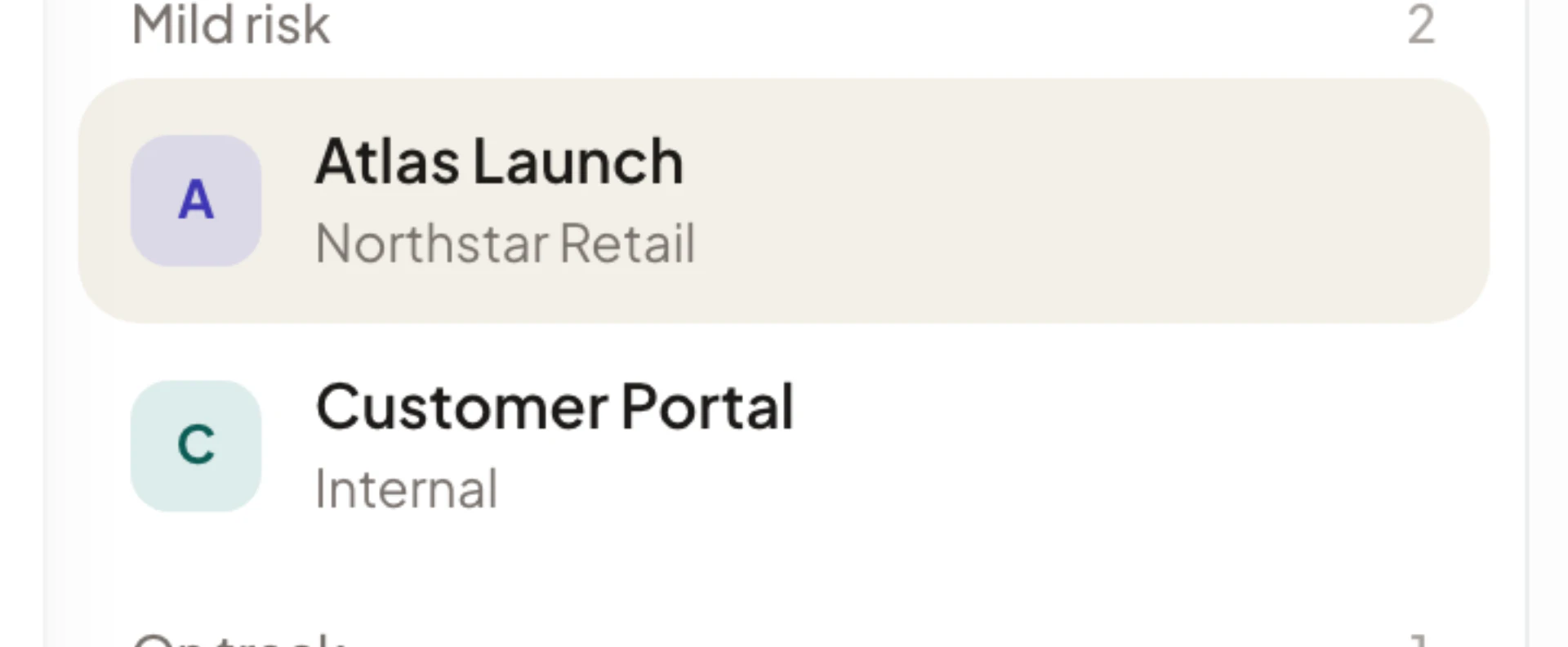
Select Projects in the sidebar. The list on the left has:
- A search box, Search projects, clients, or notes, that matches a project’s name, client and description.
- Three tabs with counts: Active, Completed and Archived.
- Groups that put the projects that need you first: Needs attention, Mild risk, On track and Quiet. A badge shows the number of open blockers or task suggestions.
Select a project to see it on the right. On a phone the list and the project are two screens: select a project to open it, then use the Projects back button or swipe to return.
If there are no projects, the page says “No projects yet”. Admins see Create a new project.
Create a project
Only admins can create projects.
- Select Projects in the sidebar.
- Select New.
- Enter a Project name. A name is required.
- Optionally add a client, pick a Color, add Team members and, on a plan with budgets, set a Budget.
- Enter a Description. It is required. The more you write, the better Project Intelligence reads the project.
- Select Next. The header shows “1 of 2”.
- On the second step, choose the chat conversations Asa should read, or leave them all unticked.
- Select Create project.
If a name or description is missing, Asa says “Add a project name to continue.” or “Add a short project description to continue.”
If you chose no conversations, Asa shows “Project created. Connect a chat source anytime to turn on Project Intelligence.” If you chose conversations, Project Intelligence turns on for the project. See Connect a chat channel to a project.
Project names can be up to 100 characters. Descriptions can be up to 500.
Active project limits
Your plan sets how many projects can be active at once. Completed and archived projects do not count.
| Plan | Active projects |
|---|---|
| Starter | 3 |
| Growth | 20 |
| Scale and Enterprise | Unlimited |
At the limit, the wizard says “You are at your active project limit right now. You can still connect Project Intelligence to an existing project.” and offers Upgrade. If a save is rejected, Asa shows “Active project limit reached. Your {plan} plan allows up to {number} active projects.” Complete or archive a project to free a place.
Use an existing project
When your company already has projects, the wizard starts with Create a new project and Use an existing project. Choose the second to connect an existing project to chat channels without changing it.
Name your first project
If you chose See where my projects stand when you created your workspace, the setup guide on your Dashboard starts with Name your first project. Select Create project on that step to open the same wizard. The step is complete as soon as your company has one active project. The next step is Connect its chat channel. See Set up your company.
Choose who works on a project
In the wizard, or in Project Settings, use the Team row.
- Select Add members.
- Pick people from the list. Select the cross on a person’s chip to remove them.
A project with no members is open to everyone. The project shows All members, and every member can pick it on the clock card. A project with members is limited to them. Other members do not see it and cannot log hours to it. Admins always see every project.
Edit a project
- Open the project and select More actions (the three dots).
- Select Edit project.
- Change the name, client, color, team, description or budget, then select Save changes.
Asa shows “Project updated.” or “Failed to save project.” The same Project Settings window also shows the project’s status and its Project Intelligence connection.
Set a budget
Budgets are available on Growth and above. On Starter, the budget row says “Upgrade to Growth or above to configure project budgets.”
In the budget row, choose one of:
- No Budget
- Hours Budget, with Total hours and Hourly rate
- Fixed Price, with Total amount and Hourly rate
The Hours card on the project shows hours logged against the budget. For an hours budget it shows what is left, for example “12h left”, or how far over you are, for example “3h over budget”. For a fixed price, Asa estimates the spend as hours multiplied by the hourly rate.
Budget use changes the project’s health. From 80% of the budget, and again once it is over, the project shows Mild risk.
Read a project’s status
Each project shows a health label next to its name:
| Label | When it shows |
|---|---|
| Needs attention | Project Intelligence reports the project at risk, or there is an open blocker |
| Mild risk | Project Intelligence says to watch it, or the budget is at 80% or more |
| On track | Project Intelligence reports it on track |
| Quiet | Completed and archived projects, in the project list |
On the project itself, an active project that has no Project Intelligence read shows Active. Completed and archived projects show Completed or Archived.
Under the name, Asa’s read gives a one-sentence summary of how the project is going. Connect a chat channel for a stronger read.
Below that, three cards show:
- Hours: total hours logged, against the budget if there is one. Admins see everyone’s total. Members see their own.
- Tasks: open tasks and how many are overdue, with the first three tasks. Tick a task’s box to mark it as done. The tick waits a moment, so you can tick again to cancel. Select the Tasks heading for the full list and suggestions.
- Team: who is on the project, or All members.
Admins also see:
- Needs you: open blockers and task suggestions from Asa, each with Resolve or Create task. It says “Nothing needs you right now” when it is empty.
- Project pulse, headed “What happened, in plain English”, with filters All, Decisions, Blockers, Timeline and Handoffs. Load earlier signals shows older entries.
- Listening to: the chat conversations connected to the project.
Review and edit project hours
- Open the project and select the Hours card.
- The hours review page opens for that project. Use Back to Projects to return.
It shows Total hours, Contributors, Active days and Avg daily, a Daily hours calendar, a By month chart and the Entries list. Admins also get a Contributors list. Select a person to filter the entries, or use the All members menu. Members see only their own hours, with the subtitle “Your hours”.
Set hours for your team
Admins can set a project’s hours for any day.
- On the Daily hours calendar, click or drag to select the days. The page says “Select days to set hours for the team”.
- Select Set hours.
- Use the plus and minus buttons for a person, or type a value. The Everyone row changes all rows at once.
- Select Save.
Asa says “Project hours saved”. Each person’s row shows No hours yet, their hours so far, or a range such as “Varies, 1h to 4h” when the selected days differ. Clear all sets every row to zero.
You cannot change a day that the member already logged themselves. Asa says “{name} already logged their own project hours for {date}.” You can see those hours but not edit them.
For a day with no clock entries, the hours you set count as that person’s worked time. They never reduce time that was clocked.
You can only set hours for people who are on the project or who already logged time to it. Archived projects cannot receive hours.
Log project hours from the clock card
Members and admins both pick the project they are working on from the clock card on the Dashboard.
- Open the Dashboard.
- In the Working on menu, select Pick a project and choose a project.
- Work as normal, then select Clock Out.
The list only shows active projects that you are a member of or that are open to everyone. If you pick a project before you clock in, Asa holds it and starts it when you clock in. If you change project while clocked in, a prompt asks you to confirm the switch. Use the clear button to stop tracking a project.
When you clock out, Asa turns the time spent on each project into project hours. The Project Hours widget shows Syncing hours while this runs and Sync pending if it takes longer. If you forgot to pick a project, select Log Projects on that widget to enter the hours yourself.
See Clock in and out for the clock card, and Timesheets for project hours on a day.
Connect a chat channel to a project
Connecting a Slack channel, Teams channel, Telegram group or WhatsApp group lets Asa read that conversation and turn it into the project’s health, blockers and suggested tasks. Asa only reads the conversations you connect and never reads direct messages. Only admins can do this, and the chat app must already be connected to your company. See Integrations overview.
- Open the project.
- Under Needs you, select Connect a conversation. If the project already has sources, select Add source next to Listening to. You can also open More actions and choose Project Intelligence.
- Find the chat app in the list: Slack (Channels & threads), Microsoft Teams (Channels & group chats), Telegram (Groups & bot chats) or WhatsApp (QR code pairing). If it is not connected, select Connect. WhatsApp opens a pairing window.
- Tick the conversations to read. Each app shows how many are selected, for example “2 of 5”.
- Select Turn on Project Intelligence, or Save changes if you are changing an existing connection.
If an app is connected but has no conversations yet, Asa says it has not detected any usable conversations yet. Add Asa to the channel or group, send a message there and select Refresh list. The footer text, “Missing a chat? Add Asa to it, then refresh.”, says the same. A conversation tagged Needs attention has a problem with its connection. Hover the tag to see why. Setup guides opens the integration guides.
Project Intelligence is limited by plan:
| Plan | Projects with Project Intelligence |
|---|---|
| Starter | 1 |
| Growth | 20 |
| Scale and Enterprise | Unlimited |
At the limit, the dialog says “Your plan includes Project Intelligence on 1 project. Upgrade to add more.”
Pause or resume Project Intelligence
Open More actions, choose Edit project and use the Intelligence row. It shows Connected, Not connected, Paused, Plan blocked or Project inactive. Select Pause to stop reading, Resume to start again, or Configure to change the conversations. A project that is completed or archived shows Project inactive. After you restore it, select Resume.
See Slack, Microsoft Teams and Telegram for setting up each app.
Complete a project
When the work is done, mark the project completed instead of archiving it.
- Open the project and select More actions.
- Select Complete project.
- Confirm with Complete project.
The confirmation reads “Mark this project as completed? You can restore it later if work resumes.” The project moves to the Completed tab, stays visible for reference and reporting, and no longer appears in the Working on menu.
Archive and restore a project
Archive a project you no longer need in the active views.
- Open the project and select More actions.
- Select Archive project.
- Confirm with Archive project.
The confirmation reads “Archive this project? It will be hidden from active views until you restore it.” Archived projects keep their history, hours and connected sources. Open the Archived tab to find one.
To bring a completed or archived project back, select More actions and then Restore project. Restoring counts against your active project limit.