
Use the Dashboard
Read the Dashboard widgets, Team Pulse and Weekly Pace, act on requests, switch weeks and teams, and choose which widgets admins see.
On this page
- What you see on the Dashboard
- Read the clock card and day timeline
- Switch weeks and teams (admins)
- Admin widgets
- Asa’s read and Suggested next
- Team Pulse
- Weekly Pace
- Action Queue
- Needs Attention
- Project widgets
- Other widgets you can add
- Member widgets
- Track a correction from My Requests
- Edit widgets (admins)
- Preview the Dashboard as a team member
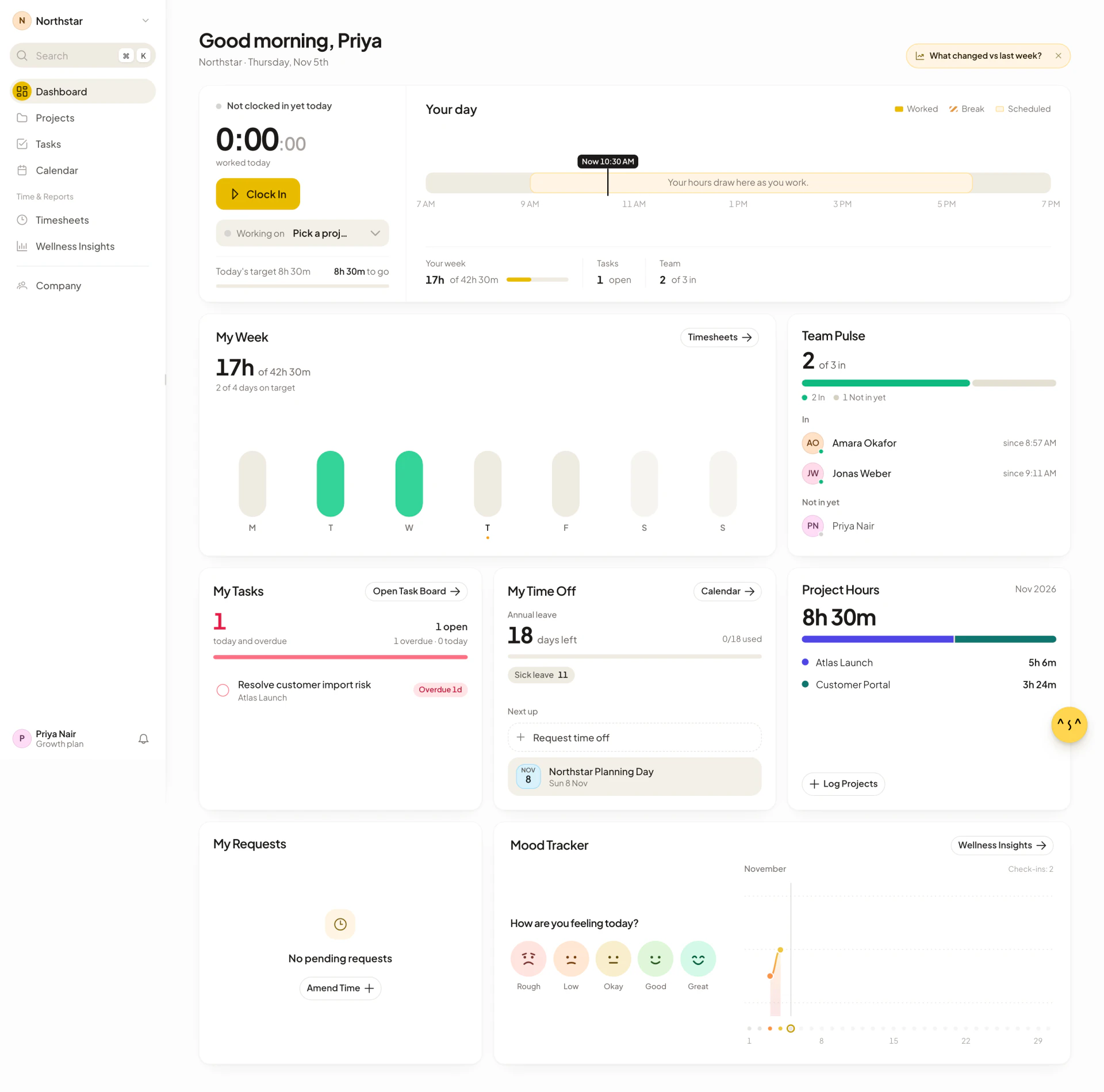
The Dashboard is the first page you see after signing in. It has two versions. Members see their own day and week. Admins see the whole team: who is in, how the week is going and what is waiting for approval.
Both versions start with the clock card, where you clock in, take breaks and clock out. Everything below it fills in from the hours your team tracks.
What you see on the Dashboard
| Members | Admins | |
|---|---|---|
| Browser tab title | My Dashboard | Admin Dashboard |
| Clock card and day timeline | Yes | Yes |
| Week and team controls | No | Yes |
| Edit widgets | No | Yes |
| Approvals and team widgets | No | Yes |
| Own widgets such as My Tasks and My Time Off | Always | Optional, added with Edit widgets |
Team leads see the member version of the Dashboard. Their team’s timesheets and requests are under Timesheets and Company > Amendments.
A new admin also sees a setup guide next to the clock. See Set up your company.
Read the clock card and day timeline
The clock card shows whether you are clocked in, the time you started, and how much of Today’s target is left, such as “7h 3m to go” or Target reached. Beneath it, Your day is a timeline of the hours you worked and your breaks against your scheduled hours (Worked, Break, Scheduled), with a marker for the current time.
Under the card, three figures sum up where you stand:
| Figure | Meaning |
|---|---|
| Your week | Hours worked this week, for example “of 40h” when you have a weekly target. When you browse another week as an admin, this shows that week’s dates. |
| Waiting on you (admins) | The number of requests to review, or All clear. |
| Tasks (members) | How many open tasks are assigned to you. |
| Team | How many people are in now, for example “3 of 8 in”. |
Switch weeks and teams (admins)
The top right of the admin Dashboard has controls that change what the week-based widgets show.
- To move between weeks, select the left or right arrow. The label between them shows This Week, or the dates of the week you are viewing.
- To come back, select the label (This Week).
- To look at one team, open the team menu, which starts on All Teams, and choose a team.
The next-week arrow is disabled while you are on the current week, and weeks run Monday to Sunday. The team menu only appears when your company uses teams. These controls only affect the widgets that read a week of data: Admin Briefing, Weekly Pace, Action Queue, Needs Attention, Project Health and Auto Shift Scheduling. If none of those is on your Dashboard, the controls are hidden.
Admin widgets
Asa’s read and Suggested next
The briefing at the top of the Dashboard is headed Asa’s read, followed by the team and week it covers. It states the most important thing to do first and shows chips for what it found, for example pending actions, people who need follow-up, projects at risk or coverage gaps. If there is nothing urgent it says “No urgent admin issues detected”.
Suggested next lists up to two actions. Select one to jump to the right queue tab, widget or page. Ask Asa sends the briefing to the Asa assistant so you can ask follow-up questions.
Team Pulse
Team Pulse shows who is working right now. The headline is “{n} of {total} in”, with “{n} late” beside it when people have missed their start time. A bar and a list split people into:
- In, with the time they clocked in (“since 9:02 AM”).
- On break.
- Not in yet, with late arrivals listed first and how late they are.
- Off today, for people on approved leave.
The list shows the first people and a button such as Show 3 more for the rest. The widget follows the team menu, and stays empty until teammates join.
Weekly Pace
Weekly Pace answers “are team hours on pace this week?”. The big number is the hours logged this week. Each bar is one day. A dark mark on a bar is the same day last week, and the chip above says how far ahead of or behind last week you are so far (“{time} ahead of last week so far”), or Level with last week. A wider widget also shows the Best day. Select Timesheets in the header to open the full timesheet.
Action Queue
Action Queue collects requests that need an admin. Tabs filter it: All, Amendments, Leave and Allocation, each with a count.
- A leave request has Decline and Approve buttons right in the row.
- A time amendment has Review, which opens the request. Approve or reject it there. See Time corrections.
- Attendance anomalies, such as someone who has not clocked in when expected, and project allocation mismatches also appear. Their Review button opens Timesheets or Projects.
When everything is handled it shows Queue is clear.
Needs Attention
Needs Attention flags people who may need a manager check-in, each with a priority of Act now, Review soon or Monitor and the reasons, such as hours below what is expected, worked hours that are not allocated to a project, being late, or wellness flags (Low Mood, High Stress, Low Energy, Overloaded). Select a person to open the relevant page, or select the sparkle button to ask Asa about them. It shows “No immediate people risks detected” when no one stands out. See Wellness Insights.
Project widgets
Project Health shows each project’s weekly delivery status (On Track, At Risk, No Hours Logged or No Open Tasks) and how hours are allocated. Project Intelligence shows the latest delivery signals for the project you pick. Project Deadlines shows overdue work and what is due in the next 14 days. These need project tracking, and they point you to Projects if you have not started. See Project intelligence for how signals are built.
Other widgets you can add
| Widget | What it shows |
|---|---|
| Who’s Off | Approved leave and public holidays for the next 7 days. |
| Celebrations | Upcoming birthdays and work anniversaries from member profiles. |
| Pay Run | Where the current pay period stands, with Start pay run, Review pay run or Open payroll. See Pay runs. |
| Setup | Chat connections, pending invites and seats used. |
| Auto Shift Scheduling | Builds next week’s shifts from your team’s schedules, calendar and availability. |
| My Week, My Tasks, My Time Off, Mood Tracker, Project Hours | The member widgets described below, for admins who also track their own time. |
Member widgets
The member Dashboard places these widgets under the clock card. Members cannot rearrange them.
| Widget | What it shows |
|---|---|
| My Week | Your hours against your schedule, day by day, with a summary such as “3 of 5 days on target”. With flexible hours, it labels the schedule Flexible hours, shows your logged hours by day, and tracks progress toward the optional weekly target. Select Timesheets to open the full sheet. |
| Team Pulse | Who in your team is in, on a break or off. |
| My Tasks | Tasks assigned to you, overdue and due today first. Select Open Task Board for the rest. |
| My Time Off | Your days left, what is Next up, and Request time off. See Time off. |
| Project Hours | This month’s hours split across your projects. Only shown when your company tracks projects and you are on one. |
| My Requests | Your recent timesheet correction requests with Pending, Approved or Rejected and an Amend Time button. |
| Mood Tracker | A daily check-in. See Mood check-ins. |
Track a correction from My Requests
My Requests lists your pending requests first, then the ones decided in the last 14 days. Select a row to see the details. While a request is Pending you can withdraw it with Cancel Request. Select Amend Time to start a new request. See Time corrections.
Edit widgets (admins)
Select Edit widgets at the top of the admin Dashboard, or run Customize dashboard from the command palette (see Find your way around), to open Customize dashboard.
- Drag a widget to move it. With the keyboard, focus a widget and use the arrow keys.
- To resize, pull the handle on its side (width) or bottom (height). Select the handle, or press
Enteron it, to switch sizes. A handle only appears when the widget supports the other size. - To remove a widget, select the remove icon on its tile, or focus it and press
Delete. - To add one, choose it under Add widgets. Tap it to add it, or drag it into a gap. Chips filter the gallery by All, You, Team, Approvals & pay, Projects and Setup. A widget marked Replaces another covers the same ground, so adding it swaps the other out.
- Select Save layout. The editor shows Unsaved changes until you do, and Cancel discards them.
Select Reset to go back to the recommended widgets for your company’s goal. The clock and the briefing are Pinned: you can remove them but not move or resize them. The layout is saved for the whole company, so every admin sees the same Dashboard.
If your Dashboard has room, a panel called Add more to this page offers a few suggested widgets. Select one to add it, or Browse all widgets to open the editor.
Preview the Dashboard as a team member
Once the setup guide is out of the way, admins get a Team view button. Select it to see the Dashboard as your team sees it. A banner says “Previewing as your team would see it”, the view is read-only, and Back to admin view returns you. Reloading the page also exits the preview.