
How to set up your company in Asa.Team
Create your free account and workspace, follow the setup guide and invite your team so your first hours are tracked the same day.
On this page
Setting up takes a few minutes: sign in, name your workspace, then bring your team in. This guide covers each step and what to change afterwards. If you are new to the terms, start with What is Asa.Team?.
Sign in or create your account
Open Asa.Team and select Sign in. Signing in and signing up are the same flow, so there is no separate registration page. Choose one of:
- Sign in with Google, Sign in with Microsoft or Sign in with GitHub.
- Email me a sign-in link. Enter your email address, then open the link in your inbox.
If you open the email link on a different device, Asa asks you to confirm your email address and select Finish sign-in.
If your sign-in method did not give Asa your name, Asa asks “What’s your name?” first. Enter your first name (required) and last name (optional), then select Continue.
Create your workspace
On your first visit, Set up your workspace asks two questions:
- Company or team name. Asa suggests a name from your first name.
- What should Asa do for you first? Choose See where my projects stand or Track my team’s time. Your choice decides which steps the setup guide shows you.
Select Create workspace. The Starter plan is free for small teams and needs no card.
Asa starts your workspace with sensible defaults, so you do not need to enter them now:
- the time zone of your browser,
- a Monday to Friday work week from 09:00 to 17:00,
- no grace period for late clock-ins.
Already have an invite link? Select Join a team instead and paste it, rather than creating a new workspace.
Follow the setup guide
The setup guide on your Dashboard lists three steps. Only admins see it.
If you chose Track my team’s time:
- Add Asa to your team’s chat. Your team can clock in from Slack, Microsoft Teams or Telegram. See Integrations overview.
- Bring your team in. Invite people.
- See your team’s first clock-in.
If you chose See where my projects stand:
- Name your first project. See Projects.
- Connect its chat channel.
- Invite a teammate from that channel.
Select Hide for now to close the guide. You can bring it back from your account menu with Setup guide. For a tour of the account menu and the rest of the app, see Find your way around. Once people start clocking in, the Dashboard shows who is in and what needs your attention.
Invite your team
Open Invite team member. You can reach it from the setup guide, from the Invite Members button on your Dashboard while you are the only member, from Company > Members > Add Member, or by searching for Invite teammates in the command palette. It has these tabs:
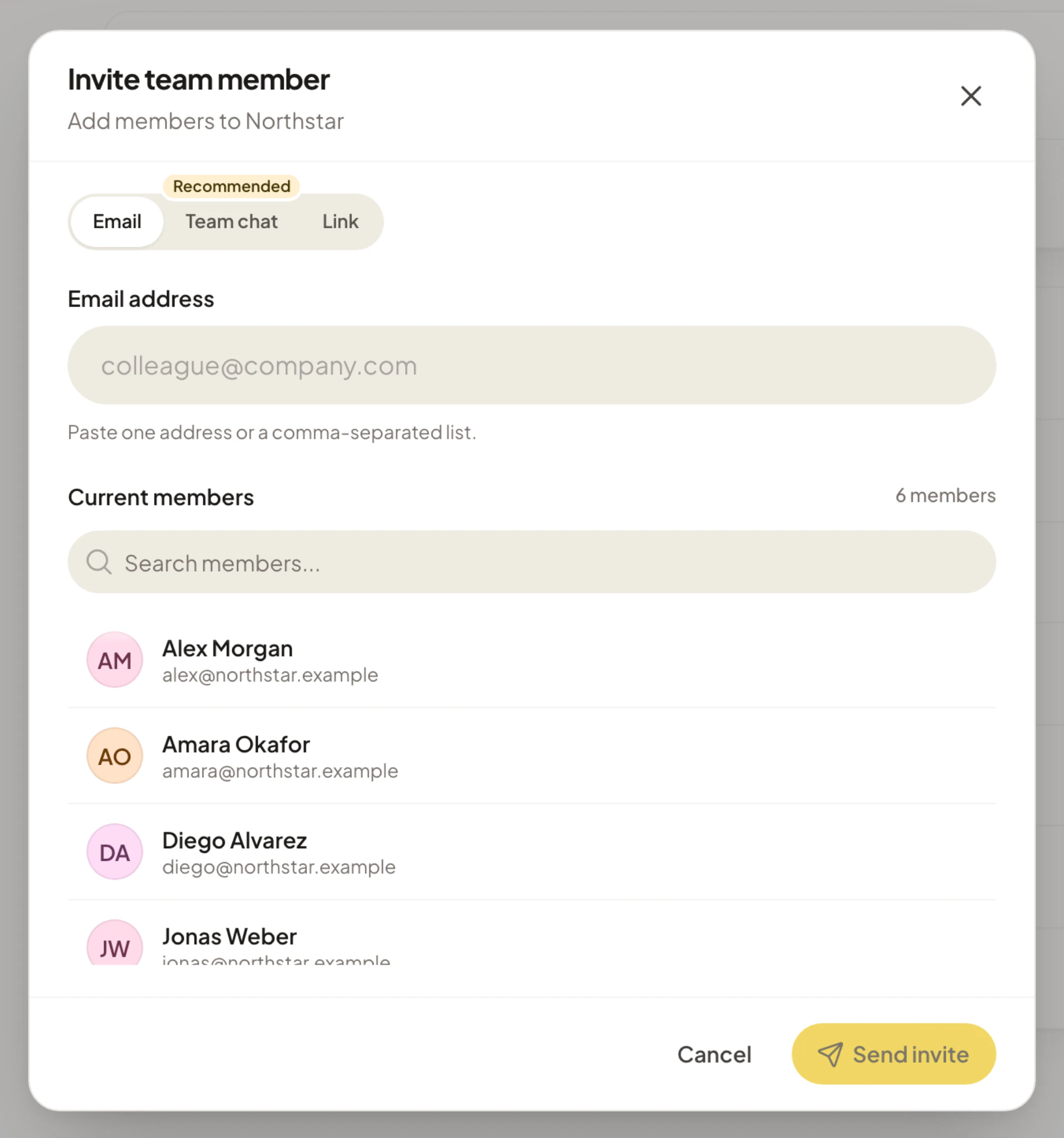
| Tab | Use it to |
|---|---|
| Paste one email address, or several separated by commas, spaces or semicolons, and select Send invite. | |
| Team chat | Add Asa to a Slack, Teams or Telegram chat, and Asa posts a join button for everyone there. |
| Link | Select Copy link and share it. Anyone with the link can join. |
| Slack members | Pick people from your connected Slack workspace and Asa sends each a join link. This tab appears once Asa is installed in Slack. |
An invite link stops working 7 days after you create it, and seats go to whoever joins first. From the pending invites list you can Resend or Revoke invite.
The Starter plan includes 5 members. When your company reaches its member limit, new people cannot accept their invitations until you upgrade your plan.
People who accept see Company Invitation with Accept and Decline buttons.
Roles
The full list of what each role can do is in Roles and permissions.
- Admins manage the company, payroll, settings and approvals. The person who creates the workspace is an admin.
- Members track their own time and request leave. See Clock in, take breaks and clock out.
- Team leads are members who lead a team. They review their team’s leave requests and timesheet amendment requests, but never their own.
Change your work hours and grace period
Select Company in the sidebar, then Schedules, to change the work week, start and end times, and the grace period. Teams and individual members can have their own schedules too. See Work schedules. The grace period options are None, 15, 30, 45, 60, 120 and 180 minutes. A clock-in within the grace period after the start time still counts as on time.
Next steps
- Find your way around the sidebar, search and account menu.
- Clock in, take breaks and clock out, then check hours in Timesheets.
- Time corrections: how people fix a wrong entry and how you approve it.
- Time off and Work schedules.
- Projects and Integrations overview.