
Company settings
Change your company name, time zone and location tracking, check your plan and seats, upgrade or open billing, and delete a company.
On this page
General holds the basics that apply to the whole company: its name, time zone, whether clocking in captures a location, your plan and the option to delete the company. Only admins see it.
To open it, select Company in the sidebar, then General under Workspace. The page is titled Workspace: “Keep the company profile, billing, and destructive controls in one place.”
Change the company name
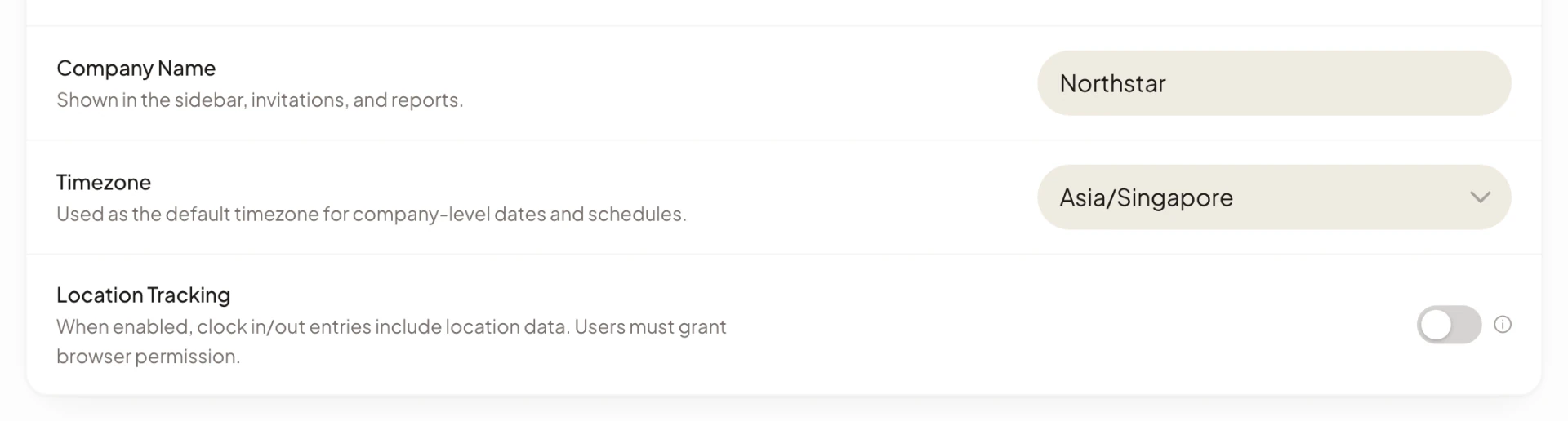
- In the Company card, edit Company Name.
- Select Save changes in the bar that appears.
The name is “Shown in the sidebar, invitations, and reports.” If you clear the field, saving is blocked with “Company name is required.”
Change the company time zone
- In the Company card, open Timezone and choose a time zone. You can type to filter the list.
- Select Save changes.
The company time zone is “Used as the default timezone for company-level dates and schedules.” For example, the clock times beside each person’s status on the member list and the hour the end-of-day summary is sent to admins follow it. If you leave it empty, saving is blocked with “Select a timezone before saving.”
Require location when people clock in
The Location Tracking switch controls whether clock actions record where they happened. The description reads “When enabled, clock in/out entries include location data. Users must grant browser permission.”
- Turn on Location Tracking. A note appears: “Location is only captured at clock in/out. Users must grant browser permission.”
- Select Save changes.
From then on, the clock card on the Dashboard asks the browser for location access when people clock in, start or end a break, and clock out. If someone refuses, the action does not go through. They see “Location access is required to clock in or out. Please allow location and try again.” The card also shows “Location access is blocked, and your company requires it for clocking in. Allow location for this site in your browser settings, then retry.” with a Retry button.
Ask Asa on the web cannot clock people in while location tracking is on. It replies “Location verification is required. Please use the dashboard clock control.” See Clock in and out.
Save or discard changes
Edits in General are not applied until you save them. When you change a field, a bar reads “You have unsaved changes” with Discard and Save changes. When a field is invalid, the bar shows the reason instead and Save changes is disabled.
After saving you see “Company settings saved”. If it fails you see “Failed to save settings”.
If you leave the page or switch to another section with unsaved edits, Asa asks Discard unsaved changes? with “You have unsaved changes in this section. Leaving will discard them.” Select Discard changes to leave or close the dialog to keep editing.
Plan and billing
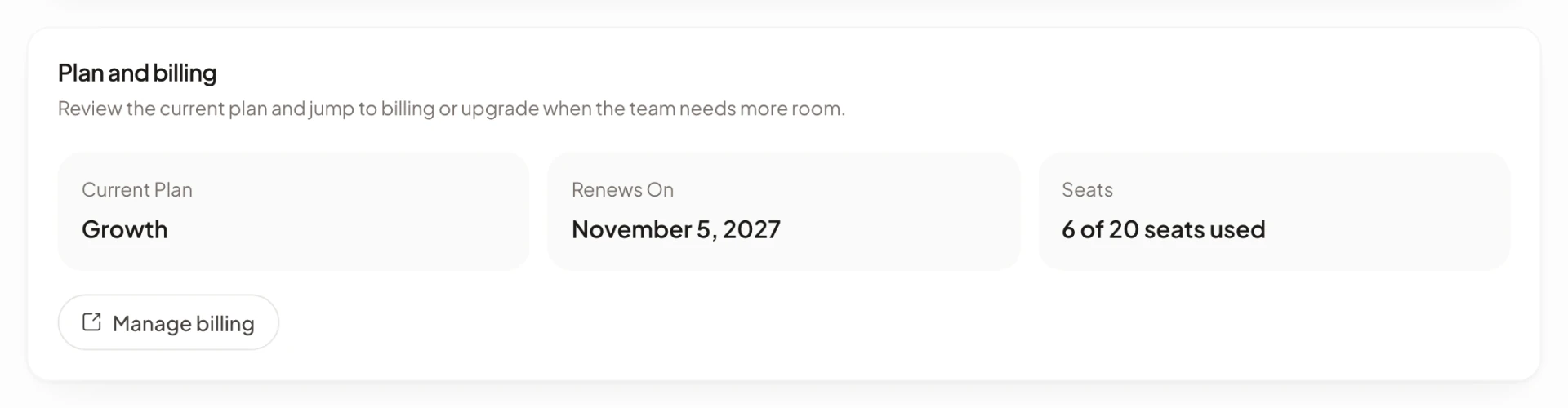
The Plan and billing card reads “Review the current plan and jump to billing or upgrade when the team needs more room.” It shows three values:
| Value | What it shows |
|---|---|
| Current Plan | The plan name: Starter, Growth, Scale or Enterprise. A company with no subscription record at all shows Free. |
| Renews On | The date the current paid period ends, or N/A when there is none. |
| Seats | “3 of 5 seats used”, or “3 seats used” on an unlimited plan. Only active members count. |
Plans are priced per company, not per seat. Compare them on the pricing page. Member and team limits by plan are in Seats and member limits and Team limits by plan.
Upgrade your plan
Only admins can upgrade. If someone else tries, Asa shows “Only company admins can upgrade this company’s plan.”
- Select Upgrade plan. On a company with a paid plan this button is replaced by Manage billing. The account menu also has Upgrade plan while the company is on Starter: see Account settings.
- In the Upgrade your plan screen, choose Monthly or Annual. The annual option is marked “· save 15%”. Prices are per company.
- Choose Get started on Growth or Scale. Starter closes the screen. Enterprise has Contact sales.
- Read the Terms and conditions notice, “By continuing, you agree to our Terms of Service and Privacy Policy.” and select I agree.
- For Growth and Scale, pay by card on the Stripe checkout page that opens. For Enterprise, an email to Asa’s sales contact opens instead.
When Stripe confirms the payment, Asa updates the company’s plan. Stripe returns you to Company settings.
Upgrading raises your limits. If you were over the member limit after an earlier downgrade, paused members are turned back on, up to the new limit. See When your plan gets smaller.
Manage billing
Select Manage billing. Stripe’s customer billing portal opens in a new tab. Use it for your subscription and payment details.
Asa itself shows only Current Plan, Renews On and Seats. For anything else about your subscription, use the Stripe portal.
Delete a company
Deleting a company is permanent and cannot be undone. Only admins can do it.
- In the Danger Zone card, find Delete company. It reads “Permanently remove all data”.
- Select Delete company.
- Check the company name shown in the confirmation, read “This will permanently delete your company and all related data. This action cannot be undone.” and select Delete company again.
You see “{company name} has been deleted”.
Deleting removes the company’s data, including its member records, projects and tasks, and every member’s time entries, timesheets and mood check-ins for this company. Each person’s Asa account stays, and they can still sign in and use any other company they belong to.
If your company is on a paid plan, check Manage billing before you delete it, so you know what happens to your subscription.
Asa has no button for leaving a company yourself. Ask an admin to remove you. An admin cannot remove themselves, so a company’s last admin must either make someone else an admin first or delete the company. If you are the company’s only member and want your account deleted, delete the company first, then contact support@asa.team; support cannot delete your account while you are its only member.
Where the other company settings live
The company’s schedule, leave rules and payroll settings are in their own sections of Company, not in General.
| To change | Go to |
|---|---|
| Work week, working hours, breaks, grace period and flexible hours | Schedules. See Work schedules. |
| Leave types, allowances, holidays and blockout dates | Leave. See Leave policies. |
| Pay period, rounding, overtime and pay rates | Payroll. See Set up payroll. |
| Who is in the company and who is an admin | Members. See Members. |
| Groups of people and team leads | Teams. See Teams. |
| Slack, Microsoft Teams, Telegram, WhatsApp and Google Calendar | Integrations. See Integrations. |