
Chat apps and integrations
See what Asa does in Slack, Microsoft Teams, Telegram, WhatsApp and Google Calendar, how admins install it and how members link their own account.
On this page
Asa works where your team already talks. Once a chat app is connected, people can clock in, take breaks, check their hours, ask about leave and log how they feel without opening Asa.Team. Admins can also point Asa at project channels so Project Intelligence can read them. Google Calendar is separate: it copies approved leave onto your own calendar.
This page compares the apps and explains the two steps every chat app needs. Each app has its own page with the exact steps.
What each app supports
| Slack | Microsoft Teams | Telegram | Google Calendar | ||
|---|---|---|---|---|---|
| Clock in and out | Yes | Yes | Yes | Yes | No |
| Breaks | Yes | Yes | Yes | Yes | No |
| Check your hours | /asa hours |
Ask in your own words | /hours |
Ask in your own words | No |
| Leave balance and requests | Ask in your own words | Ask in your own words | Ask in your own words | Ask in your own words | Approved leave appears on your calendar |
| Mood check-in | /asa mood |
Prompt after your first clock-in | Prompt after your first clock-in | Ask in your own words | No |
| Reminders from Asa | Yes | Yes | Yes | No | No |
| Project channels for Project Intelligence | Channels | Channels and group chats | Groups | Groups | No |
| Where you talk to Asa | Direct message, /asa, @Asa in a channel |
Direct message, @Asa in a channel or group chat |
Direct message, slash commands in a group | Direct message only | Not applicable |
A few details sit behind the table:
- Breaks only work when your company or your schedule tracks breaks. Otherwise Asa replies “Breaks are not enabled for you. Please contact your administrator to configure break settings.” See Clock in, take breaks and clock out.
- Asking in your own words means a message such as “How are my hours this week?” or “I need to take annual leave next Friday”. Before Asa changes anything for you, such as submitting a leave request or logging your mood, it asks you to confirm. See Ask Asa.
- Reminders are workday and holiday reminders, plus mood check-ins in Slack and Teams. Asa sends them in Slack, Teams and Telegram only. WhatsApp has none, because Asa replies there only after you message it. Choose them under Notifications.
- Mood check-ins feed Wellness Insights and Mood check-ins.
- Leave that you request in chat is approved the same way as leave you request on the web. See Request and approve time off.
On the Starter plan, plain-language messages to Asa in chat are limited to 15 a day for the whole company. Exact commands such as
in,out,breakstart,breakend,help,connect,disconnectandnotificationsare not counted and always work. Paid plans have no daily limit.
Install Asa or link your account
Two different things happen when you connect a chat app, and they are done by different people.
| Install or add Asa | Link your account | |
|---|---|---|
| Who | An admin | Every member, including the admin |
| What it does | Puts Asa into your Slack workspace, Teams team or chat, or Telegram group, and ties it to your company | Tells Asa which Asa.Team person you are when you message it |
| How often | Once for the whole company | Once per person and chat app |
| Why it matters | Asa can post a join link and read project channels | Clock-ins and answers are recorded under your name |
Installing does not link anyone, except that the admin who installs Slack is linked automatically. Until you link, Asa in Slack, Teams and Telegram answers a message with a Connect button instead of doing what you asked. In WhatsApp, Asa ignores messages from a number that is not paired.
Each app installs differently:
- Slack: the admin adds Asa to the workspace. A workspace belongs to one company.
- Microsoft Teams: the admin installs Asa from the Teams app store, then adds it to the team or group chat the staff use.
- Telegram: Asa is one shared bot. The admin adds it to the staff group, and the group is tied to the company.
- WhatsApp: there is no install. Each person pairs their own number. An admin can add Asa’s number to a group for Project Intelligence.
- Google Calendar: there is no install. Each person connects their own calendar.
Add Asa to your team’s chat (admins)
- In Asa.Team, open Invite team member and select the Team chat tab. You can also use the Add Asa to your team’s chat step in the setup guide on your Dashboard.
- Choose Add to Telegram, Add to Teams or Add to Slack.
- Finish the steps in the chat app. Asa watches for the new chat and shows “Waiting for Asa to join your chat” until it appears.
- Select Post invite to post a Join button into the chat, so everyone joins Asa.Team in one go.
The invite is visible to everyone in the chat, and seats go to whoever joins first. See Invite your team and Members.
Link your own account (everyone)
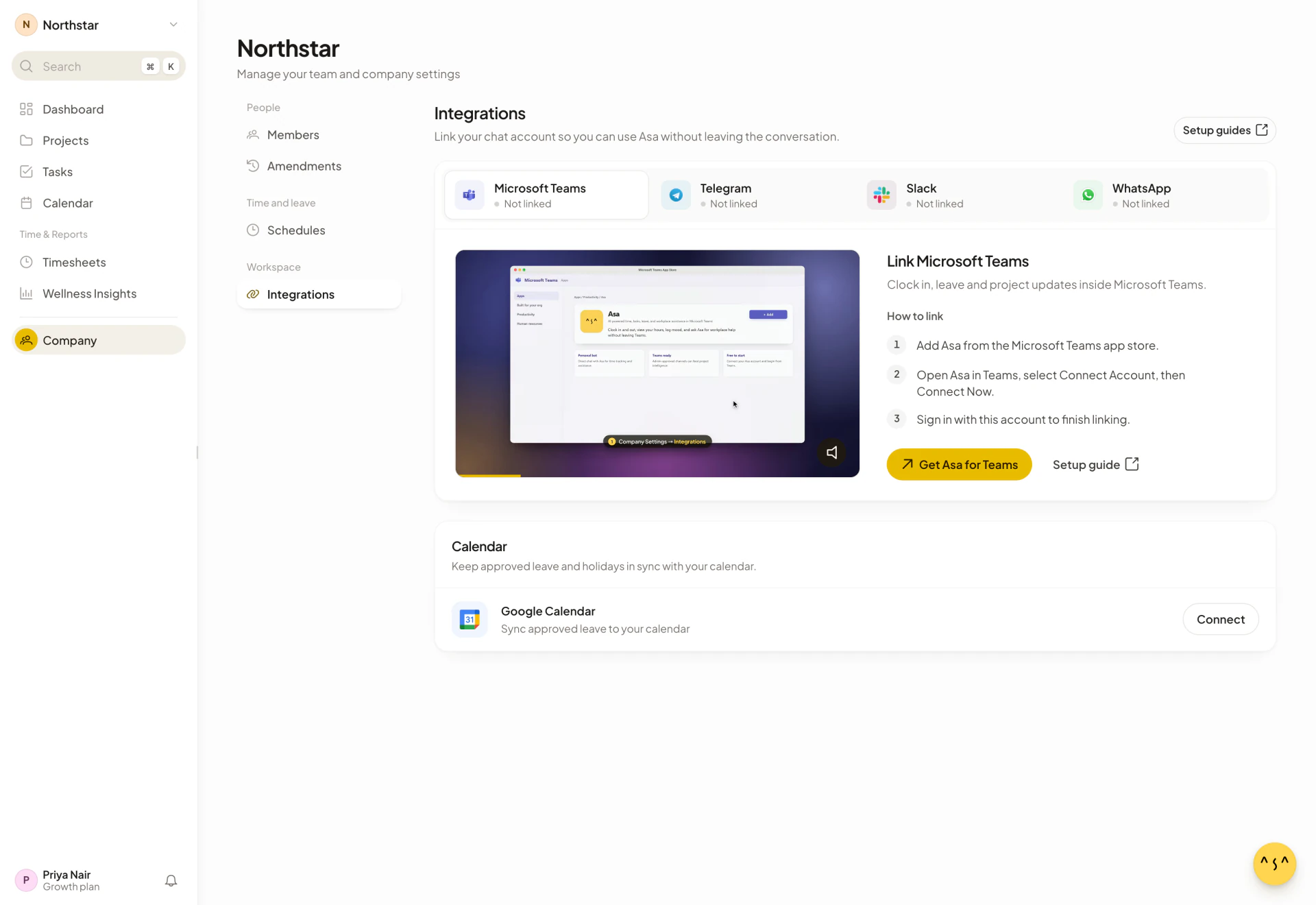
Open Company in the sidebar, then Integrations. Pick your chat app, follow the three How to link steps and sign in to Asa.Team when asked. The tab then shows “Linked”. If you message Asa in Slack, Teams or Telegram before linking, it replies with a button that does the same thing.
The Integrations tab
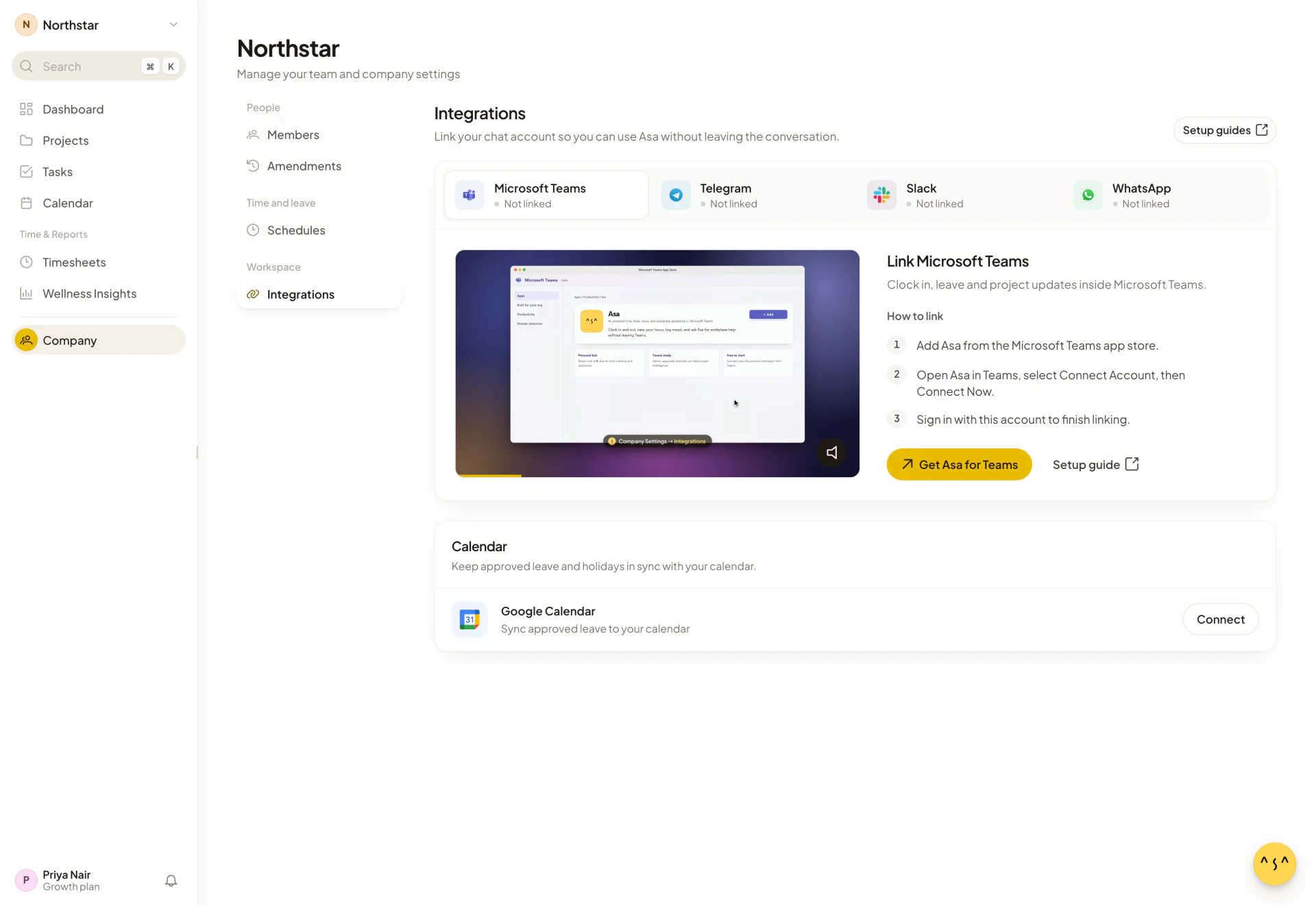
Company > Integrations is where every member sees the state of each connection. It has one tab per chat app: Microsoft Teams, Telegram, Slack and WhatsApp. Each tab shows Linked or Not linked, the three steps to link, and the button that starts them:
| Tab | Button when you are not linked |
|---|---|
| Microsoft Teams | Get Asa for Teams |
| Telegram | Open in Telegram |
| Slack | Add to Slack |
| Get a pairing code |
Once you are linked, the tab shows “{app} is linked” and “Asa knows it is you when you message it from {app}.”, plus an Unlink button. Setup guides at the top opens Asa’s help articles for each app.
Below the tabs, the Calendar card holds the Google Calendar connection with Connect and Disconnect buttons.
Admins also see Connected chats under a tab: the groups and channels where Asa works for your company. Telegram groups and Teams spaces have a Disconnect button. Slack channels do not, because you remove Asa from a Slack channel in Slack.
Notifications are separate from linking. Under Profile > Notifications, Where we reach you lists Microsoft Teams, Slack and Telegram as places Asa can send your reminders. See Account settings.
Project channels and Project Intelligence
An admin picks the chats Asa should read for a project: in Projects, open the project and select Connect a conversation, or Add source next to Listening to once it has one. The project setup flow has the same list. Asa lists the channels, groups and chats it has detected. If a chat is missing, add Asa to it, post a message there and refresh. Asa reads only the chats you add it to and never reads direct messages. See Projects and Project Intelligence.
If something does not work
- Asa answers with a Connect button, or does not answer in WhatsApp: your account is not linked yet. Link it from Company > Integrations.
- A Slack workspace says “This Slack workspace is already connected to” another company: only one company can own a workspace.
- A Telegram group says “This group is already connected to” another company: the first company to claim a group keeps it.
- Your account was disabled: Asa replies “Your account has been disabled. Please contact your administrator.”
More fixes are in Troubleshooting.