
Reports and project hours
Find the reports in Asa.Team, read the punctuality and wellness charts in Wellness Insights, review hours by project, and see where each report can be exported.
On this page
Asa.Team does not have one big reports page. Each kind of report lives next to the thing it describes. This page lists them, explains the two that work like reports in the app, and says where each one can be exported.
| You want | Go to |
|---|---|
| Hours per person by day, week or month | Timesheets |
| This week against last week | Weekly Pace on the Dashboard |
| On-time rate and late clock-ins | Wellness Insights, below |
| Mood, energy, stress and workload trends | Wellness Insights, below |
| Hours on one project | Project hours review, below |
| Payroll totals | Pay runs |
Open Wellness Insights
In the sidebar, under Time & Reports, select Wellness Insights. Despite the name, this is also where the monthly punctuality report lives.
Use the arrows at the top right to move between months. The label between them shows the month you are reading, and the next-month arrow is disabled for the current month.
Who sees what
The button next to the page title reads Admin view for admins and Only your data for members. Select it to open Who sees what:
- Admins see team averages, attendance, and alerts that name people whose scores stay low.
- Members see only their own check-ins and attendance, never a teammate’s scores.
Read the punctuality report
The Punctuality section shows the month day by day. For admins the subtitle is “Daily team attendance breakdown”, and for members it is “Your daily attendance”.
| Item | Meaning |
|---|---|
| On time and Late | Clock-ins each day that were on time, or later than the start time plus the grace period in the person’s schedule. |
| On-time rate | The share of the month’s clock-ins that were on time, with Clock-ins showing the count. |
| Late clock-ins | How many clock-ins were late in the month. |
| Active members | How many people clocked in during the month (admin view). |
| Most late on | The day with the most late clock-ins. |
If nobody clocked in that month, you see “No clock-ins recorded this month.” Lateness is measured against the work schedule: a clock-in within the grace period after the start time still counts as on time.
Read the wellness charts
The rest of the page comes from mood check-ins that members log. The charts are explained in Wellness Insights. In short:
- Mood, Energy, Stress and Workload averages for the month, compared with the previous month.
- Wellness Trends over time, with Metrics shown and a Smoothing choice between Daily and 7-day avg.
- Month at a glance, Response spread and Hours and wellbeing, which sets average hours worked each day against a wellness score.
- Wellness Alerts (admins only), listing people whose scores stay low. A note says “Scores average the 7 days up to each person’s latest check-in”. Admins can also select Summarize team wellness trends to ask Asa.
Review the hours on a project
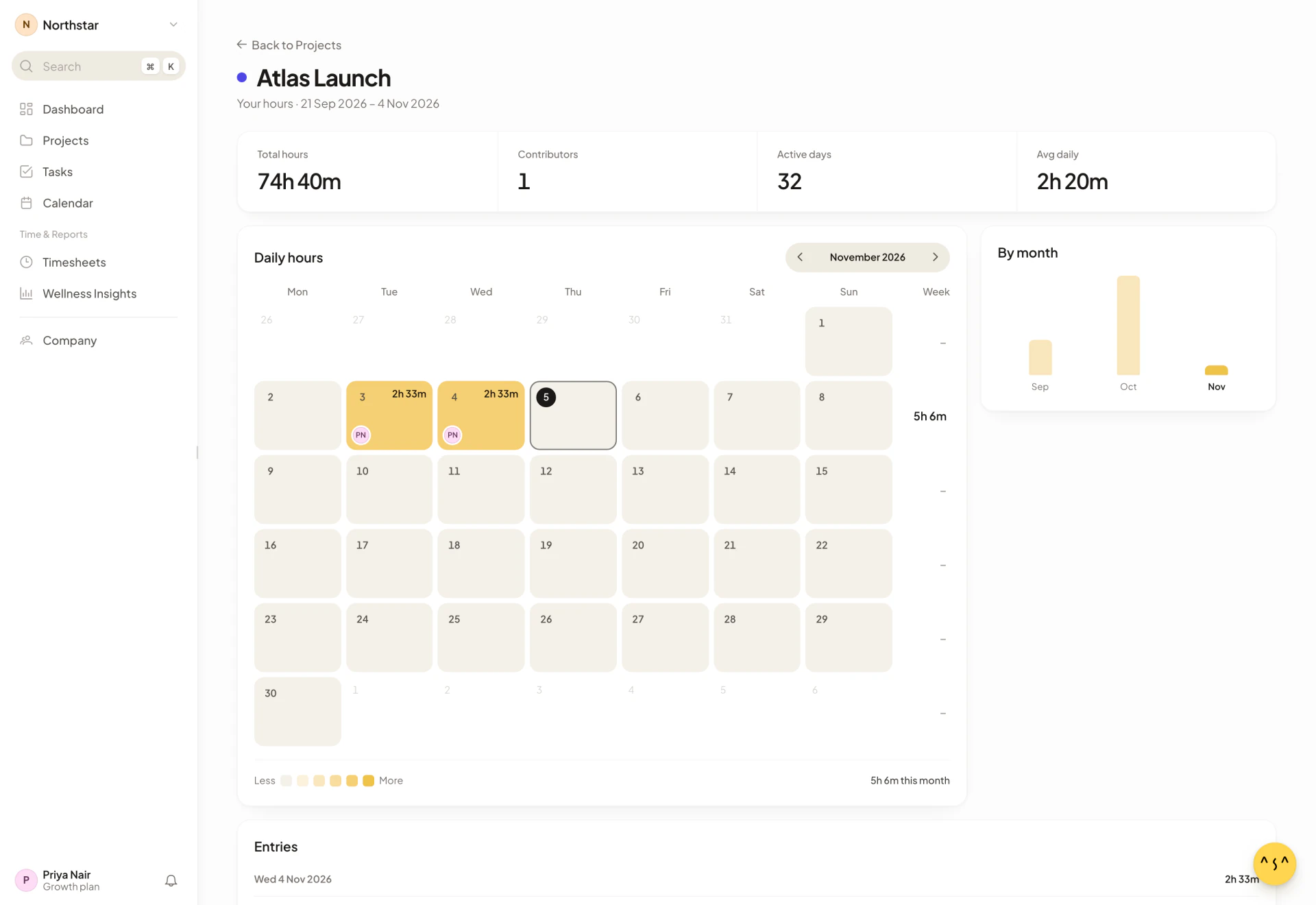
Project hours review shows how many hours were logged to one project, who logged them and when. It needs project tracking, so it only exists for companies that use Projects.
- In the sidebar, select Projects and choose a project.
- Select the Hours card.
The page is titled with the project name and Hours Review, and the subtitle gives the dates it covers, such as “Project hours · 3 Mar 2026 – 28 Oct 2026”. Select Back to Projects to return. A project with no hours says “No logged time yet”.
You can also reach it from the command palette. Search for the project, press Tab and choose Hours. See Find your way around.
Admins see everyone’s hours on the project. Members see only their own, and the subtitle reads “Your hours” instead.
Read the summary
Four figures across the top cover all the time logged to the project:
| Figure | Meaning |
|---|---|
| Total hours | Hours logged to the project. |
| Contributors | How many people logged time. |
| Active days | Days on which anyone logged time. |
| Avg daily | Total hours divided by active days. |
Read the daily calendar
Daily hours is a month calendar that starts on Monday. Each day shows the total hours, and darker days have more hours, relative to the busiest day of the month (Less to More). Use the arrows to change month. Below the calendar, “{hours} this month” gives the month’s total.
By month shows up to the last twelve months as bars. Select a bar to jump the calendar to that month.
See who contributed
Contributors (admins only) lists each person with their hours, number of days and share of the total. Select a person to filter Entries to them, and select them again to clear the filter.
Entries lists the logged hours day by day with each day’s total. Admins also see each person’s hours under the day, and can filter with the All members menu. Select Show {count} more for older days. If a filter leaves nothing, you see “No entries found for the current filters.”
Set project hours for the team (admins)
Admins can fill in or correct the hours people logged to a project, for days when they forgot.
- In Daily hours, select the days. Click a day, or drag across several. Select Select weekdays to pick every Monday to Friday in the month, and Clear to start again.
- Select Set hours.
- In Allocate {project}, set hours in the Everyone row to apply to all, or set hours for each person with the minus and plus buttons or by typing. A person with different hours on the chosen days shows Mixed.
- Select Save.
Clear all sets every row to zero hours. If someone already logged their own project hours for a day, Asa cannot overwrite that day. You see “{name} already logged their own project hours for {date}.” along with how many updates were saved. When everything saves you see “Project hours saved”.
Export reports
| Report | Export |
|---|---|
| Timesheets | Export CSV on Timesheets, for a month or a range of up to 31 days. See Export a timesheet to CSV. |
| Payroll | An export file from a locked pay run, for your payroll provider. See Export the pay run. |
| Wellness Insights | No export button. |
| Project hours review | No export button. |
For a quick answer instead of a chart, ask Asa a question such as “Am I on track for the month?”