
Set up teams and team leads
Group people into teams, choose team leads, and see how teams change who approves requests, who can clock in and what each person sees.
On this page
Teams group your people so schedules, approvals and views can follow how work is really organised. Only admins can create and manage teams. Teams are optional, and a company that does not turn them on works exactly as before.
To open the settings, select Company in the sidebar, then Teams under People. Non-admins do not see this page.
Turn teams on

Until you turn teams on, the page shows Teams are off with the line “Turn on teams when schedules, approval rules or reports need to follow real groups.” It lists what teams give you:
- Give each group its own schedule.
- Let team leads review requests.
- Filter dashboards and reports by team.
Select Enable teams. You see “Teams enabled”. Creating your first team also turns teams on.
Once teams are on, everyone who is not in a team is blocked from clocking in. Create your teams and assign people straight away. See What changes when teams are on.
Create a team
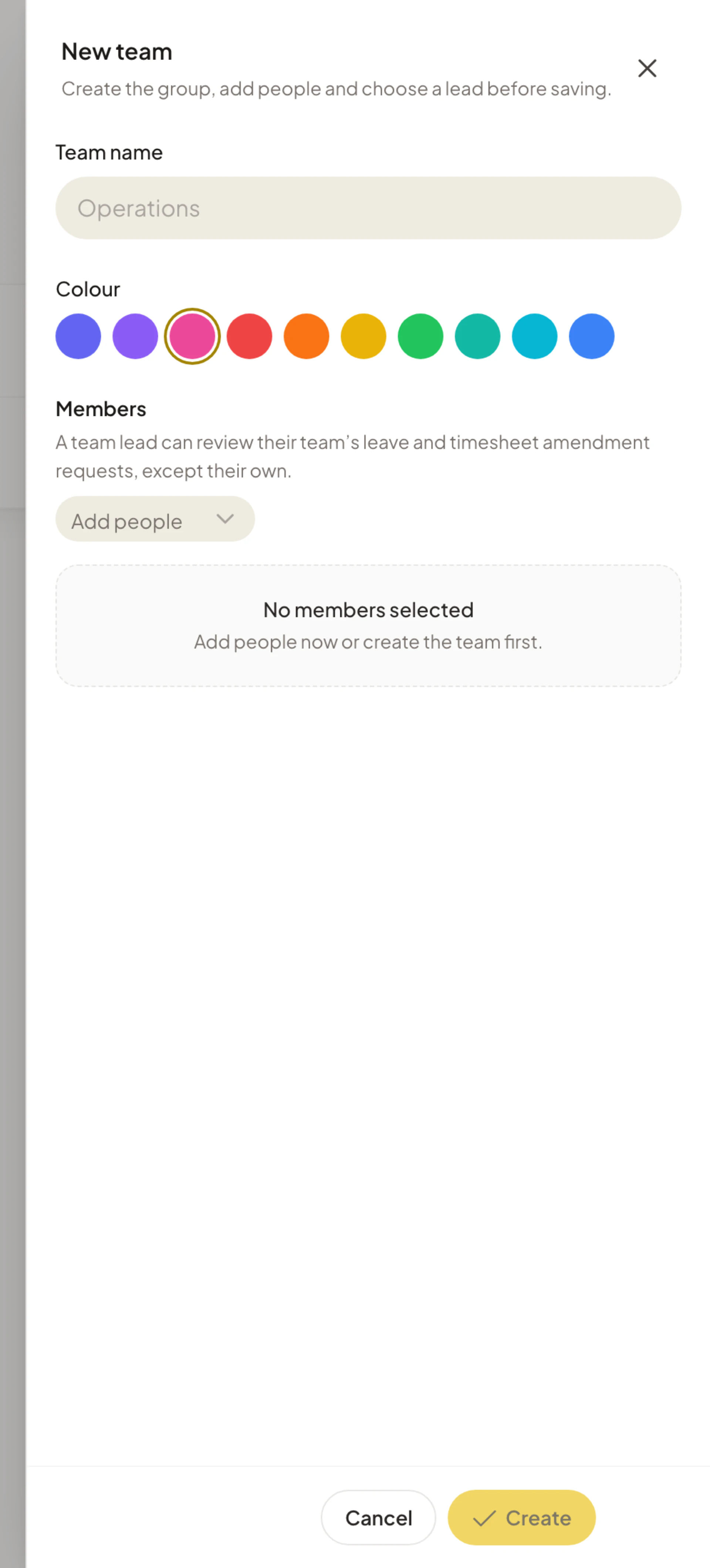
- Select New team.
- Enter a Team name, for example “Operations”.
- Pick a Colour. Asa offers ten.
- Under Members, select Add people and choose who belongs to the team.
- To choose a lead, select the crown button next to a member. See Choose a team lead.
- Select Create.
You see “Team created”. Each person can be in only one team. If you add someone who is already in another team, their row shows Moves from the old team’s name, and they move when you save. People you are adding for the first time show New.
Choose a team lead
A team lead is a member of the team who can review the team’s requests. In the team panel, each member has a crown button. Hover it to see Make lead, and select it. The lead’s row shows Lead and the button reads Team lead. Select it again to remove the lead.
The panel explains: “A team lead can review their team’s leave and timesheet amendment requests, except their own.”
Rules to know:
- A lead must belong to the team they lead. If you remove the lead from the member list, the lead is cleared.
- A team has at most one lead. The team list shows Lead: and the name, or No lead.
- A lead’s authority lasts only while they stay in the team. If you move them to another team, they stop reviewing the old team.
See Roles and permissions for everything a team lead can see and do.
Edit or delete a team
- In the team list, select the team. The panel opens with the team’s name as its title.
- Change the Team name, Colour, Members or lead.
- Select Save changes. You see “Team updated”.
To delete the team, select Delete team at the bottom left of the panel, read “Deleting this team removes the team grouping. Members are not deleted.” and select Delete. You see “Team deleted”. The team’s members become unassigned. If you delete your last team, teams switch off.
Assign people who are not in a team
When teams are on, a Not in a team card lists active members who have no team: “Add active members to a team so schedules and lead approvals can cover them.” Next to each person, open Add to team, choose a team and you see “Member moved to team”.
You can also assign people from inside a team’s panel.
What changes when teams are on
| Area | What teams change |
|---|---|
| Clocking in | People who are not in a team cannot clock in. They see “You must be assigned to a team to clock in. Contact your admin.” This applies to admins too, and to clocking in from Slack, Microsoft Teams and Telegram. |
| Other requests | People who are not in a team also cannot submit leave requests, amendment requests or mood check-ins until they are assigned. |
| Members without a team | A member who is not in a team sees a full-page notice, You’re not in a team yet: “Your company uses teams for schedules and time tracking, so an admin needs to add you to one before you can start.” Admins are not shown this notice, but they still cannot clock in. |
| Approvals | Leave requests and timesheet amendment requests from a team can be answered by its lead as well as by admins. Without a team, only admins can answer them. |
| Schedules | A team can have its own work schedule. The team list marks it Own schedule. |
| Member list | Admins see each person’s team on the member list. Other people see only their own team. |
| All Teams filter | Admins get an All Teams menu on the Dashboard, on Timesheets and on the task board, to look at one team at a time. Members are shown their own team automatically. |
| Team leads | Leads see the timesheets of the people in their team. |
For example, a lead’s team of four can ask for leave and corrections as usual. The lead answers them, and an admin can still answer any request. See Request and approve time off and Time corrections.
Team limits by plan
The Starter plan includes 2 teams. Growth, Scale and Enterprise have no team limit. See Pricing.
On Starter, the Teams are off card shows “Includes 2 teams on this plan” with an Upgrade button. When you have created 2 teams, a banner reads Team limit reached: “You are using 2 of 2 teams on this plan.” Select Upgrade, or select New team to open the plan comparison. Asa blocks a third team on Starter.
Turn teams off
- Select the three-dot button next to New team (More team settings actions).
- Select Disable teams. You see “Teams disabled”.
Teams stop affecting clocking in, approvals and filters straight away. Your teams and who is in them are kept, so Enable teams brings them back.