
How to set up leave types, allowances and holidays
Set up your company’s leave policy as an admin. Create leave types and allowances, set booking rules, add public holidays, block busy periods and adjust balances.
On this page
- Open the leave settings
- Set up your leave policy for the first time
- Add or edit a leave type
- Turn a leave type off or delete it
- Set the booking rules
- Set up public holidays
- Add a company holiday
- Block leave during busy periods
- Adjust one person’s leave balance
- Save changes to the policy
- Who approves leave
- How the policy connects to other features
The leave policy decides what your team can book, how many days each person gets, who must approve it and which dates are off limits. Only admins can change it. Everyone else sees the result on the Calendar and in the Request Leave form.
Leave setup has two parts, saved separately: the leave policy (leave types, rules and blockout dates) and the holidays. The Calendar keeps showing a Finish setting up leave checklist until both are saved, and nobody can request leave before then.
Open the leave settings
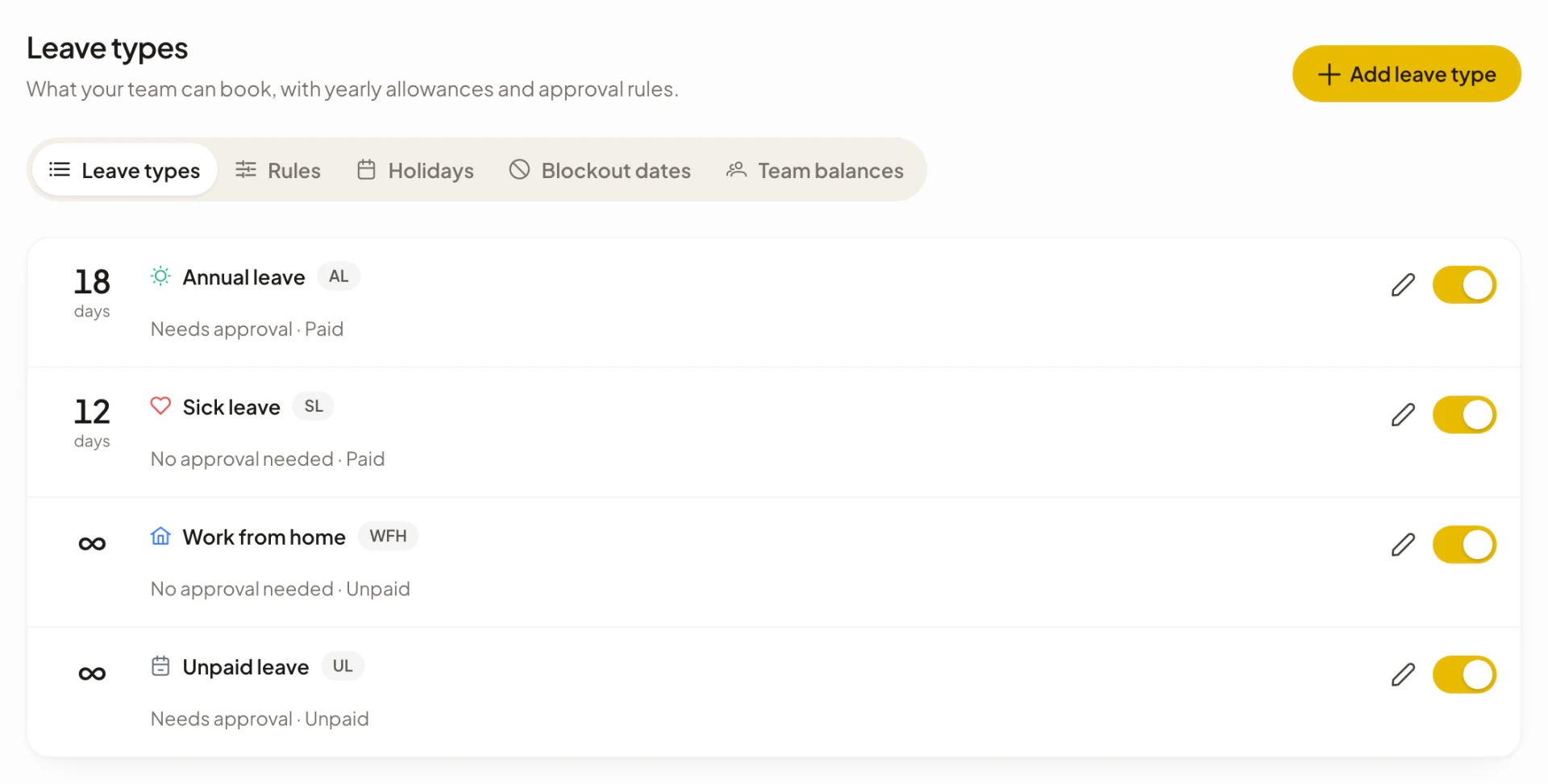
- Select Company in the sidebar.
- Under Time and leave, select Leave.
The page has five sections: Leave types, Rules, Holidays, Blockout dates and Team balances. Members and team leads do not see Leave. If the Calendar checklist is showing, an admin can also select Set up on a step to open the right section.
Set up your leave policy for the first time
A company without a saved policy sees Set up leave policy with the text “Set up leave types, quotas and approval rules. You can change any of this later.”
- Select Set up leave policy. Asa loads a starting policy with five leave types (see the table below). Nothing is saved yet.
- Change anything you want in Leave types, Rules and Blockout dates.
- Select Save policy in the bar that appears at the bottom.
- In the Leave policy dialog, review Starting balances (“Every member gets a starting balance for the leave types below.”) and select Save policy again.
Asa shows “Leave policy saved” and gives every member a starting balance for each leave type with an allowance. Then set up your public holidays, which is saved on its own.
The starting policy has these leave types:
| Leave type | Allowance | Needs approval | Paid | Visible to team | Booked in advance |
|---|---|---|---|---|---|
| Annual Leave | 14 days | Yes | Yes | Yes | Yes |
| Sick Leave | 14 days | No | Yes | No | No |
| Work From Home | None | No | No | Yes | Yes |
| Unpaid Leave | None | Yes | No | Yes | Yes |
| Compassionate | 3 days | Yes | Yes | No | No |
Add or edit a leave type
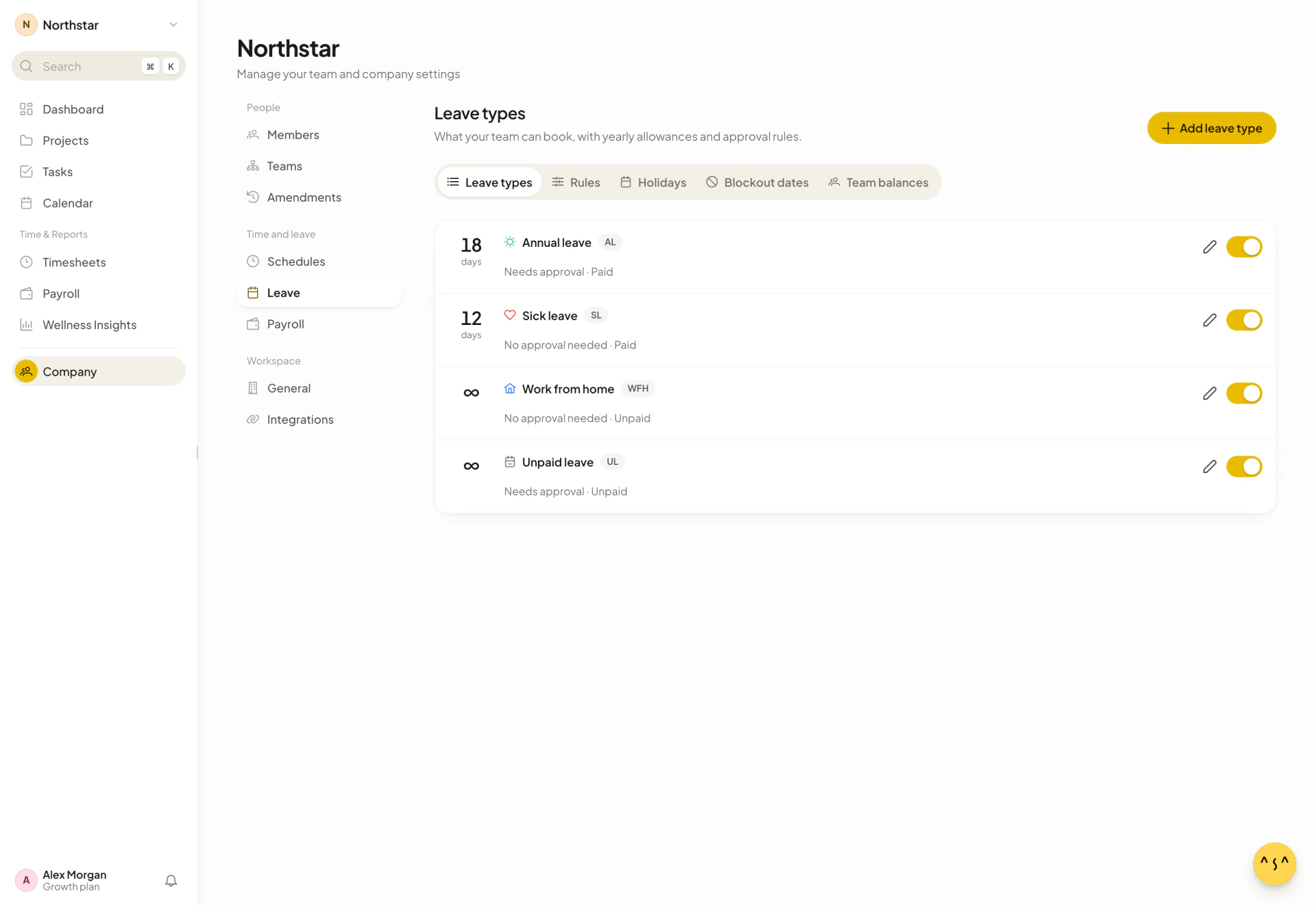
In Leave types, select the pencil on a row to edit it, or Add leave type to create one. The dialog is called Edit leave type or Add leave type.
| Setting | What it does |
|---|---|
| Name | Required. If you leave it empty, Asa shows “Name is required”. |
| Code | A short label of up to four characters, such as AL. If you leave it empty on a new type, Asa builds one from the initials of the name. |
| Color and Icon | How the leave type looks on the Calendar. |
| Has quota | Gives each person a yearly allowance in days. Types without a quota have no limit and show an infinity sign in the list. |
| Default quota (days) | The yearly allowance. It appears when Has quota is on. |
| Requires approval | When on, a request waits as Pending until an approver decides. When off, it is approved immediately. |
| Paid leave | Marks approved leave as paid, so it can be added to pay runs. Work From Home is never treated as paid leave. |
| Visible to team | Lets people who are not admins see this leave on the Calendar’s Everyone view. Turn it off for private leave such as sick leave. |
| Booked in advance | On for leave people choose the dates of, like annual leave. Blockout dates and the maximum consecutive days limit only apply to these. Turn it off for absences nobody schedules, such as sickness or bereavement. |
Select Add type or Save changes to close the dialog, then Save policy to apply it. Each row also shows a summary such as “Needs approval · Paid”, and its allowance in days.
Requests for dates that have already passed always need approval, even for a leave type that does not require it. Minimum notice only applies to leave types that require approval.
Turn a leave type off or delete it
- Use the switch on a row to turn a leave type off. It stays in your policy but people cannot choose it for new requests.
- Select the bin to delete a leave type you created. The five starting types cannot be deleted, only turned off.
- Confirm Delete confirmation to remove it from the list, then select Save policy.
When a save removes a leave type, the review dialog lists it under Removed leave types: “Leave already booked under these stays on record. New requests cannot use them.”
Set the booking rules
The Rules section holds limits that apply to every leave type.
| Rule | What it does | Starting value |
|---|---|---|
| Leave year starts | The month balances reset. “When leave balances reset and carry-over is calculated.” | January |
| Max carry-over days | The most unused days a person can carry into the next leave year. | 5 days |
| Minimum notice (days) | How many days ahead people must ask for planned leave. | 3 days |
| Max consecutive days | The longest single request allowed for planned leave. | 14 days |
| Allow backdated requests | Lets people record leave for dates that have already passed. | On |
How they behave:
- Leave year. At the start of the leave year, each person’s balance resets to the type’s allowance, and unused days up to Max carry-over days are added on top.
- Notice. If someone asks with less notice, Asa warns “Insufficient Notice” and the request cannot be sent. It does not apply to leave types that do not require approval, or to dates that have already passed.
- Consecutive days. The request form counts every calendar day in the range, weekends included. Asa warns “Exceeds Maximum Duration” when it is too long. Types with Booked in advance turned off are exempt.
- Backdated requests. These always need approval. If you turn Allow backdated requests off, the date picker does not offer dates in the past.
Select Save policy when you are done. If you changed an allowance, add a leave type with a quota or removed one, Asa shows the review dialog first.
Set up public holidays
Public holidays are saved separately from the policy, in the Holidays section. The Calendar shows them, and they do not count against a person’s balance when they fall inside a leave request.
-
Under Public holiday mode, choose how holidays apply:
Mode What it does Fixed location “All team members share the same public holiday calendar based on one country.” Flexible (remote) “Each member can have their own public holiday calendar based on their location.” Asa works out the country from the person’s time zone. Custom only “No public holiday calendar. Only holidays you manually add will appear.” -
For Fixed location, pick a Country. Asa loads that country’s public holidays, and Save stays unavailable until you pick one.
-
Select Save. Asa shows “Holiday settings saved”.
Add a company holiday
Company holidays are extra days off on top of the country calendar, such as a company closure. They work in all three modes.
- Under Company holidays, select Add holiday.
- Enter a Holiday name and pick a Date.
- Turn on Repeat every year if the day is observed on the same date every year. The list then shows Every year instead of a date.
- Select Save in the dialog, then Save at the bottom of the page.
Use the pencil or the bin on a row to edit or remove a company holiday.
Block leave during busy periods
Blockout dates stop people booking planned leave during a freeze, a launch, an audit or year-end cover.
- Open Blockout dates and select Add blockout.
- Enter a Name, such as Year End Freeze, and a Start date. Add an End date for a range. If you leave it empty, the blockout covers the start date only.
- Under Blocked leave types, choose All types, or Specific types and select the leave types to block.
- Select Add, then Save policy.
People who pick blocked dates see Blocked Period(s) in Range with the name of the blockout and “{leave type} is not allowed during:”, and they cannot send the request. Blockouts only apply to leave types with Booked in advance turned on, so someone can still report sickness during a freeze.
Adjust one person’s leave balance
Use Team balances to give one person a different yearly allowance, for example when someone joins part-way through the year.
- Open Team balances. Each row shows the person’s remaining days for their first two leave types.
- Select a person. The Adjust leave balance dialog lists each leave type that has a quota.
- Change Entitled. Used and Balance are shown for reference and cannot be edited here.
- Select Save changes. Asa shows “Balance updated”.
If you select Save changes without editing anything, Asa shows “No changes to save”.
A person with their own allowance keeps it when you later change the default quota for everyone.
At the start of each leave year, every person’s allowance returns to the leave type’s default quota, including people you adjusted by hand. Adjust them again if they still need a custom allowance.
Save changes to the policy
Changes in Leave types, Rules and Blockout dates stay unsaved until you select Save policy. The bar reads “Unsaved leave type changes”, “Unsaved rule changes” or “Unsaved blockout changes”, and has a Discard button. Holiday changes use their own bar (“Unsaved holiday changes”) and Save button.
When a save adds leave types with a quota, removes them or changes an allowance, the Leave policy dialog asks you to review the effect on current balances:
- New leave types: “A balance is added for every member.”
- Changed allowances: the old and new allowance for each type. Turn on Apply to existing members to update everyone still on the old allowance. Anyone with a custom allowance keeps it.
- Removed leave types: see above.
After saving, Asa confirms with “Leave policy saved”, and adds how many members and balances it updated.
Who approves leave
Admins approve every request. A team lead approves requests from people on their own team, never their own. Approvers are notified of new requests in Asa and in their connected chat apps. See Approve or reject requests.
How the policy connects to other features
- Work schedules. Leave is counted in working days. Weekends and non-working days from each person’s work schedule are not deducted, and neither are public holidays.
- Payroll. Approved leave with Paid leave turned on can be added to pay runs. See Set up payroll.
- Google Calendar. People can sync their approved leave to their own Google Calendar. See Calendar.
- Teams. Team leads are set per team in Teams.