
Your profile and account settings
Edit your name and time zone, connect sign-in methods, switch language and dark mode, find help, and see where plan and billing options live.
On this page
Account settings belong to you, not to your company. They cover your profile, how you sign in, your language and theme, and your notifications. They follow you into every company you belong to.
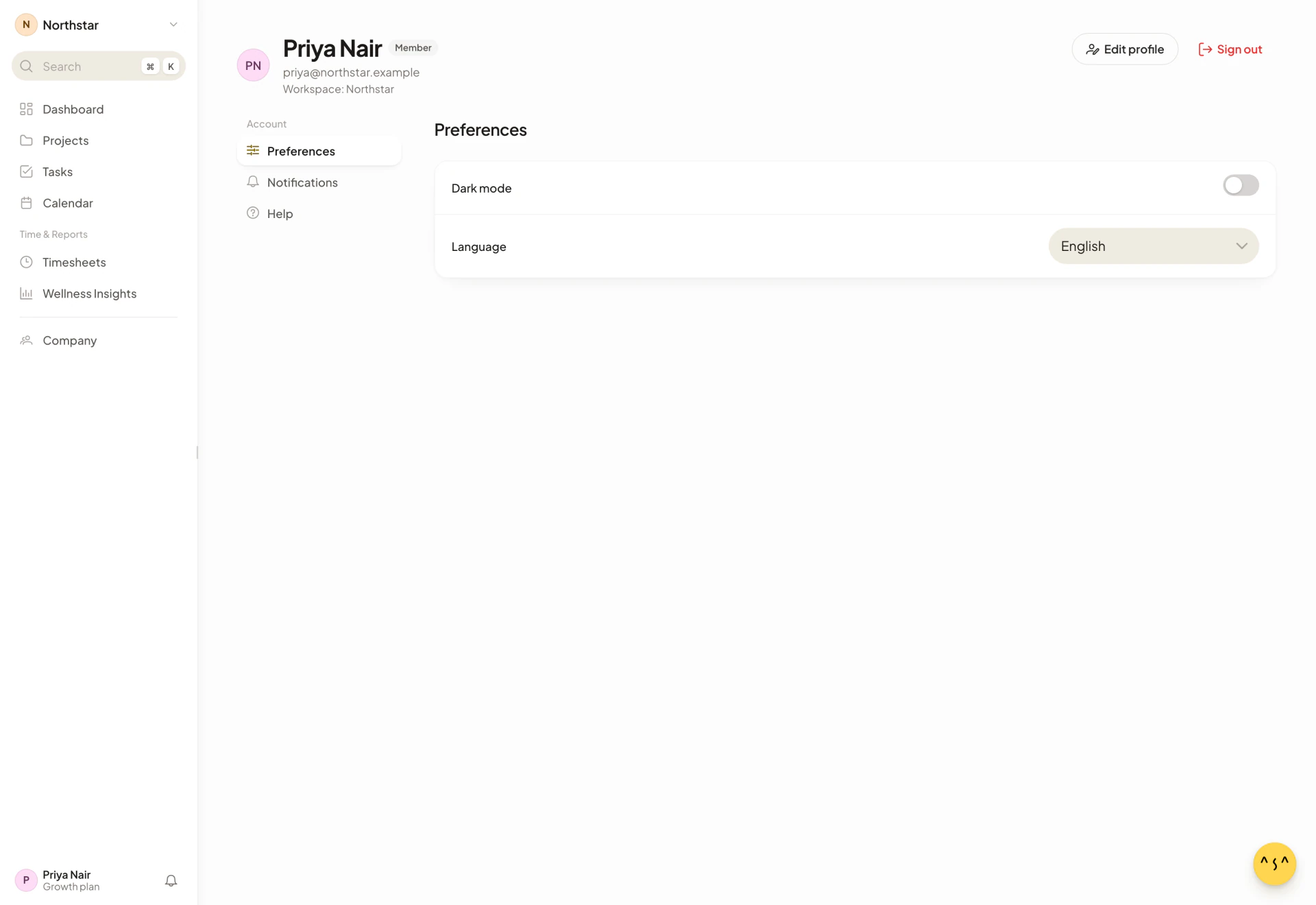
To open them, select Profile in the account menu. The page is titled with your name and shows your email address, an Admin or Member tag for the current company, and “Workspace:” followed by the company name. The left list under Account has Preferences, Notifications and Help.
Edit your profile
- On the account settings page, select Edit profile. You can also choose Edit Details in the account menu.
- In Account Details, change your First name, Last name, Date of Birth, Gender or Country & Timezone.
- Select Save.
You see “Success! User details have been saved!” and the page reloads. Save stays disabled until both First name and Country & Timezone have a value. Last name, Date of Birth and Gender are optional. The date picker does not accept a date that makes you younger than 18. For Gender, choose Male, Female or Prefer not to say.
Admins of your company can see your date of birth and gender. Your teammates cannot.
Change your time zone
The time zone lives in the same dialog, in Country & Timezone.
- Select Edit profile.
- Open Country & Timezone and type to find your zone.
- Select Save.
The dialog explains that it is “Used to personalize your public holiday calendar.” Your company’s own time zone is separate and is set by an admin in Company settings.
Connect or remove a sign-in method
You can sign in with more than one method and still keep one account and one set of data. The Sign-in methods list in Account Details says “Connect another way to sign in — same account, same data.”
It lists Email link, Google, Microsoft and GitHub.
- To add one, select Connect next to Google, Microsoft or GitHub and finish signing in with it. You see “Google connected” or the name of the one you added.
- To remove one, select Disconnect. You see “Google disconnected”.
- Email link shows Connected when you have signed in with an emailed link, and Not connected otherwise. It cannot be connected from this list.
Disconnect only appears when you have more than one method. If you try to remove the only one, Asa says “You can’t remove your only sign-in method.” See Set up your company for signing in the first time.
Change your language
- Select Preferences in the left list.
- Open Language and choose one of English, 中文, Français, Filipino, हिन्दी or Español.
The app switches straight away. The header shows Saving…, then Saved. You can also change it from the account menu, under Language.
Switch to dark mode
Under Preferences, turn on Dark mode. You can also use Dark Mode in the account menu. Asa saves the choice to your account, so it applies on other devices when you sign in.
There is one dark and one light theme. Asa has no option to follow your device’s setting.
Manage notifications
Select Notifications in the left list to choose where Asa messages you and which reminders and alerts you get. See Notification settings.
Get help and see what is new
Help collects links:
- Changelog opens what has changed in Asa.
- Help articles and Privacy policy open in a new tab.
- Connect with us links to the blog and to Asa’s social accounts.
- The footer shows the version of Asa you are running.
You can also open Support and Feedback from the account menu. This documentation covers the rest: see Find your way around and Troubleshooting.
Upgrade your plan
While your company is on the Starter plan, the account menu shows Upgrade plan. It opens the Upgrade your plan screen where you compare Starter, Growth, Scale and Enterprise. Only company admins can complete an upgrade. If you are not an admin, Asa shows “Only company admins can upgrade this company’s plan.”
Everything else about the plan is in the company’s settings: the plan name, renewal date, seat usage and a link to billing. See Plan and billing.
Sign out
Select Sign out at the top right of the account settings page, or Sign Out in the account menu.
Delete your account or export your data
Account settings have no button to delete your account or to export your data. To ask for access to, correction of or deletion of your personal data, contact support@asa.team, as described in the Privacy Policy. Deleting your account does not delete a company.
Timesheets can be exported from the Timesheets page. See Timesheets and Reports.