
Ask Asa, the in-app AI assistant
Open the Asa chat from any page, ask about your hours, leave, tasks and team, and confirm or cancel the changes Asa proposes.
On this page
Asa is the AI assistant built into Asa.Team. It reads your hours, leave, tasks, projects and team status, and answers in plain language, so you can ask instead of opening several pages. When you ask it to change something, it shows you the change and waits for you to confirm.
Asa is best for questions that cut across pages, such as “How was my week?” or “Who can meet on Thursday?”. If a single page already answers the question, that page is usually quicker. For example, the clock card on the Dashboard shows your day at a glance.
Open Asa
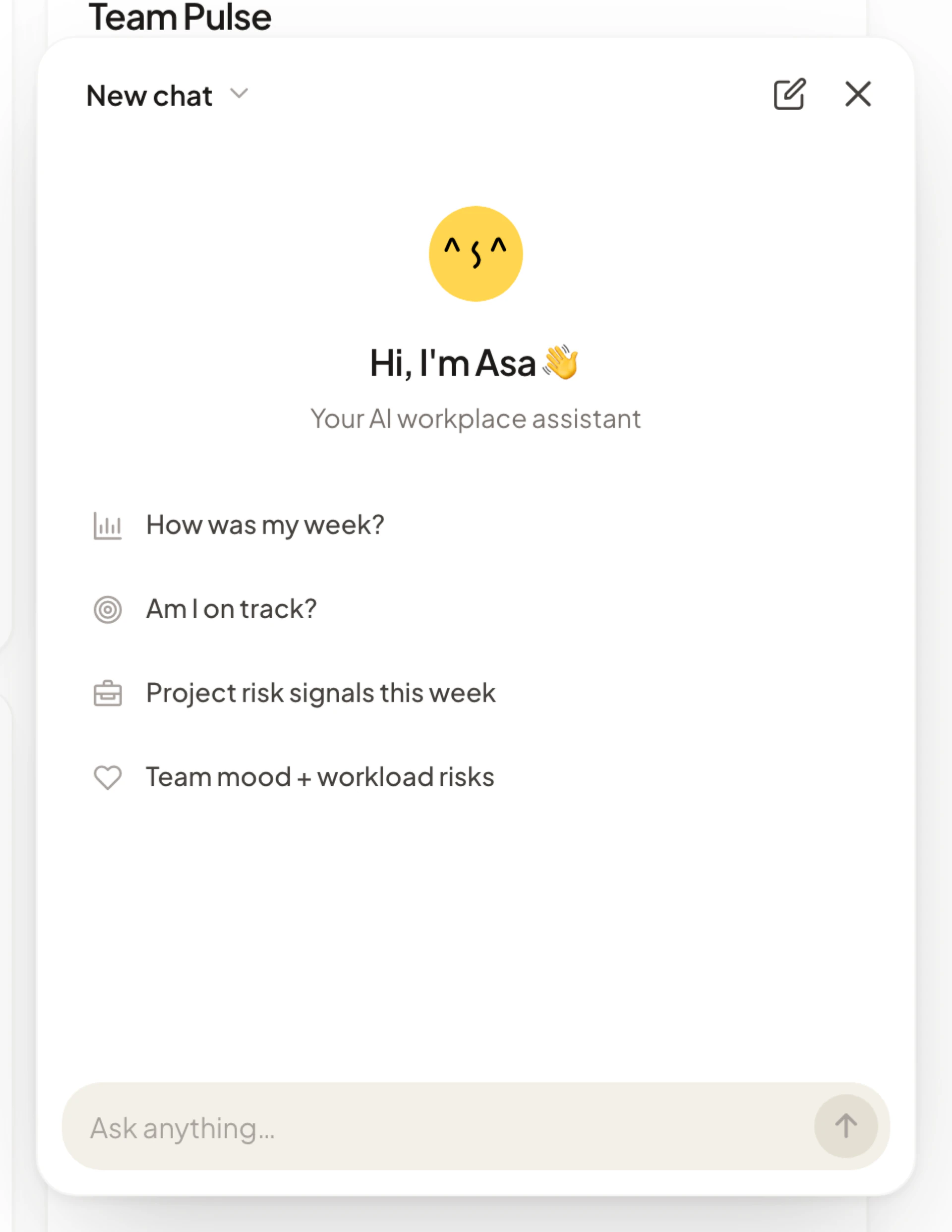
The Asa button is in the bottom-right corner of every page in the app. You can also:
- Press Ctrl+J (Windows and Linux) or ⌘J (Mac) to open or close the chat. Hover over the button to see the shortcut.
- Select an Ask Asa chip on a page, as described in the next section.
- Select Ask Asa under Suggested next in an admin’s Asa’s read briefing on the Dashboard. This opens the chat with the briefing as context, so admins can ask follow-up questions about it.
- Select Ask Asa a question in the Dashboard setup guide. It opens the chat with a few starter questions.
- Search for something in the command palette that has no match. The last result becomes Ask Asa about “your search”.
Press Esc or select the close button to hide the chat. On a phone the chat opens as a full-screen sheet.
Start from an Ask Asa chip
Some pages show a small chip near the page title with a ready-made question. Selecting it opens the chat and fills in the question. Review it, then press Enter to send.
| Page | Chip | Who sees it |
|---|---|---|
| Dashboard | What changed vs last week? | Members, once they have recorded hours |
| Timesheets | Am I on track for the month? | Everyone |
| Calendar | Find a meeting time for the team | Everyone |
| Task board | What should I focus on today? | Everyone |
| Reports | Summarize team wellness trends | Admins, when the report has data |
| Company settings | Summarise and help me review these pending requests | People who can review amendment requests, when requests are pending |
Select the x on a chip to hide it. It stays hidden on that page until you close the browser tab.
Ask a question
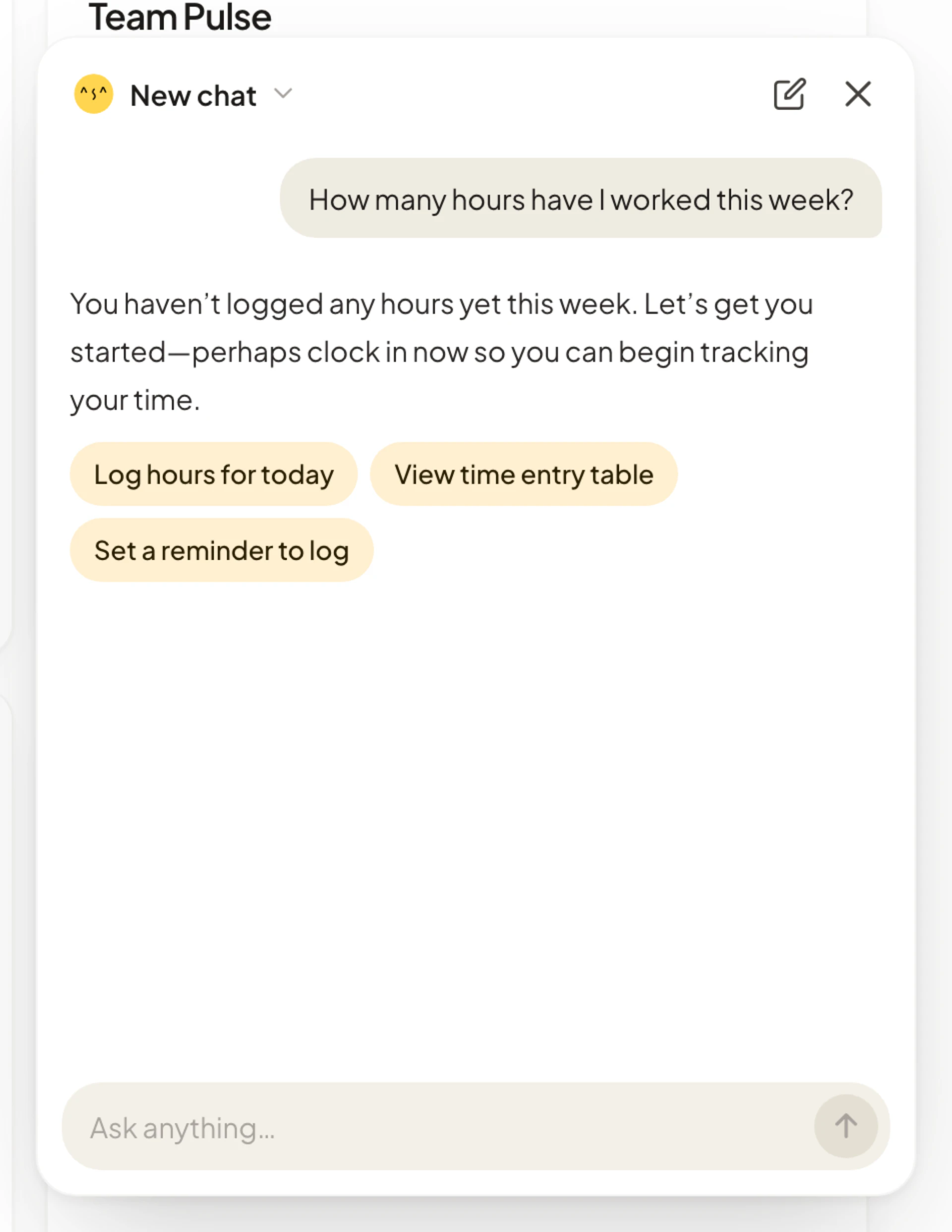
- Open Asa.
- Type in the Ask anything… box, or choose one of the suggestions shown before your first message.
- Press Enter to send. Press Shift+Enter for a new line.
While Asa works you see “Working on your request...” or “Using tools:” followed by what it is looking up. The answer streams in. Depending on the question, you also get:
- A table, list or chart, such as your weekly hours.
- A Focus Session or Break countdown timer, if you ask for one.
- A Meeting Invite card with Google Calendar and Outlook buttons, after Asa finds a time.
- A short “Opened {page}” notice when Asa takes you to another page.
- Short follow-up buttons under the answer. Select one to send it as your next message.
Asa also reads which page you are on. A vague question such as “How am I doing?” gets a different answer on Timesheets than on Task Board.
Questions that work
The suggestions Asa shows depend on the page. These are examples from the app.
| Area | Example |
|---|---|
| Your week | “Give me a summary of my week — hours, tasks, and mood.” |
| Hours | “Compare my hours this week vs last week and highlight the biggest changes.” |
| On track | “Give me personal insights — am I on track this month?” |
| Tasks | “Prioritize my top 3 tasks for today with reasoning and suggested time blocks.” |
| Focus | “Start a 25-minute focus timer” |
| Leave | “Show my leave balance and forecast whether I am on track for planned time off this quarter.” |
| Meetings | “Find the best meeting slots this week and flag any participant conflicts in advance.” |
| Team (admins) | “Show team mood and workload risk signals today, and explain where support is most urgent.” |
| Amendments (admins) | “Review pending amendments and flag any suspicious or high-impact patterns.” |
| Projects | “Give me a project risk snapshot based on hours, tasks, and team bandwidth.” |
Your own words work too. For projects connected to Project Intelligence, you can ask how a project is going, what is blocking it or which projects need attention.
What Asa can do, and for whom
Asa uses your account’s permissions. It cannot show you anything you could not already see, and it cannot do anything you are not allowed to do.
| You can ask Asa to | Members | Admins |
|---|---|---|
| Show your hours, today’s clock entries, punctuality and mood history | Yes | Yes |
| Show your leave balance and upcoming holidays | Yes | Yes |
| Show who is clocked in and the team structure | Your team, when your company uses teams | Whole company |
| Show your tasks | Yes | Yes |
| Find free time across people, and give you calendar links | Yes | Yes |
| Clock you in or out, and start or end a break | Yes | Yes |
| Start a focus or break timer, take you to a page, open support chat | Yes | Yes |
| Create a task | For yourself | For anyone |
| Update a task | Tasks assigned to you | Any task |
| Request leave, log your mood, set your active project, set your project hours | Yes | Yes |
| Ask for a correction to a clock entry | Yes | Yes |
| See clock entries and logs for everyone | No | Yes |
| See detailed data for another member | No | Yes |
| See team mood trends and send a mood check-in to the team | No | Yes |
| See team health, task statistics and the admin briefing | No | Yes |
| Approve or reject clock correction requests | No | Yes |
| Create, update or archive projects | No | Yes |
A few notes on the table:
- Asa has no tools of its own for team leads. Team leads get the same tools as members. Approve their team’s requests on the Calendar and Timesheets pages.
- Project questions only cover projects you can access. A project that is limited to certain members stays hidden from other members.
- If you ask for something your role does not allow, Asa tells you, for example “Access denied. Admins only.”
- Asa cannot clock you in or out in the web chat when your company requires location. It replies “Location verification is required. Please use the dashboard clock control.”
- Asa does not approve or reject leave requests, run payroll, change company settings, or invite or remove people.
Approve or cancel changes
When you ask Asa to change something, it does not do it straight away. It shows a card headed “Asa wants to run:” with the name of the action and the main details, such as the task title. Nothing changes until you decide.
- Read the card.
- Select Confirm to run the action, or Cancel to drop it.
After you decide, the card shows Confirmed or Cancelled and Asa continues the conversation. The action runs with your own permissions.
These actions need your confirmation:
| Action | Shown as |
|---|---|
| Create a task | create_task |
| Update a task | update_task |
| Submit a leave request | create_leave_request |
| Log your mood | log_mood |
| Change the project you are working on | set_active_project |
| Set your hours on a project, for one day or many | set_project_hours, bulk_set_project_hours |
| Create, update or archive a project (admins) | create_project, update_project, archive_project |
| Approve or reject a clock correction request (admins) | process_amendment_request |
If you ask for several changes at once, one decision covers all of them. The rest are listed as Pending under the first card.
Approval requests expire after 24 hours. If you select a card that is no longer valid, you see “This request was already handled or has expired.” If a decision does not go through, you see “That didn’t go through — the request is still pending. Try again.” and the buttons stay available.
Some actions run as soon as you ask, without a confirmation step. These include clocking in or out, sending a teammate a message in their chat app, asking for a clock correction (an admin still reviews it), submitting a standup update and starting a timer.
Suggestions from Asa
Asa sometimes offers a suggestion in a small card above the Asa button. It disappears after 8 seconds. Select the action to open the chat with the question filled in, or select Dismiss.
| Suggestion | When it appears |
|---|---|
| Morning briefing ready? | Weekdays between 7 and 10 am, while you are clocked in |
| Plan your week? | Monday between 8 and 11 am |
| Week in review? | Friday between 2 and 5 pm |
| Ready for your day summary? | Weekdays between 4 and 6 pm, while you are clocked in |
| How’s your day going? | After 2 pm, with a Log mood button |
| Day complete! | Right after you clock out, with a Day summary button |
You see at most one of the time-based suggestions a day, and none in your company’s first 24 hours. The Day complete! card after your first clock-out is separate. After you dismiss the same suggestion three times, it stops appearing on that device. Times follow your device’s clock.
Chat history and new chats
Asa saves each conversation as you go and reopens the most recent one when you reload the page.
- Select New chat (the pencil icon) to start a fresh conversation.
- Select the conversation title at the top to see your recent conversations. Choose one to reopen it.
- To delete one, select the bin icon next to it, then Delete conversation. Asa asks “Delete conversation?” and warns “This action cannot be undone.”
History belongs to you and to one company. Other members cannot open your conversations. If you belong to several companies and switch between them, Asa starts a new conversation and says “Switched to {company} — starting a new conversation.” A saved conversation keeps up to its last 50 messages, and the list shows your 20 most recent conversations.
If a history action fails you see Failed to load history, Failed to load conversation, Failed to save conversation or Failed to delete conversation. Try again after a moment.
Daily message limit
On the Starter plan your whole company shares 15 Asa messages a day. A counter such as 3/15 appears at the top of the chat. Select it to see “{used} of {limit} messages used today. Resets tomorrow.” and the Upgrade for Unlimited button. When the limit is reached, Asa answers “You’ve reached the daily AI message limit (15/day). Upgrade to Growth+ for unlimited messages.”
Growth, Scale and Enterprise have no daily limit. See /pricing for plan details.
Asa in your chat apps
The same assistant answers in Slack, Microsoft Teams, Telegram and WhatsApp once you link your account there. Plain commands such as in and out are handled directly and do not use up your daily messages. Changes proposed in a chat app wait for your approval in that app, and only the person who asked can decide.
If Asa does not answer
If a message fails, Asa shows “Something went wrong. Please try again.” or “An error occurred.” Send the message again. If it keeps failing, see Troubleshooting.