
How to connect WhatsApp to Asa.Team
Pair your WhatsApp number with a code, clock in and check hours in a private chat with Asa, and add Asa to a group so Project Intelligence can read it.
On this page
Asa works on WhatsApp through one shared Asa number. Once your own number is paired, you can message Asa to clock in, take breaks, check your hours and ask about leave. An admin or member can also add Asa’s number to a WhatsApp group so Project Intelligence can read it.
WhatsApp is the narrowest of the chat apps. Asa only replies to a message you send it, so there are no reminders, mood prompts or alerts, and Asa never replies inside a group. See Chat apps and integrations for how it compares with Slack, Microsoft Teams and Telegram.
Before you start
- You need an Asa.Team account in your company. Any member can pair their own number. You do not need to be an admin.
- Pair from a phone that has WhatsApp installed. The number you message from is the number that becomes linked.
- There is nothing to install in WhatsApp. Everyone in your company uses the same Asa number.
Pair your WhatsApp number
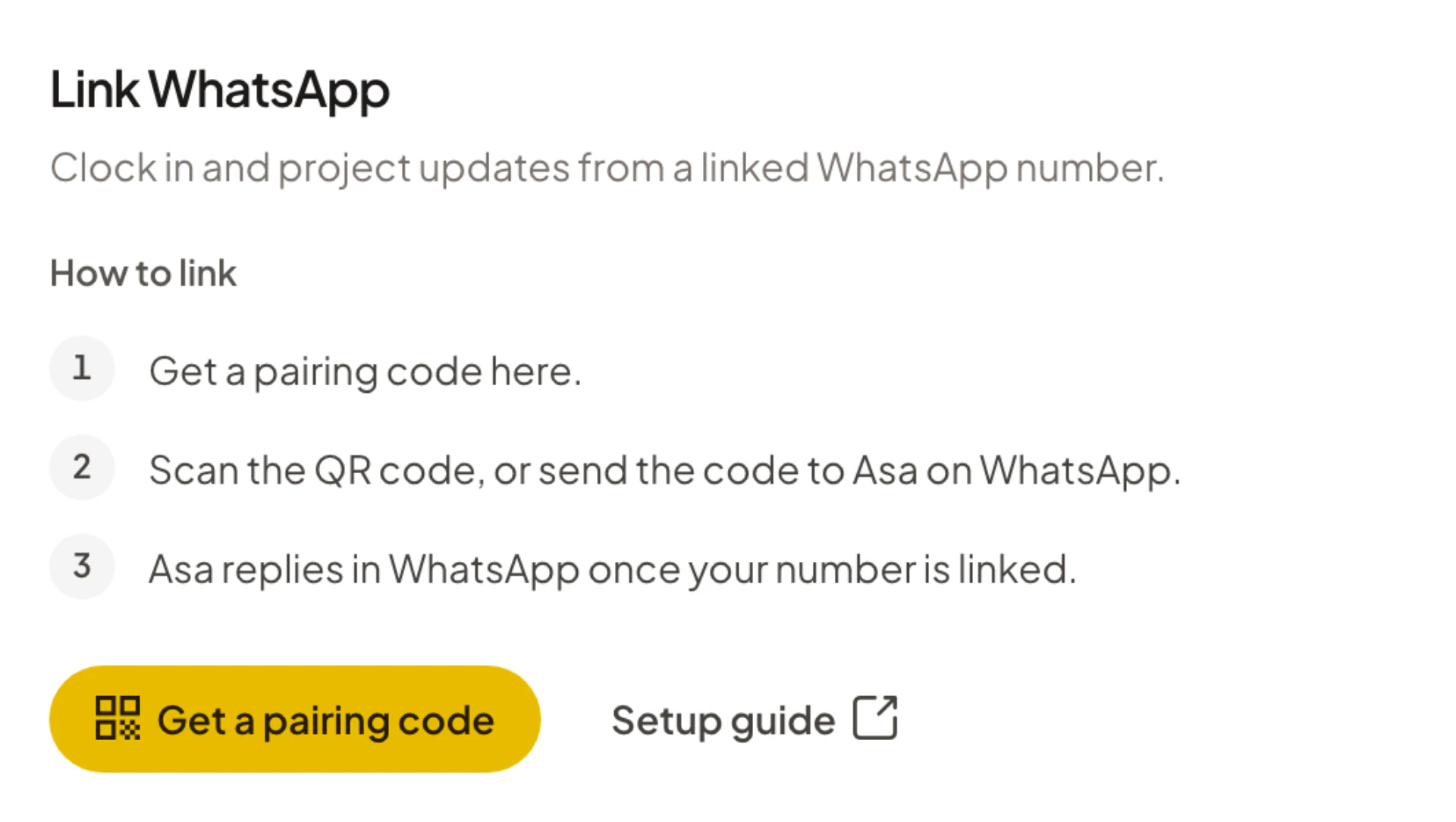
- In Asa.Team, open Company > Integrations and select the WhatsApp tab.
- Select Get a pairing code. The Connect WhatsApp window opens with a QR code and a Pairing code that looks like
ASA XXXX XXXX. - On your phone, scan the QR code with the camera or WhatsApp. WhatsApp opens a chat with Asa and a message that already contains your code.
- Send that message.
Asa replies in WhatsApp with a short confirmation such as “Hi {name}, you are connected to Asa.” The WhatsApp tab then shows “WhatsApp is linked”.
If you are on your phone already, select Open WhatsApp in the window instead of scanning. If you prefer, send the code yourself to the number shown under the QR code, which reads “Scan with WhatsApp, or send this code to” followed by the number. Use Copy code to copy it.
Things to know about the code:
- It works once and expires after 10 minutes. The window shows “Expires at” and the time.
- When it expires the window says “This code has expired. Create a new one to connect.” Select New code.
- It pairs the company you were viewing when you created it. If you belong to more than one company, switch to the right one first.
- If the window says “You do not have access to connect WhatsApp for this company.”, your account is not an active member of that company.
- If it says “Something went wrong with WhatsApp. Please try again later.” or “Could not create a pairing code. Please try again later.”, wait a few minutes and select New code.
Asa does not answer messages from a number that is not paired, other than a valid pairing code.
Clock in and use Asa on WhatsApp
Message Asa in a private chat. There are no slash commands. Write what you want in plain language:
- “Clock me in” or “clock in”, and “clock out”
- “Start my break” and “end my break”
- “How are my hours this week?”
- “Who is online right now?”
- “How much leave do I have?”
- “I need to take annual leave next Friday”
Saying only “clock in” or “clock out” is handled directly, without waiting for Asa’s AI. Asa confirms with a message such as “Clocked in at 9:02 AM.” (with “(late)” when you are past the grace period) or “Clocked out at”.
When Asa is about to change something for you, such as submitting a leave request or logging your mood, it asks you to confirm. Reply CONFIRM to go ahead or CANCEL to stop. See Ask Asa, Request and approve time off and Clock in, take breaks and clock out.
Asa gives the same reasons here as in the other chat apps:
- “You are already clocked in.” or “You are not currently clocked in.”
- “Breaks are not enabled for you. Please contact your administrator to configure break settings.”
- “You must be assigned to a team before you can clock in or out. Please contact your administrator.”
- “Your account has been disabled. Please contact your administrator.”
If a plain-language request takes too long, Asa replies “That one took too long on my end — give me a minute before trying again.” If your company is on the Starter plan, plain-language messages stop after the company’s 15 daily AI messages. See Chat apps and integrations.
What WhatsApp cannot do
Asa on WhatsApp only answers in the chat you are in. Anything that needs Asa to message someone later, or someone else, is switched off. If you ask for it, Asa says “WhatsApp only supports synchronous replies in the current chat. This proactive action is disabled on WhatsApp.” This covers timers, sending a mood pulse to the team, notifying a member, scheduling a meeting and watching a team member.
There is also no notification setting for WhatsApp. Profile > Notifications lists Microsoft Teams, Slack and Telegram only. See Notifications.
Stop messages
If you send stop, unsubscribe, remove me, wrong number, opt out or block, Asa treats it as an opt-out and stops replying to your number.
Add Asa to a group for Project Intelligence
Asa reads a WhatsApp group only so that it can build project status, blockers and next steps. It does not reply in the group and does not read private chats.
- Make sure you have paired your own number, as above.
- Add Asa’s WhatsApp number to the group. The number is shown in the Connect WhatsApp window.
- After Asa has joined, send a message in the group from your paired number. Asa uses that message to recognise the group as yours.
- In Projects, open the project and select Connect a conversation (or Add source next to Listening to), then pick the group from the WhatsApp list.
If the list says “WhatsApp is connected, but Asa has not detected any usable conversations yet. Add it to a group, send a message there after the bot joins, and refresh.”, do steps 2 and 3, then select Refresh list.
The project setup flow also has a WhatsApp section with a Connect button that opens the same Connect WhatsApp window, so you can pair without leaving the setup. A group belongs to the first company that connects it as a source. See Projects and Project Intelligence.
Everyone in the group can see that Asa’s number is a member. Tell the group what Asa is for before you add it.
Disconnect WhatsApp
Unlink from Asa.Team. Asa cannot do it from the chat. If you send disconnect or unlink, Asa replies “WhatsApp disconnection is handled in the Asa web app settings. I cannot disconnect this chat from WhatsApp.”
- Open Company > Integrations and select the WhatsApp tab.
- Select Unlink WhatsApp.
- Confirm Unlink in the dialog.
Asa then stops recognising your number. To stop a group being read, remove Asa’s number from the group in WhatsApp.