
How to set work schedules, breaks and grace periods
Set the days, hours and breaks your company works, give a team or a person their own schedule, allow flexible hours and set a grace period for late clock-ins.
On this page
A work schedule tells Asa when people are expected to work: which days, from what time to what time, when they break and in which time zone. Asa uses it to decide who is late, what each person’s daily and weekly targets are, which days count when someone takes leave and how many hours are scheduled in a pay run.
Only admins can change schedules. Members can open their own schedule and see it, but not edit it.
How schedules are chosen
There are three levels of schedule. A person follows the most specific one that exists, and only that one:
- Individual. A schedule set for one person.
- Team. A schedule set for a team, used by people in that team who do not have an individual one.
- Company default. Used by everyone else.
A new company starts with a Monday to Friday week from 9:00 AM to 5:00 PM and no grace period. Most companies only need the company default, and add a team or individual schedule for the people who work differently.
Open the schedules
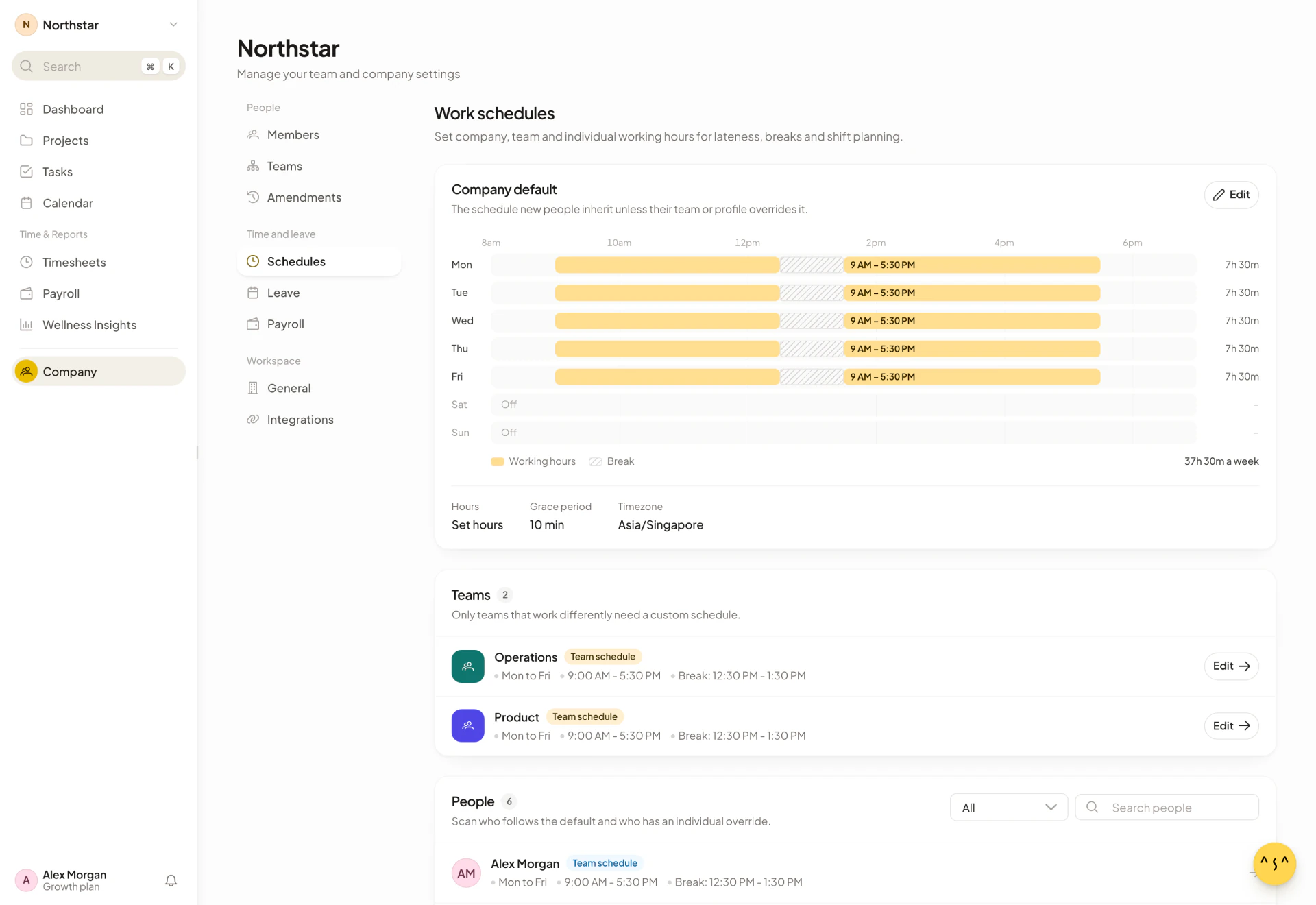
- Select Company in the sidebar.
- Under Time and leave, select Schedules.
The Work schedules page has up to three cards:
- Company default: a chart of the week and the main facts (Hours, Weekly target, Grace period and Timezone).
- Teams: one row per team. It appears when your company uses teams and has at least one.
- People: one row per person, with a label showing where their schedule comes from: Company default, Team schedule or Custom. With more than five people, a search box (Search people) and an All / Custom only filter appear.
Select Edit on a card, or select a person, to open the editor in a panel on the right.
Change the company default
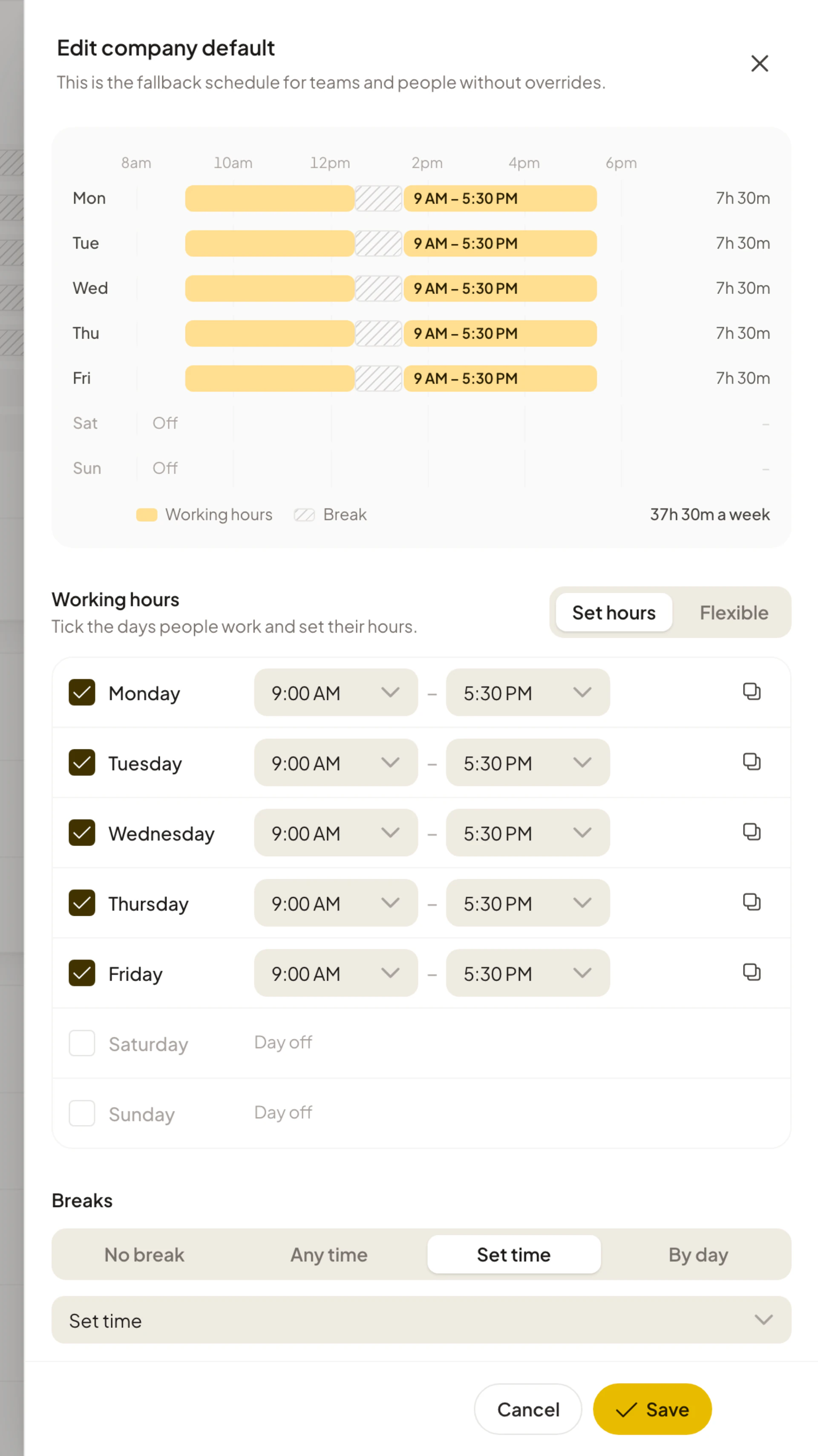
- On the Company default card, select Edit. The panel is titled Edit company default.
- Under Working hours, tick the days people work. For each working day, choose a start and an end time. Times go in 15-minute steps.
- To use the same hours on every working day, select the copy button next to a day (Copy to all working days).
- Set breaks and the grace period.
- Select Save. Asa shows “Default settings saved”.
If you pick an end time earlier than the start time, Asa marks the day +1 (Ends the next day), so you can set up night shifts that finish after midnight. Unticked days show Day off.
Asa will not save a schedule with no working days (“Pick at least one working day.”), with the same start and end time (“Start and end times must be different.”) or with a break that ends before it starts (“A break must end after it starts.”).
Choose set hours or flexible hours
Above the days, the Working hours control switches between Set hours and Flexible.
- Set hours. People work the days and times you set. Lateness, breaks and reminders follow them.
- Flexible. People start and finish whenever suits them. Asa says: “People start and finish whenever suits them, so lateness and set break times are not tracked and clock-in, clock-out and break reminders stop. Set hours are kept for when you switch back.” The days you saved are still used for leave and payroll.
For flexible hours you can add a Weekly hours target, in half-hour steps from 0.5 to 168 hours per week. It is optional. The hint reads: “Monday to Sunday. It shows on the dashboard, and admins see any shortfall once the week ends.” Flexible schedules appear as Flexible in the lists, with the target when there is one, for example “Flexible · 40 a week”.
You can set flexible hours for the whole company, for a team or for one person.
Set breaks
The Breaks section appears for set hours. Choose one of:
| Option | What it means |
|---|---|
| No break | Breaks are not tracked. |
| Any time | People start and end their break whenever suits them. |
| Set time | The same break window on every working day. Choose the start and end of the break. |
| By day | Choose the break for each working day: No break, Any time or Set time. |
The chart and the list show the break window when there is one, for example “Break: 12:00 PM - 1:00 PM”. People log breaks with Break and End Break on the Dashboard, as described in Clock in, take breaks and clock out.
Set the grace period
The grace period is how long after the start time someone can still clock in and count as on time. Open the company default editor and choose Grace period: None, 15 min, 30 min, 45 min, 60 min, 120 min or 180 min. The hint reads: “Clock-ins within this window after the start time still count as on time.”
The grace period is a single company-wide setting. It also applies to people with a team or individual schedule, and it is hidden while the company default is flexible.
Give a team its own schedule
Teams that work different hours can have their own schedule. This card appears only when your company uses teams. To create teams, see Teams.
- On the Teams card, select Edit on the team. The panel is titled with the team’s name and says: “Team schedules override the company default for members without personal schedules.”
- Set the days, hours, breaks and Set hours or Flexible, as for the company default.
- Select Save. Asa shows “Team schedule updated”.
The team’s row shows Team schedule once it has its own schedule, and Company default otherwise. To go back to the company default, open the team, select Reset to default and Asa shows “Team schedule reset to company default”.
Give one person their own schedule
Use an individual schedule for someone whose hours differ from their team and from the company.
- On the People card, select the person. The panel is titled with their name and says: “Individual schedules override both team and company defaults.”
- Choose their Timezone. This is required, and Save stays unavailable until you pick one.
- Set the days, hours and breaks. The editor starts as a copy of what the person works today.
- Select Save. Asa shows “Schedule updated”.
The person’s row shows Custom, and their time zone. To remove the override, open the person, select Reset to default. Asa shows “Schedule reset to company default”.
Plan limit on individual schedules
On the Starter plan, up to 3 people can have an individual schedule. The page shows “{used} of {limit} custom schedules used” with a Starter limit label and an Upgrade button. If you try to give a fourth person their own schedule, Asa explains that “Your Starter plan allows custom schedules for up to 3 team members” and offers an upgrade. The company default and team schedules are not limited, and neither is editing people who already have a schedule. See pricing.
What a schedule changes
Lateness
When someone clocks in for the first time on a day, Asa compares the time with their start time plus the grace period. If it is later, the day is marked Late on timesheets, and admins get a notification such as “Alex clocked in late at 9:12:03 AM”. People on a day off, and people on flexible hours, are never marked late.
Targets and reminders
The dashboard counts a person’s day and week against their schedule (see the Dashboard). Flexible people show Flexible hours with their weekly target, if any. Asa also sends clock-in, clock-out and break reminders based on the schedule, and stops them for flexible hours.
Leave
Leave is counted in working days. The days a person’s schedule marks as off, and public holidays, do not use up their leave balance, and the Calendar shows them as “Not a working day”. See Leave policies.
Payroll
In a pay run, the Worked card compares worked hours with the hours scheduled for the period, using each person’s own schedule. Approved paid leave is added at the hours the person was scheduled for on those days. Each person’s days and overtime weeks follow the time zone of their schedule, so give people in other regions an individual schedule with the right Timezone. See Set up payroll.