
Roles and permissions
What admins, team leads and members can each see and do in Asa.Team, who approves leave, time corrections and payroll, and how to change someone’s role.
On this page
Asa has two roles, Admin and Member, and one extra responsibility, team lead, that a member takes on by leading a team. Most of these limits are enforced on the server, not only on screen, so a hidden button is also a blocked action.
Your role belongs to one company. You can be an admin in one company and a member in another. The company menu in the sidebar shows Admin or Member under each company’s name.
The roles
| Role | Who they are |
|---|---|
| Admin | Runs the company: people, teams, settings, leave policy, payroll and plan. The person who creates the company is an admin. A company can have several admins, and always has at least one. |
| Team lead | A member who is set as the lead of a team. They review requests from their team and see its timesheets. A team has one lead. |
| Member | Everyone else. Members track their own time, request leave and corrections, and see the people they work with. |
What each role can do
| Task | Admin | Team lead | Member |
|---|---|---|---|
| Clock in, take breaks, clock out | Yes | Yes | Yes |
| See their own timesheet | Yes | Yes | Yes |
| Request a correction or leave | Yes | Yes | Yes |
| Log a mood check-in | Yes | Yes | Yes |
| See the timesheets of other people | Everyone | Their team | No |
| Approve or reject leave requests | All requests | Their team, never their own | No |
| Approve or reject time corrections | All requests | Their team, never their own | No |
| See projects | All projects | Projects they belong to, and projects open to everyone | Projects they belong to, and projects open to everyone |
| Create and edit projects | Yes | No | No |
| See the member list | Everyone, with team and clock status | Their team only, when teams are on | Their team only, when teams are on |
| Invite, pause and remove members | Yes | No | No |
| Make or remove admins | Yes | No | No |
| Create and manage teams | Yes | No | No |
| Change work schedules | Yes | No, read-only | No, read-only |
| Edit the leave policy and balances | Yes | No | No |
| Set pay rates and run payroll | Yes | No | No |
| Change company name, time zone and location tracking | Yes | No | No |
| Upgrade the plan or open billing | Yes | No | No |
| Delete the company | Yes | No | No |
| See team wellness trends | Yes | No, own data only | No, own data only |
| Receive admin alerts | Yes | No | No |
When your company uses teams, everyone who is not in a team is also blocked from clocking in and from submitting requests. This includes admins. See Teams.
Who approves what
| Request | Who can answer it |
|---|---|
| Leave | Admins, and the lead of the requester’s team. A lead cannot answer their own request. See Time off. |
| Time correction (add, edit or delete an entry) | Admins, and the lead of the requester’s team. A lead cannot answer their own request. See Time corrections. |
| Pay run | Admins only. Payroll is not shown to anyone else. See Pay runs. |
If someone is not in a team, only admins can answer their requests.
Team leads see their team’s requests in Company > Amendments and on the Calendar. Anyone not allowed to answer a request sees Awaiting review on their own request instead of the Approve and Reject buttons.
Change someone’s role
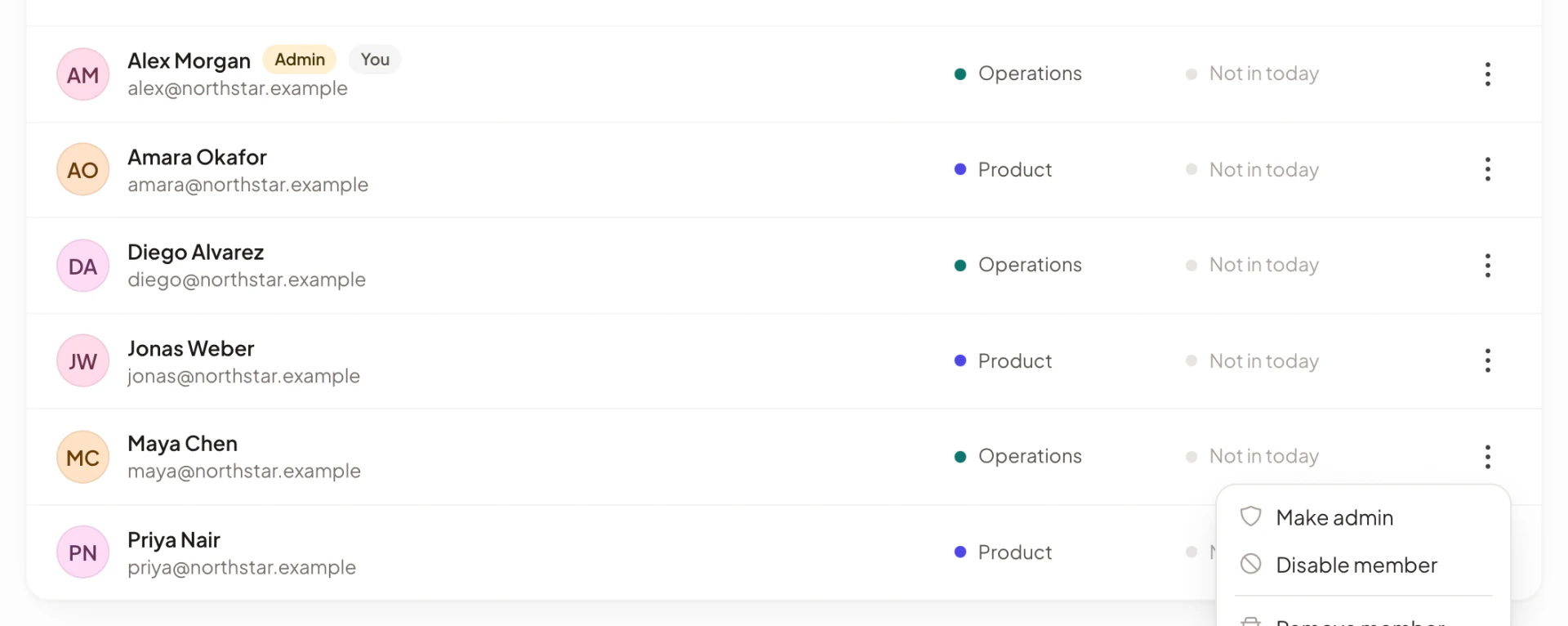
Admin access:
- Open Company > Members.
- Open the three-dot menu on the person’s row.
- Select Make admin or Remove admin, then Confirm.
See Make someone an admin. Asa will not remove the last admin: you see “Cannot remove the last admin”.
Team lead: open Company > Teams, select the team, and use the crown button beside a member. See Choose a team lead. A member must be in the team to lead it.
There is no other role to assign. A new member starts as a Member.
What people can see about each other
- Pay rates are visible only to admins.
- Date of birth and gender are visible to the person themselves and to admins. Teammates cannot see them in the member list.
- Wellness data is scoped. Admins see team averages, attendance and alerts that name people whose scores stay low. Members and team leads see only their own check-ins and attendance. See Wellness Insights.
- Timesheets are personal unless you are an admin or the lead of that person’s team.
Paused members
An admin can pause a member, who then loses access to the company until an admin restores them. They see Your access is paused instead of the app. Asa will not pause the last admin. See Pause a member.
Plans and roles
Some limits depend on your plan rather than on your role. For example, the Starter plan includes 5 members and 2 teams. Admins see the upgrade options. See Seats and member limits.