
Request and approve time corrections
Ask to add, edit or delete a clock entry, track your request, and as an admin or team lead approve or reject requests before payroll.
On this page
Clock entries cannot be edited directly. If a clock-in, break or clock-out is wrong or missing, you send a correction request, which Asa calls an amendment. An admin, or the leader of your team, reviews it. When it is approved, the entry on your timesheet changes and your hours for the day are recalculated.
Request a correction
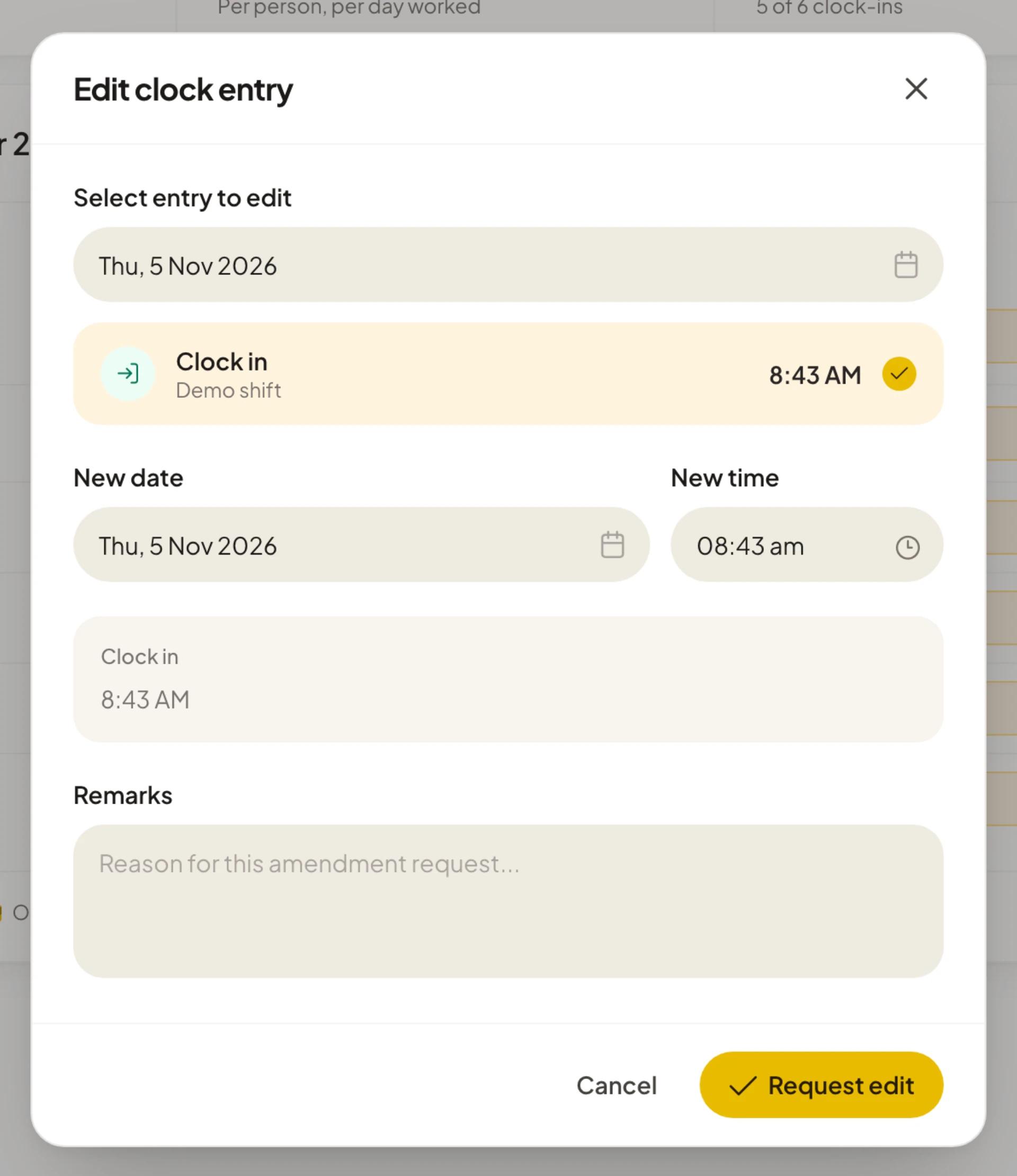
You can start a request from three places. All of them open the same Amendment request form.
- Timesheets. Open the day and use the controls described in Fix a wrong or missing entry. The form opens with the entry already filled in.
- Dashboard. In My Requests, select Amend Time. See Dashboard.
- Company > Amendments. Select New request.
The form asks What would you like to do? and offers three choices:
| Choice | Use it to |
|---|---|
| Add entry | Request to add a missing clock in/out. |
| Edit entry | Request to correct an existing entry. |
| Delete entry | Request to remove an incorrect entry. |
If your company uses teams and you are not on one, you see “No team assigned” and “You must be assigned to a team before submitting amendment requests.” Ask your admin to add you to a team.
All times in the form are in your work time zone. When it differs from your device’s, the form says “Times are in {zone}”.
Add a missing entry
- Choose Add entry.
- Under Entry type, pick Clock in, Clock out, Break start or Break end. The break types only appear when your company, team or schedule tracks breaks.
- Pick the Date. You cannot pick a day after today.
- Enter the Time.
- In Remarks, say why the entry is missing.
- Select Submit request.
A common case is forgetting to clock out. Add a Clock out at the time you actually finished.
Edit an entry
- Choose Edit entry.
- Under Day of the entry, pick the day. Days with entries are marked with a dot.
- Under Clock entries on that day, select the entry to change. If the day has none, you see “No clock entries on this day”.
- Set the New date and New time. A line shows the entry before and after, with “changes to” between them.
- In Remarks, give the reason.
- Select Request edit.
Delete an entry
- Choose Delete entry.
- Pick the day and select the entry to remove. The form shows it as Entry to be deleted.
- In Reason for deletion, say why it should go.
- Select Request deletion.
What Asa checks before sending
Asa will not send a request that has a problem, and shows the message beside the field:
| Message | Meaning |
|---|---|
| “Enter a time.” | The time is empty. |
| “The time can’t be in the future.” | The time you chose is later than now. |
| “Choose a time different from the current one.” | An edit that changes nothing. |
| “Choose the clock entry to amend.” | An edit or deletion with no entry selected. |
| “Add a short reason so reviewers can decide quickly.” | Remarks is empty. A reason is required for every request. |
If sending fails you see “Failed to submit request”. Try again.
After you submit
The window changes to Request submitted: “Admins can approve or reject it from the amendments list. You will see the outcome there.” It summarises what you asked for and why. A message at the bottom of the screen confirms it too, for example “Your request to edit clock out has been submitted!”. Select Done to close.
While the request waits, the entry on your timesheet shows “Awaiting approval” and its edit and delete icons are hidden.
Track and cancel your requests
Your requests appear in two places:
- My Requests on the Dashboard lists pending requests first, then those decided in the last 14 days, each marked Pending, Approved or Rejected.
- Company > Amendments lists Waiting for review requests and a History of decided ones. A member sees only their own.
Select a request to see the current time next to the requested time and your reason. To withdraw a pending request:
- Open the request and select Cancel Request.
- At Cancel this request?, confirm. The message says “This withdraws your request, so admins no longer need to review it.” Select Keep request to leave it as it is.
Asa shows “Request cancelled”. You can only cancel a request that is still pending, and only your own.
If you clocked in while offline
When you clock in or out without a connection, Asa saves the action on your device and sends it once you are back online. Because the time comes from your device’s clock, the action arrives as an amendment request for review instead of a normal entry. The reviewer sees “Recorded while offline. The time comes from the device clock.” and, when the clock was wrong, “The device clock was off by {duration}.” The entry is added to your timesheet once it is approved. See Clock in when you are offline.
Review requests
Admins review every request in the company. A team lead reviews requests from the members of the team they lead, but never their own: for a lead’s own request the row shows Awaiting review with no buttons, and an admin has to decide it.
When someone submits a request, admins get a notification in the bell, for example “{name} has submitted a request to edit a clock in entry”, and a message in their connected chat app. Select the notification to open Company > Amendments. Admins can switch these alerts under Feature alerts in their notification settings. See Notifications.
Where requests wait
There are two places:
- Company > Amendments. In the sidebar, select Company, then Amendments. A badge on the tab counts the requests waiting. The page reads “Review amendment requests across the company.” for admins and “Review your team’s amendment requests.” for team leads. If it says “No company amendment requests.” there is nothing to do.
- Action Queue on the admin Dashboard. Open the Amendments tab and select Review on a row.
Each request in Waiting for review shows the person, what they asked for, such as Add Clock In, Change Clock Out or Remove Clock In, the date and time, and their reason in quotes. Select a row to open it, with the current time next to the requested time.
Approve or reject requests

- Open Company > Amendments.
- Read the request. For an edit, compare Current with Requested. For a deletion, the entry is marked To be removed.
- Select Approve or Reject, from the row or from the open request.
- Confirm. The window tells you the result before you commit:
- Approve this request? An addition “adds the entry to {name}'s timesheet and notifies them”. An edit “changes the entry on {name}'s timesheet and notifies them”. A deletion “permanently removes the entry from {name}'s timesheet and notifies them”.
- Reject this request? “This leaves {name}'s timesheet unchanged and notifies them.”
Asa shows “Request approved” or “Request rejected”, and the request moves from Waiting for review to History. History shows the latest decisions with Show all {count} for the rest.
If someone else decided the request first, you see “This request was already reviewed.” If the person withdrew it, or the entry is gone, you see “This request or its clock entry no longer exists.” Nothing changes in either case.
An approved deletion cannot be undone. If it was a mistake, ask the person to submit an Add entry request.
What happens after a decision
- The person gets a notification such as “Your request to edit clock out at {time} has been approved!” (or rejected), which opens their timesheet.
- An approved request changes the clock entry. Asa rebuilds the person’s timesheet and recalculates their punctuality for the affected days.
- A rejected request leaves everything as it was.
Corrections and payroll
Payroll reads the clock entries, so corrections have to be settled before you pay.
- A request that is still pending and affects the pay period blocks approving the pay run. Payroll lists it as Pending amendment request with a Review request button. See Fix anything that blocks approval.
- Once a request is approved, the corrected hours appear when you open the pay run again, because opening a draft recalculates it with the latest entries.
- A locked pay run keeps its figures. Reopen it to pick up a later correction. See Change a pay run after locking.
Clear the queue before each pay run. The Action Queue on the Dashboard shows how many requests are waiting.