
How to clock in and take a break
Start your day from the Dashboard, pick the project you are working on, pause for a break and clock out.
On this page
The clock card on your Dashboard is where your day starts and ends. Everything you do there is recorded on your timesheet. The rest of the Dashboard fills in from the hours you track.
You can also clock in from Slack, Microsoft Teams, Telegram or WhatsApp (see Integrations overview), or press Ctrl+K (Command+K on a Mac) and run Clock in from the command palette.
Clock in
- Open Dashboard from the sidebar.
- In the clock card, select Clock In.
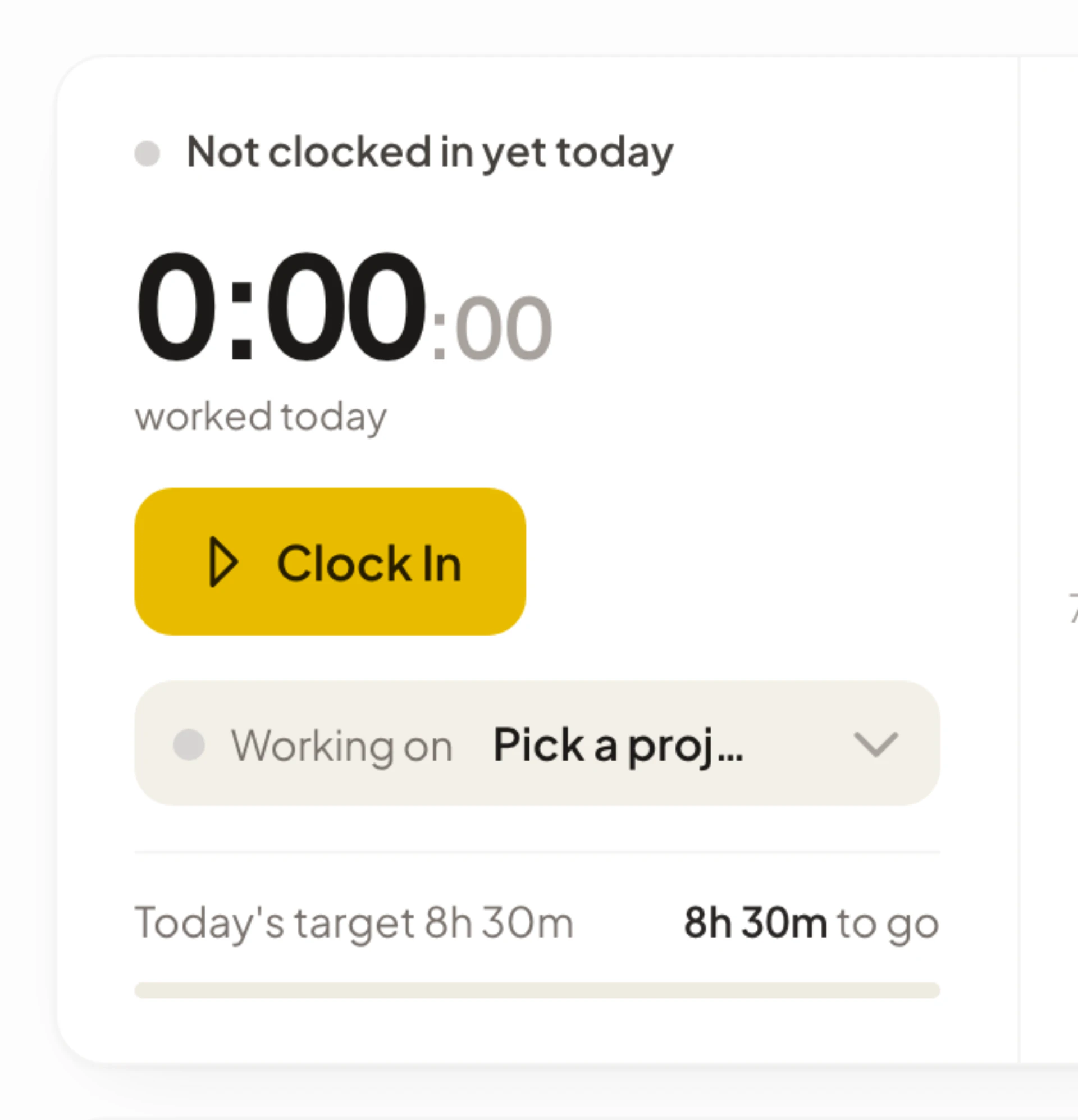
The card starts a timer, shows “Clocked in at” and the time, and counts your day against today’s target, for example “Today’s target 8h 30m” and “7h 3m to go”. Your week so far is under Your week. How today’s target is worked out comes from your work schedule.
If your company uses teams, you must belong to one before you can clock in. If you see “You must be assigned to a team to clock in”, ask your admin to add you. If your company requires your location, allow location access in the browser when it asks.
Choose what you are working on
If your company tracks projects, the clock card has a Working on menu.
- Select Pick a project.
- Choose a project from the list.
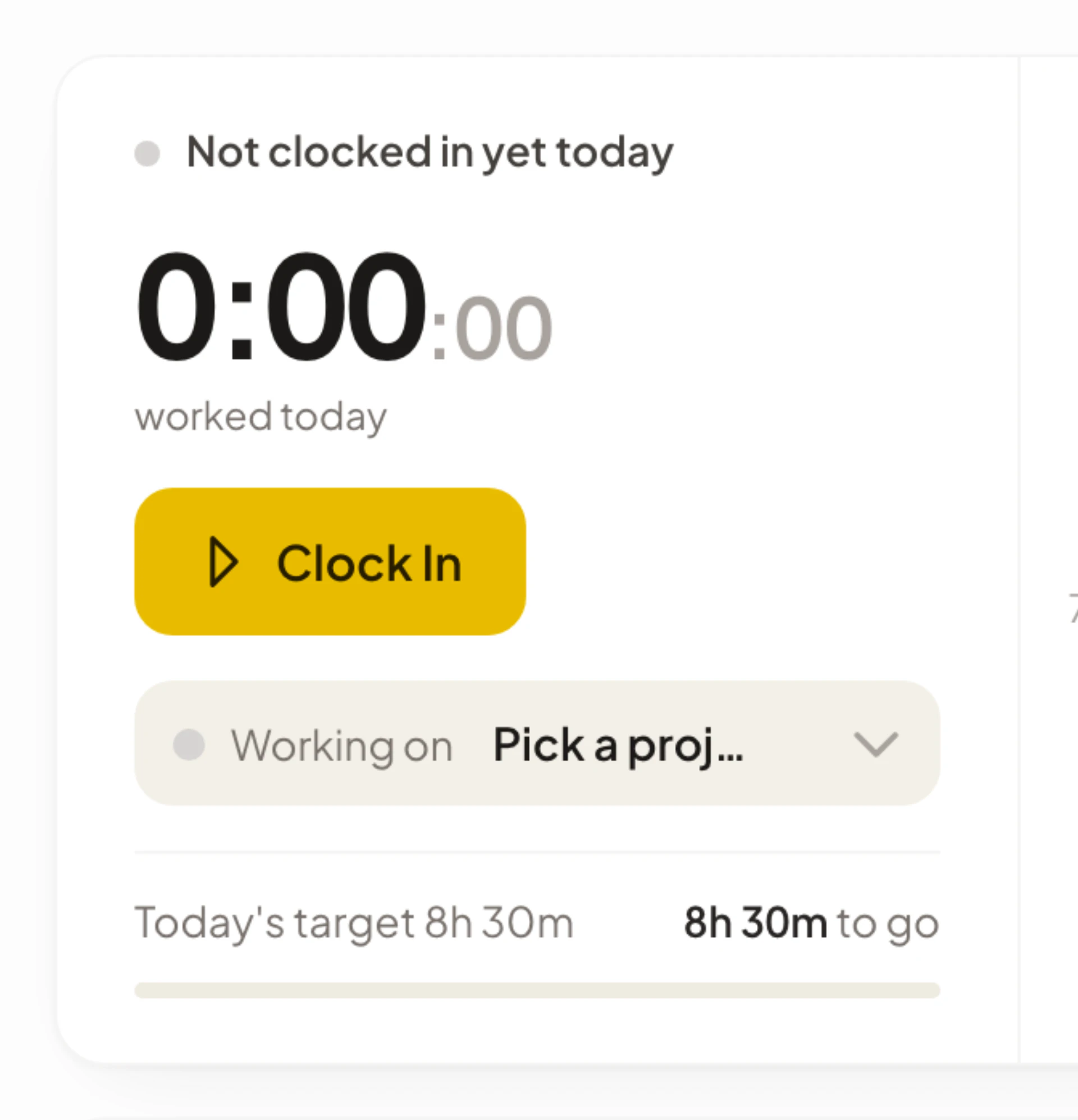
The project is shown on the card while you work, and project hours are saved when you clock out. If there are no projects yet, the card shows Log hours to projects instead.
Take a break
- Select Break. The card shows “On a break since” and the time.
- When you are back, select End Break.
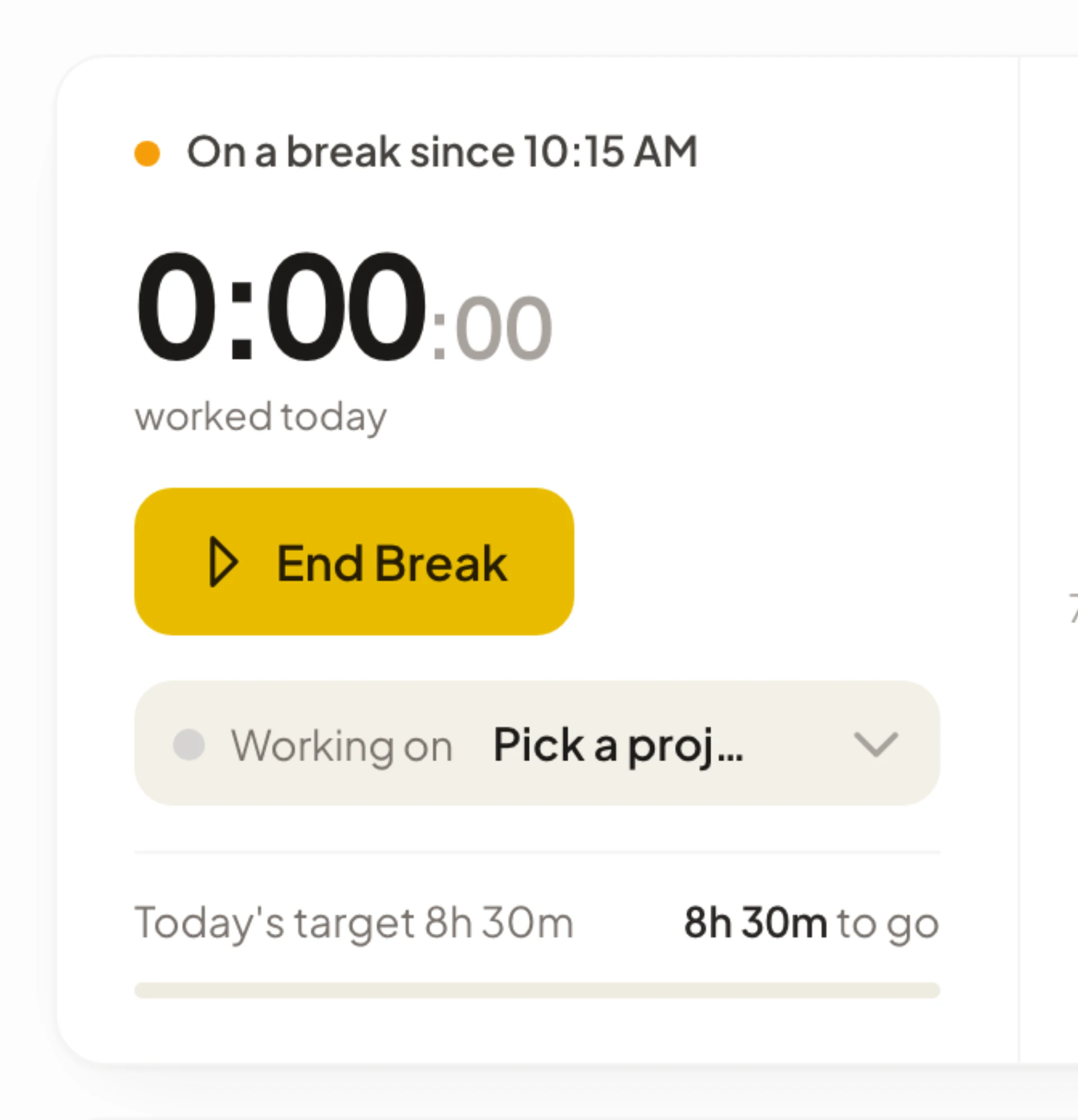
Break only appears when your company or your schedule tracks breaks. If you do not see it, you do not need to log breaks.
Clock out
Select Clock Out when you finish. Your hours for the day are added to your timesheet.
If you forget to clock out
Asa can remind you in Slack, Microsoft Teams or Telegram. The evening reminder says “Still clocked in?” and tells you when your work day ended. You can turn reminders on or off from the account menu: choose Profile, then Notifications.
If a day has an entry with no clock-out, ask for a correction as described below. On that day the timesheet shows “No clock-out recorded”, and the time after the entry is not counted until the correction is approved.
Fix a wrong or missing entry
- Open Timesheets and open the day with the problem. If the day has no hours, switch to Week view and select the day.
- To change an entry, select the pencil next to it (Request edit). To remove one, select the trash can (Request deletion). For an entry with no end, select Request clock-out or Request break end. For a day with nothing recorded, select Request a missing entry.
- Check the details, add a short reason and select Submit request, Request edit or Request deletion.
You see Request submitted when it is on its way. Your admin reviews the request, and so does your team lead if you are on a team. Admins are notified when you send it, and you get a notification when it is decided. The Request clock-out and Request break end buttons do not appear for today, but you can still add an entry for today with Request a missing entry or from My Requests on the Dashboard. The whole process, including how to withdraw a request, is in Time corrections.
Clock in when you are offline
If you lose your connection, Asa saves the clock action on your device and sends it when you are back online. Because the time comes from your device’s clock, it goes to your admin as a clock amendment request: “Your offline clock action was submitted for review.”