
How to set up payroll
Choose your pay period, rounding and overtime rules, count paid leave, set each person’s hourly rate and currency, and check you are ready for your first pay run.
On this page
Payroll settings are the rules Asa uses every time it prepares a pay run: how long a pay period is, how worked time is rounded, when hours become overtime and what each person is paid per hour. You set them once and they apply to every new draft.
Asa prepares payroll. It does not pay anyone. The result is a reviewed file you export for your payroll provider.
Who can set up payroll
Only company admins can see Payroll in the sidebar and the Payroll tab in company settings. Team leads and members do not. The tab also needs a plan that includes payroll preparation. A member who opens the Payroll page sees “Admin access required”.
Open payroll settings
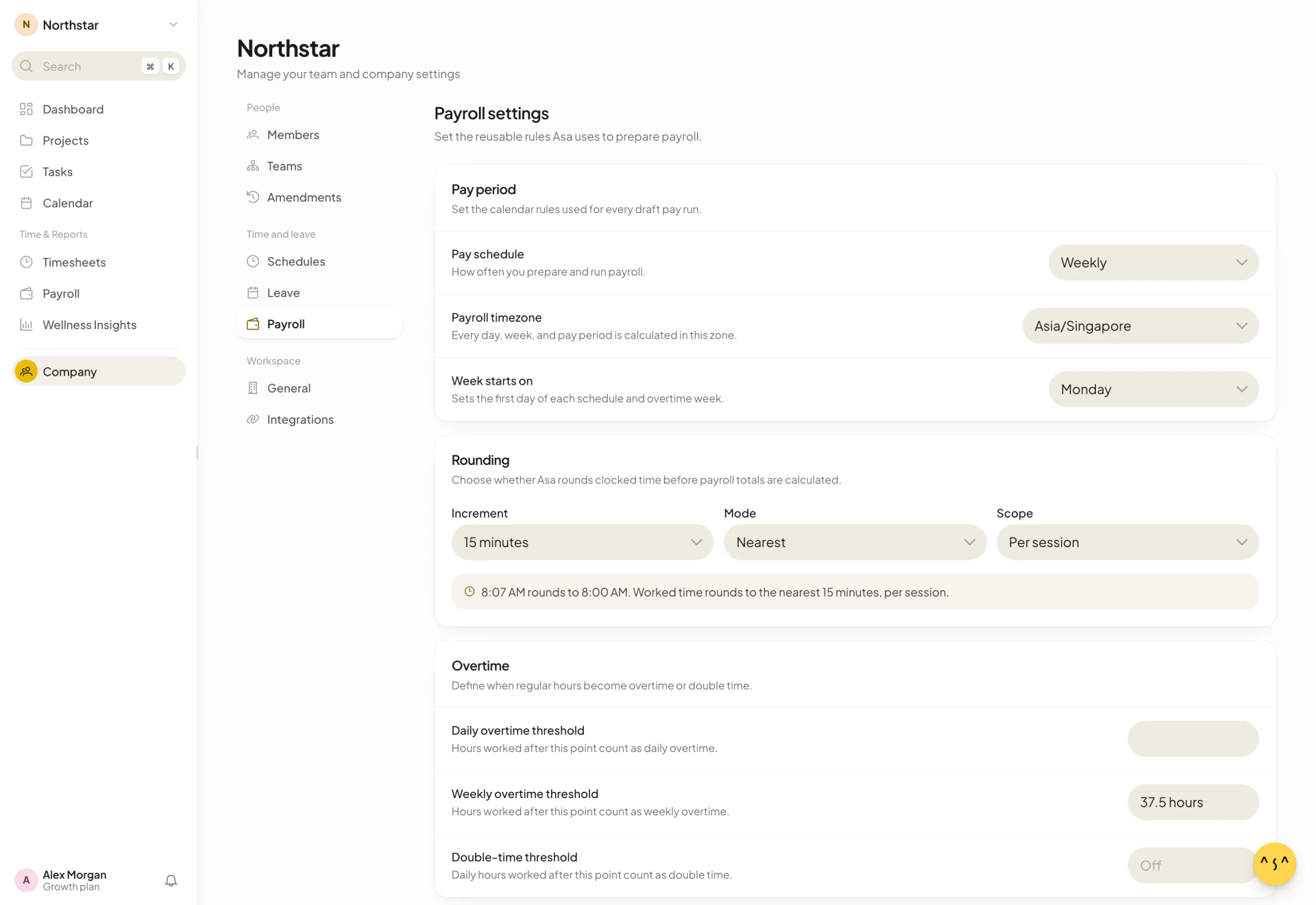
There are two ways in:
- Select Payroll settings at the top of the Payroll page (under Time & Reports in the sidebar).
- Select Company in the sidebar, then Payroll under Time and leave.
The page is titled Payroll settings and has these cards: Pay period, Rounding, Overtime, Paid leave and Employee pay rates.
Set the pay period
In the Pay period card, choose how often you run payroll.
-
Open Pay schedule and pick one option:
Pay schedule Pay period Weekly Seven days, starting on the day set in Week starts on. Biweekly Fourteen days, repeating from the Biweekly anchor date. Semimonthly The 1st to the 15th, and the 16th to the end of the month. Monthly The whole calendar month. Custom No automatic period. You pick the dates when you create each pay run. -
For Biweekly, pick a Biweekly anchor date. It is the first day of one two-week period, and every later period follows from it. Without it, Asa shows “A biweekly schedule requires an anchor date.” and you cannot save.
-
Check the Payroll timezone and Week starts on (see below).
On the Payroll page, Asa opens the pay period that contains today, and the arrows move between periods. With Custom, you set the dates yourself, as described in Pay a custom date range. A pay run can cover up to 62 days.
Choose the payroll timezone and week start
- Payroll timezone. Asa uses it to decide where each pay period starts and ends. Until you save payroll settings, it is your company’s time zone. If you type or pick one Asa does not know, it shows “Enter a valid timezone, such as Asia/Singapore.” and you cannot save.
- Week starts on. Sets the first day of the week for weekly pay periods and for weekly overtime. The default is Monday.
Each person’s days and weeks are counted in the time zone of their work schedule. The payroll timezone only decides the edges of the pay period. If you have people in another region, give them an individual schedule with the right time zone.
Round worked time
Rounding is off by default, and Asa uses each clock entry exactly as recorded. To round, open the Rounding card:
- Under Increment, choose 1 minutes, 5 minutes, 6 minutes, 10 minutes or 15 minutes. No rounding turns it off.
- Under Mode, choose Nearest, Round up or Round down.
- Under Scope, choose Per session or Per day.
Mode and Scope stay unavailable until you choose an increment.
The scope decides what is rounded. Per session rounds each work session on its own, from clock-in to clock-out. Per day adds up the day’s worked time and rounds the total once. Rounding changes the length of time Asa counts, and the rounded time is what overtime and pay use.
A line under the controls previews your choice, for example “8:07 AM rounds to 8:00 AM. Worked time rounds to the nearest 15 minutes, per session.”
Set overtime rules
Asa only calculates overtime when you give it a threshold. By default none is set, so every worked hour is regular time. In the Overtime card, enter any of these in hours:
| Field | What it does |
|---|---|
| Daily overtime threshold | “Hours worked after this point count as daily overtime.” |
| Weekly overtime threshold | “Hours worked after this point count as weekly overtime.” The week starts on the day in Week starts on. |
| Double-time threshold | “Daily hours worked after this point count as double time.” It shows Off until you set it. |
Leave a field empty to switch that rule off.
For example, with a daily threshold of 8 and a double-time threshold of 12, a 14-hour day is 8 regular hours, 4 overtime hours and 2 double-time hours. When a stretch of time qualifies under more than one rule, double time is used first, then daily overtime, then weekly overtime.
Overtime is paid at 1.5 times the person’s rate and double time at 2 times. These multipliers are fixed.
Count paid leave in payroll
The Paid leave card has two switches:
- Include paid leave in payroll. “Adds approved paid leave hours to payroll preparation.” It is on by default. Only approved leave of a leave type marked Paid leave is added, at the hours the person was scheduled for on those days. Pending, rejected and cancelled requests are ignored, and Work From Home is never paid leave. See How leave affects payroll and Leave policies.
- Count paid leave toward overtime. “Includes paid leave hours when checking overtime thresholds.” It is off by default.
Save your payroll settings
When you change anything in the first four cards, a bar appears at the bottom: “You have unsaved changes”, with Discard and Save settings.
- Select Save settings. Asa shows “Payroll settings saved.”
- If something is wrong, such as a missing anchor date or an unknown timezone, the bar shows the reason and Save settings stays unavailable until you fix it. If the save itself fails, Asa shows “Could not save payroll settings.”
If you leave the tab with unsaved changes, Asa asks “Discard unsaved changes?” and warns “You have unsaved payroll changes. Leaving this tab will discard them.”
Settings apply when Asa calculates a draft. A locked pay run keeps the numbers it was locked with.
Set an hourly rate for each person
Asa estimates pay from each person’s hourly rate. A person with no rate shows No rate set, and their hours are counted but no pay is estimated.
- In the Employee pay rates card, find the person. Use Search employees if the list is long. Each row shows their email and their rate, for example “USD 25.00 / hour”.
- Select Edit rate.
- Choose a Currency. You can search the list.
- Enter the Hourly rate. It cannot be negative.
- Select Save rate. Asa shows “Employee pay rate saved.”
Rates save on their own with Save rate. They do not need Save settings. If you start typing a rate and then switch to another person, Asa asks “Discard unsaved changes?” and Unsaved rate appears on the row until you save or select Discard.
Each person has their own currency, so you can pay people in different currencies. A pay run shows its estimated gross pay separately for each currency.
To remove a rate, select Edit rate and then Clear rate. Asa shows “Employee pay rate cleared.”
Asa stores one hourly rate per person. There is no field for a salary.
Check you are ready for the first pay run
Payroll settings have defaults, so you can create a draft before changing anything. The defaults are a weekly period starting on Monday, your company time zone, no rounding, no overtime and paid leave included. Before you approve your first run, check that:
- The pay schedule, timezone and week start match how you actually pay people.
- Everyone you pay has a rate and a currency.
- Each person’s work schedule is right, because scheduled hours and paid leave hours come from it.
- The leave types that should be paid are marked Paid leave in your leave policy.
- Timesheet problems are fixed. A work session with no clock-out, for example, blocks approval. See Fix a wrong or missing entry.
Then continue with Approve and lock a pay run.