
How to use the Calendar to see who is out
See who is off and which public holidays are coming, switch between everyone and just you, export a leave summary as a PDF and sync leave to Google Calendar.
On this page
The Calendar shows leave and public holidays for your company one month at a time, so you can see who is away before you plan a meeting or book time off yourself. The same page holds your own leave requests and, for approvers, the requests waiting for an answer.
This page explains how to read the Calendar. To ask for time off, cancel a request or answer one, see Request and approve time off.
Read the month view
Open Calendar from the sidebar. The page opens on the Calendar tab for the current month. A line under the page title tells you who is away today: “Everyone’s in today”, “{name} is out today” or “{count} people are out today”.
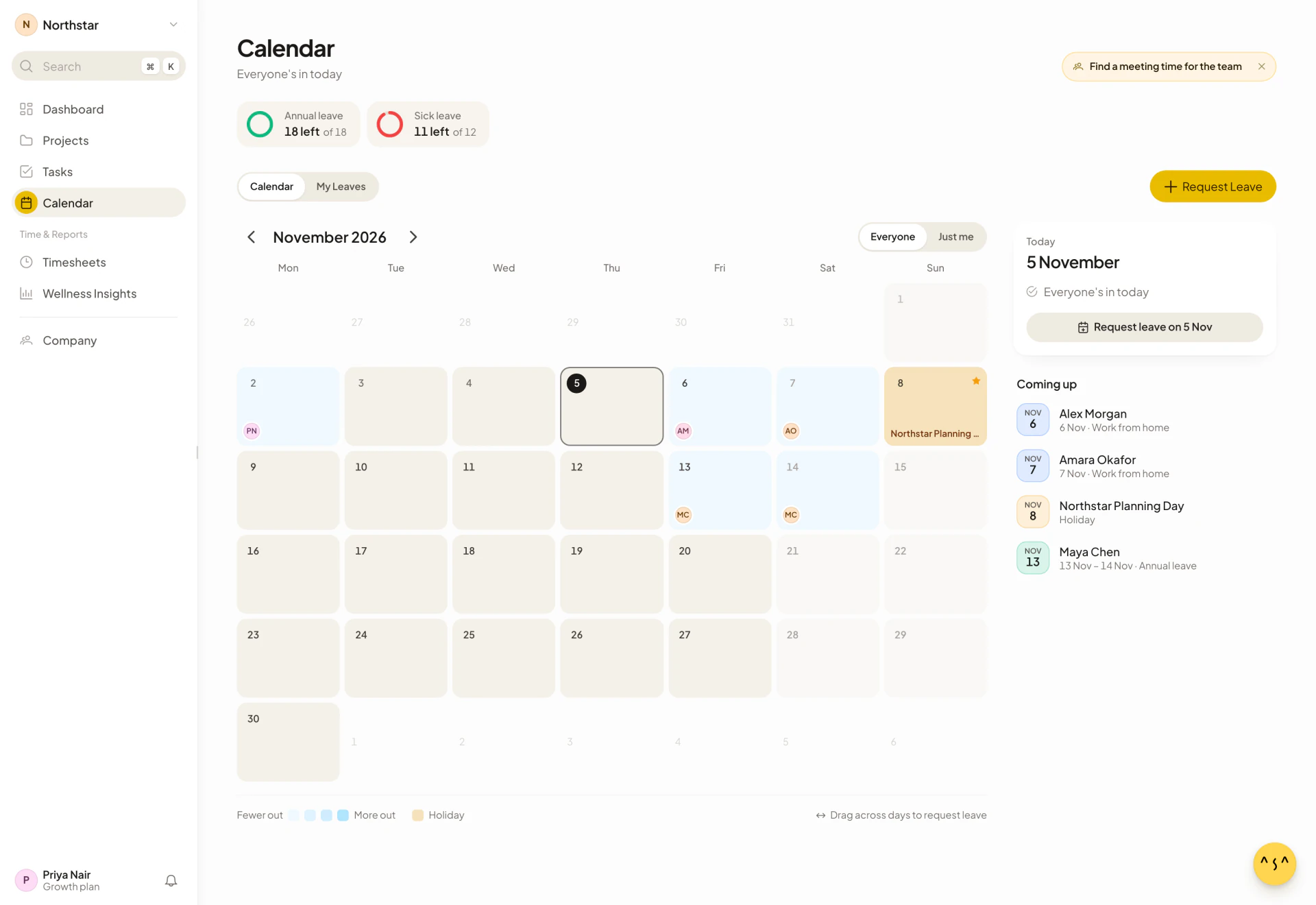
- Use the arrows beside the month name to move between months. On a touch screen, swipe left or right on the month.
- When you are looking at another month, a Today button appears. Select it to return to the current month.
- Public holidays have a gold tint and a star, and show the holiday’s name.
- Days your schedule does not include, such as weekends, are shown dimmer. Asa uses your own work schedule to decide which days are working days.
A legend under the month explains the colors. On a large screen it also reads “Drag across days to request leave”. Dragging works with a mouse. On a touch screen, select Request Leave instead.
Switch between everyone and just you
Above the month, choose how much of the Calendar you see:
| View | What it shows |
|---|---|
| Everyone | Approved leave for people across your company. Each day shows the avatars of the people who are out, and the tint gets stronger as more people are away (the legend runs from “Fewer out” to “More out”). |
| Just me | Only your own leave. Each day is tinted in the color of your leave type and shows its name. |
Pending requests look different from approved leave. On Just me, a pending day has a dashed outline and a Pending label. On Everyone, the avatar of a person with a pending request is faded. In Everyone, you see pending requests that are yours and, if you are an admin or a team lead, pending requests you can decide on.
People who are not admins see other people’s leave only for leave types that have Visible to team turned on. By default Sick Leave and Compassionate leave are private, so teammates do not see them. Admins can change this in leave policies.
See one day in detail
Select a day to open it in the panel beside the month (below the month on a phone). The panel starts on today, or on the first day of the month if you are viewing another month.
The panel shows:
- The date, with “Today” or the weekday above it.
- A gold banner with the holiday name and “Public holiday, no leave needed” when the day is a public holiday.
- Everyone who is out that day, with their leave type and Morning or Afternoon for a half day. Pending requests carry a Pending label, and your own leave is listed first. Select a row to open the full request.
- “Nothing booked”, “Everyone’s in” or “Not a working day” when nobody is out.
- A Request leave on {date} button when you have no leave that day and it is not a public holiday.
The full request shows the dates, the number of days, the status, any note, an Also out list of teammates who are away on the same days, and a History of when it was submitted and decided.
See what is coming up
Under the day panel, Coming up lists leave and public holidays that start in the next 30 days, up to six items, in date order. On Everyone it shows who is away and for what, with “You” for your own leave. On Just me it shows your own leave types. Leave that is still waiting for an answer carries its status.
Select a leave item to open the request, or a holiday to jump to that day in the month. When nothing is booked, it reads “Nothing in the next 30 days”.
Check your own leave and requests
Two things on the page are about you rather than the company.
- Summary chips. Above the tabs, one chip per leave type with an allowance shows what you have left, for example “16 left” and “of 18”. Another chip shows Your next time off. Select a balance chip to start a request for that type. If you can approve leave, a Requests chip shows how many are waiting, for example “3 to review”.
- My Leaves tab. Lists your requests, split into Upcoming and Earlier, with a status label on anything that is not approved. Beside the list, Days off in {year} charts approved and pending days by month, and Allowance shows Used, Pending and Left for each leave type. Select a month bar to jump to that month in the Calendar.
Cancelling from My Leaves is covered in Cancel a request.
Review requests
Admins, and team leads for their own team, also see a Requests tab with the number of pending requests. It filters by All, Pending, Approved and Rejected. On a large screen, a panel beside the list shows Next two weeks, and when you hover over a request it shows that request’s days. Approving and rejecting are covered in Approve or reject requests.
Finish setting up leave
Until leave is set up, the Request Leave and Export PDF buttons are hidden and you cannot drag across days to request leave.
While either step below is missing, the Calendar shows a Finish setting up leave checklist. It reads “Both steps are needed before your team can book time off.” for admins, and “Your admin still has to finish setting this up.” for members. The two steps are:
- Leave policy: leave types, quotas, approval rules and notice periods. See Leave policies.
- Holidays: public holidays, so booked leave skips non-working days. See Set up public holidays.
Each step shows Done once it is saved. Admins see a Set up button on a step that is not done.
Export a leave summary as a PDF
Admins can download a PDF of everyone’s leave balances and leave history.
- On the Calendar, select Export PDF. On a narrow screen, open the Actions menu (the three dots) and choose Export PDF.
- Under Dates, choose This year or Custom range. For a custom range, pick a Start date and an End date.
- Select Export PDF in the dialog.
The dialog says what the file holds: “The report includes current balances, approved leaves, and pending requests for all team members.” When the download finishes, Asa shows “PDF exported successfully”. Export PDF appears once your leave policy is set up, and only admins see it.
Sync approved leave to Google Calendar
You can have your approved leave appear in your own Google Calendar. Each person connects their own Google account. Connecting does not affect anyone else.
- Open Company in the sidebar, then Integrations.
- In the Calendar card, select Connect.
- Sign in to Google and approve access.
After you connect, the card shows Connected. Asa creates a calendar named “Asa Leaves” in your Google account. When an approver approves one of your leave requests, Asa adds an all-day event to that calendar, titled with the leave type and your name, and marked as busy. When a cancellation of approved leave is approved, Asa removes the event.
To stop syncing, select Disconnect on the same card.
The sync runs from Asa to Google Calendar only. Events you create in Google Calendar do not appear in Asa. Leave that Asa approves automatically because its leave type needs no approval, and public holidays, are not added to Google Calendar. Asa asks Google only for access to the calendar it creates, not to your other calendars.
For setup details and troubleshooting, see Google Calendar.
Ask Asa about availability
The Calendar header has a Find a meeting time for the team shortcut. It opens Asa with the question “Can you check my team’s availability this week and find a good time for a meeting?” See Ask Asa for what you can ask.