
How to approve and lock a pay run
Review a pay period’s hours, fix anything that blocks approval, lock the pay run and export it for your payroll provider.
On this page
A pay run turns the hours your team tracked into a reviewed, locked and exportable payroll file. This guide takes you from an empty period to a downloaded export. Set your pay period, rounding, overtime rules and pay rates first, as described in Set up payroll.
Only company admins can use Payroll. If you see Payroll preparation unavailable, payroll preparation is not turned on for your company. Contact support through the chat button on this page.
Estimated pay only counts people who have an hourly rate. Set an hourly rate for each person under Payroll settings before you create your first draft. A person without a rate shows No rate set.
Open the pay run for a period
- In the sidebar, under Time & Reports, select Payroll.
- Asa opens the pay period that contains today, based on your pay schedule. To pay a different period, use the arrows next to the dates (Previous pay period and Next pay period).
- Select Create draft. Asa calculates the hours, pay estimates, leave and project allocation for the period.
If a draft already exists for the period, opening it recalculates the draft with the latest clock entries, so you always review current numbers. You can also choose Recalculate draft from the More actions menu.
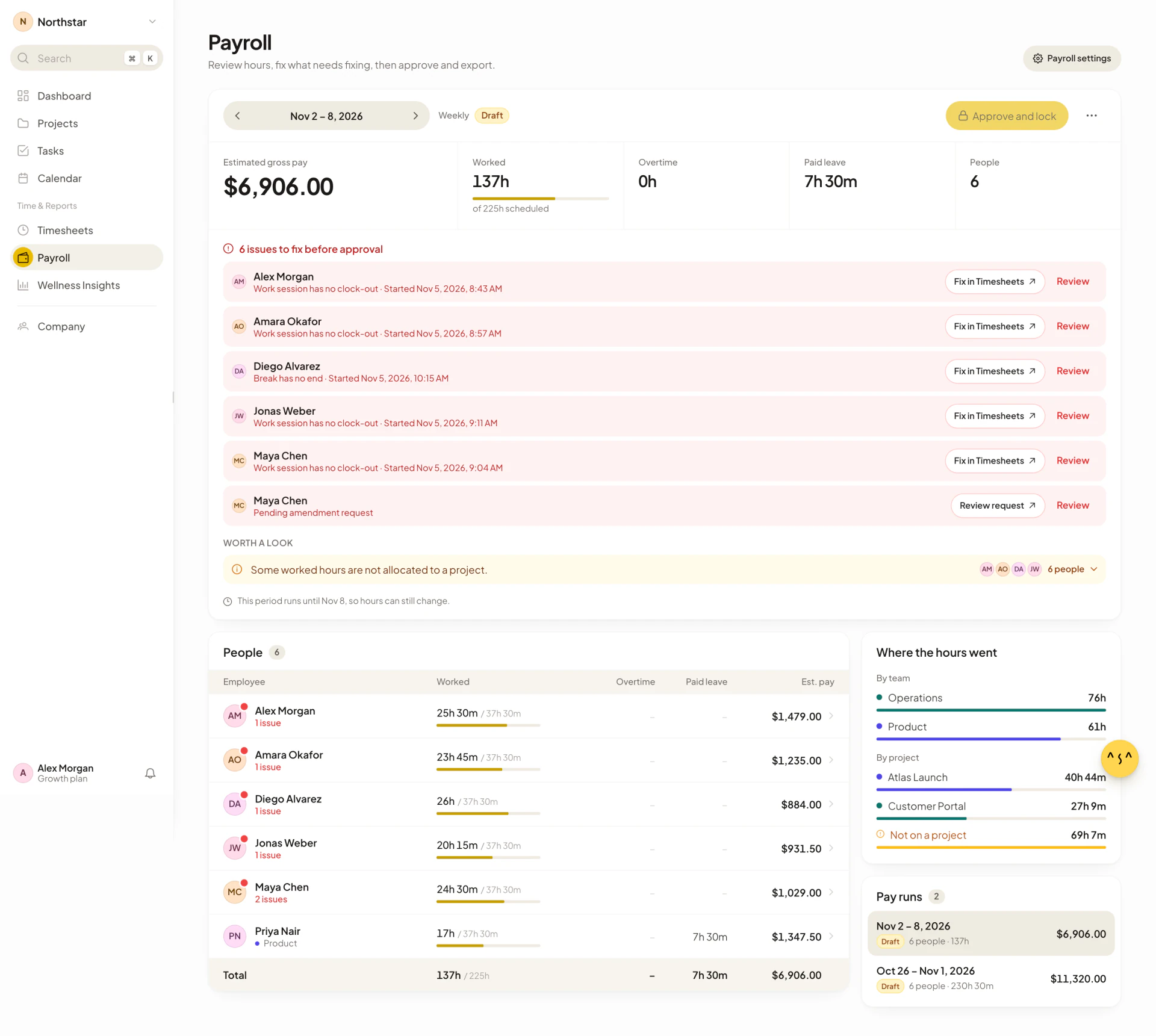
Wait until the period has ended before you approve it. For a period that is still running, Asa shows “This period runs until {date}, so hours can still change.”
Pay a custom date range
If your pay schedule is Custom, or you need a one-off run, open More actions, choose Custom dates, pick a range of up to 62 days and select Create draft.
Read the summary
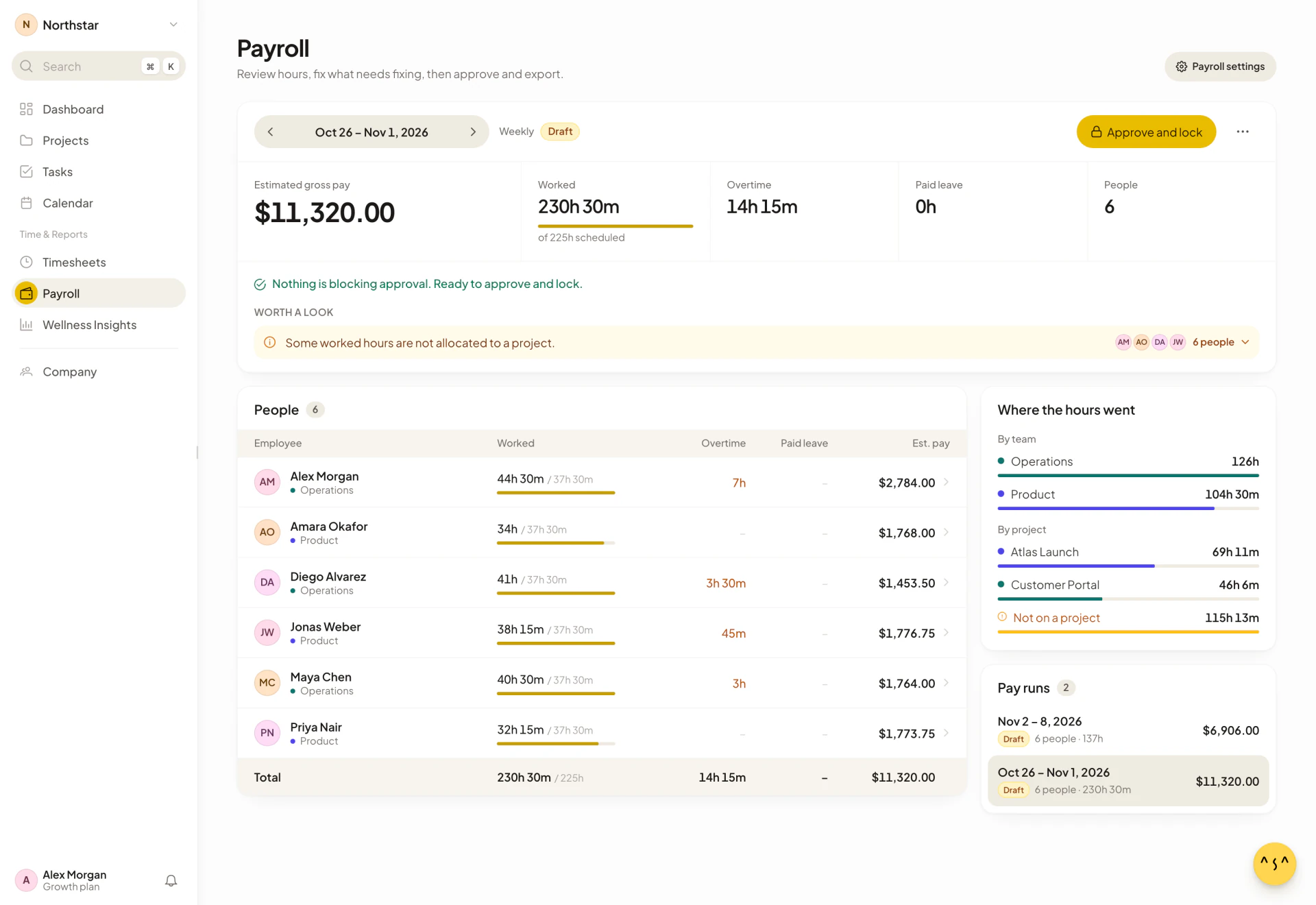
The cards at the top of the pay run show:
| Card | What it shows |
|---|---|
| Estimated gross pay | The sum of every person’s estimated pay. With more than one currency, each currency is shown separately. |
| Worked | Hours worked after rounding, compared with the hours scheduled for the period from each person’s work schedule. |
| Overtime | Overtime hours plus double-time hours, from your overtime rules. |
| Paid leave | Approved paid leave in the period, when Include paid leave in payroll is on. See Count paid leave in payroll. |
| People | How many people are in the pay run. |
The People table lists each person’s worked hours, overtime, paid leave and estimated pay. The Where the hours went panel splits hours by team and by project.
Estimated pay is each person’s hours multiplied by their hourly rate. Overtime hours are paid at 1.5 times the rate, double-time hours at 2 times, and paid leave hours at the normal rate.
Fix anything that blocks approval
If something needs fixing, a heading such as 2 issues to fix before approval appears above the table, and Approve and lock stays disabled until you clear every item. The problems that block approval are:
- Work session has no clock-out, or Break has no end.
- Overlapping work sessions, or clock entries in an invalid order, such as a clock-out with no clock-in.
- Pending amendment request: someone asked to change an entry and nobody has answered yet.
- Approved paid leave that is missing valid dates.
Each item has a button that takes you to the place where you fix it, such as Fix in Timesheets (see Timesheets and corrections), Review request or Open in Calendar (see Calendar). After you fix an item, return to Payroll. The draft recalculates when you open it.
Warnings in “Worth a look”
Warnings do not stop you from locking. They point at things you may want to check first:
- Some worked hours are not allocated to a project. Some tracked time has no project against it.
- Project allocations exceed the worked hours. More hours are allocated to projects than were worked.
- A day where worked hours plus paid leave exceed the scheduled hours.
Select a warning to see which people it affects and by how much.
Approve and lock
When there are no blockers, the status line reads “Nothing is blocking approval. Ready to approve and lock.”
- Select Approve and lock.
- Read the confirmation, Lock this payroll run?, and select Approve and lock again.
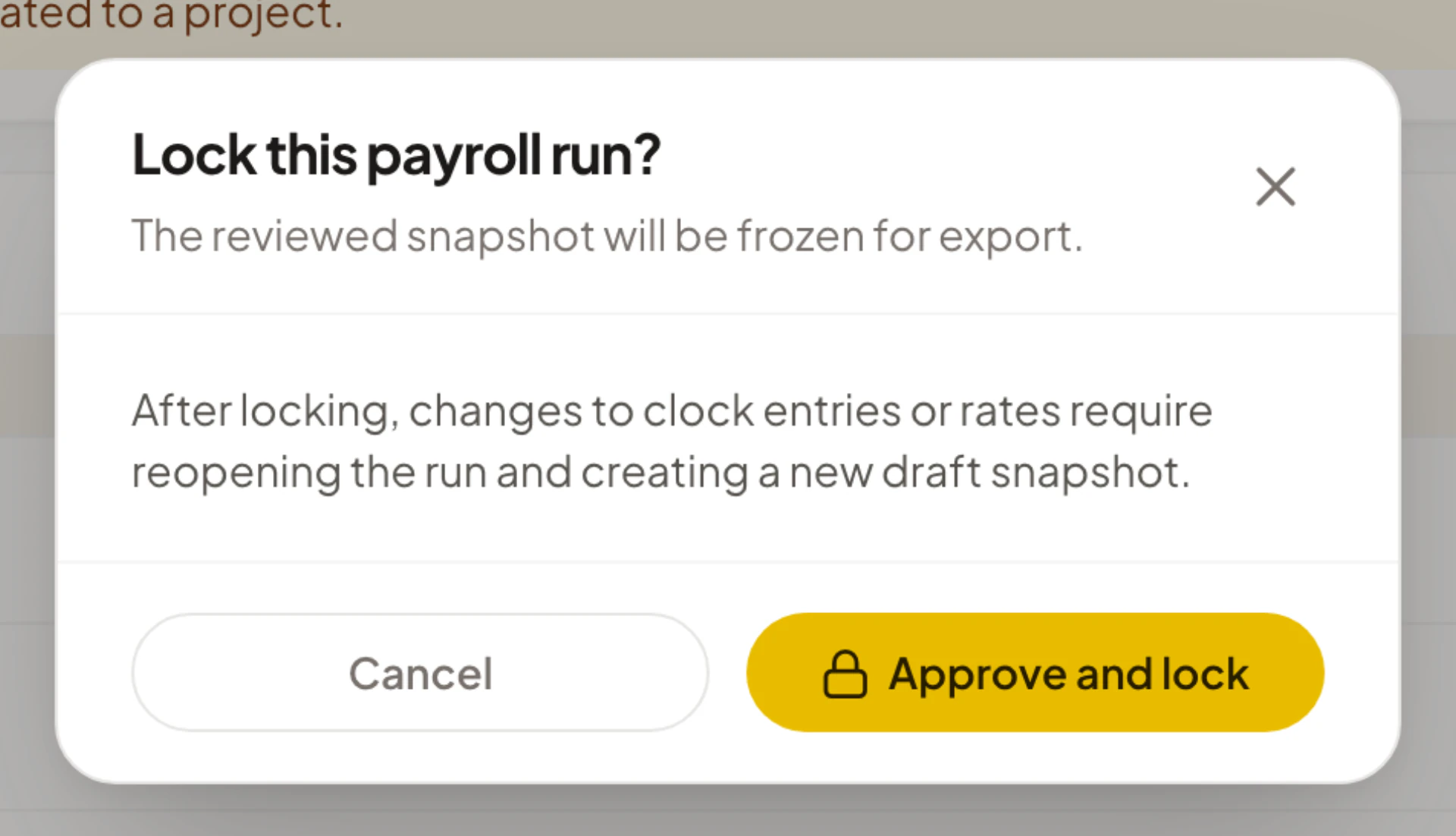
The reviewed numbers are now frozen as a snapshot, and the status changes from Draft to Locked. A locked run cannot be recalculated or edited.
After locking, changes to clock entries or pay rates do not change the run. To use them you must reopen the run and create a new draft.
Export the pay run
- On a locked run, open the Export menu.
- Choose the format your payroll provider expects: CSV, ADP, Gusto, QuickBooks, Xero or Sage.
The file downloads to your computer. The first export changes the status to Exported, and the button becomes Download again so you can fetch the file or another format later.
The export is a file that you import into your provider. Asa does not connect to ADP, Gusto, QuickBooks, Xero or Sage directly.
Change a pay run after locking
- Reopen a locked run. Open More actions, choose Reopen run, enter the reason (required) and confirm. Asa creates a new draft and keeps the locked snapshot unchanged. You can only reopen a run that has not been exported.
- Delete a draft. Open More actions and choose Delete draft. Deleting removes the draft and its saved snapshot permanently, and only drafts can be deleted.