
How to join your team and get started as a member
Accept your invitation, sign in, clock in for the first time and connect your chat app, so you know what to do on your first day in Asa.Team.
On this page
This guide is for people whose admin has invited them to Asa.Team. It takes you from the invitation to your first clock-in. If you are the person setting up the company, read Set up your company instead.
Accept your invitation
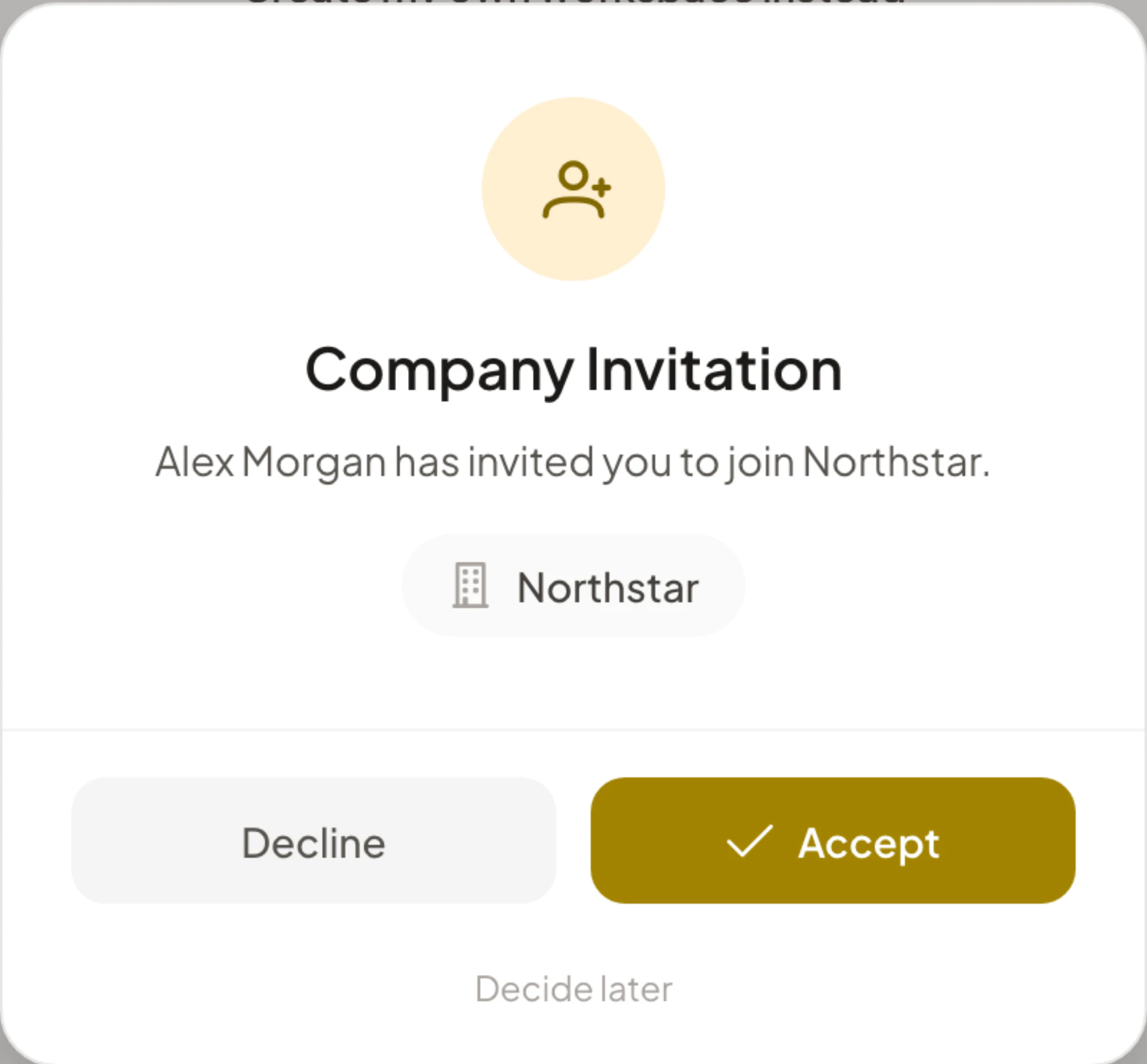
Your admin can invite you by email, with a link, or by adding Asa to a team chat. Whichever way you got it, open the invitation.
- Open the email, the link or the join button in chat.
- Sign in when Asa asks. Signing in and signing up are the same flow, so you can use Sign in with Google, Sign in with Microsoft, Sign in with GitHub or an email link. See Account settings.
- Read the Company Invitation, which shows who invited you and the company, and accept it.
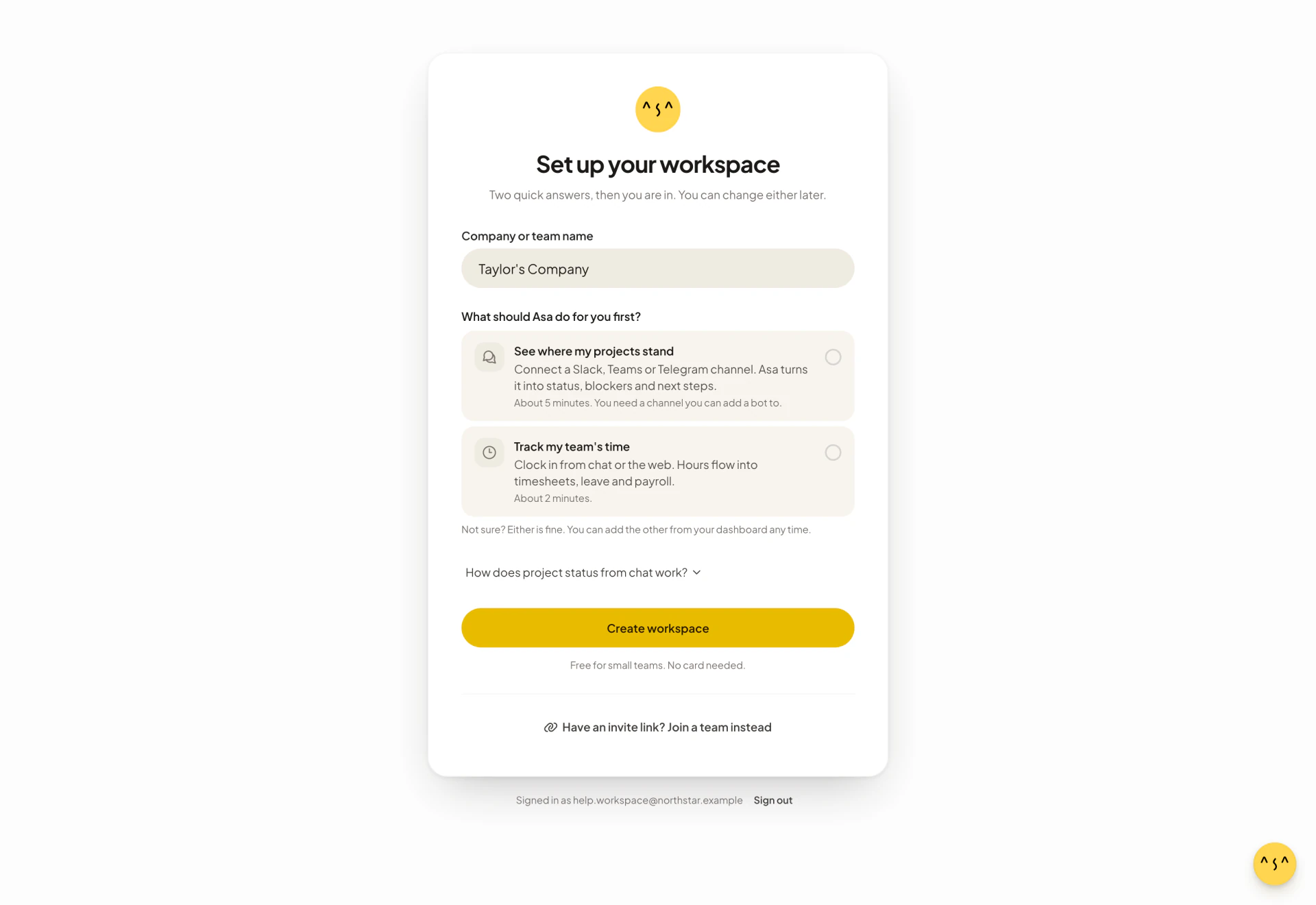
If Asa asks you to Set up your workspace instead, look for “You’ve been invited to join” with the company name and select Review invitation. Do not select Create my own workspace instead unless you want a separate company. If you signed in without opening your invitation, select Have an invite link? Join a team instead, paste the link or code into Paste invite link or code and select Find my invitation. If you closed the invitation without answering, a banner reading “You have a pending company invitation.” has a View button that brings it back.
If you see Invitation Expired, ask your admin for a new invite. An invitation lasts 7 days. An email invitation works once, so open the newest one. If you are told the company has reached its member limit, your admin needs to free a seat or upgrade the plan.
Clock in for the first time
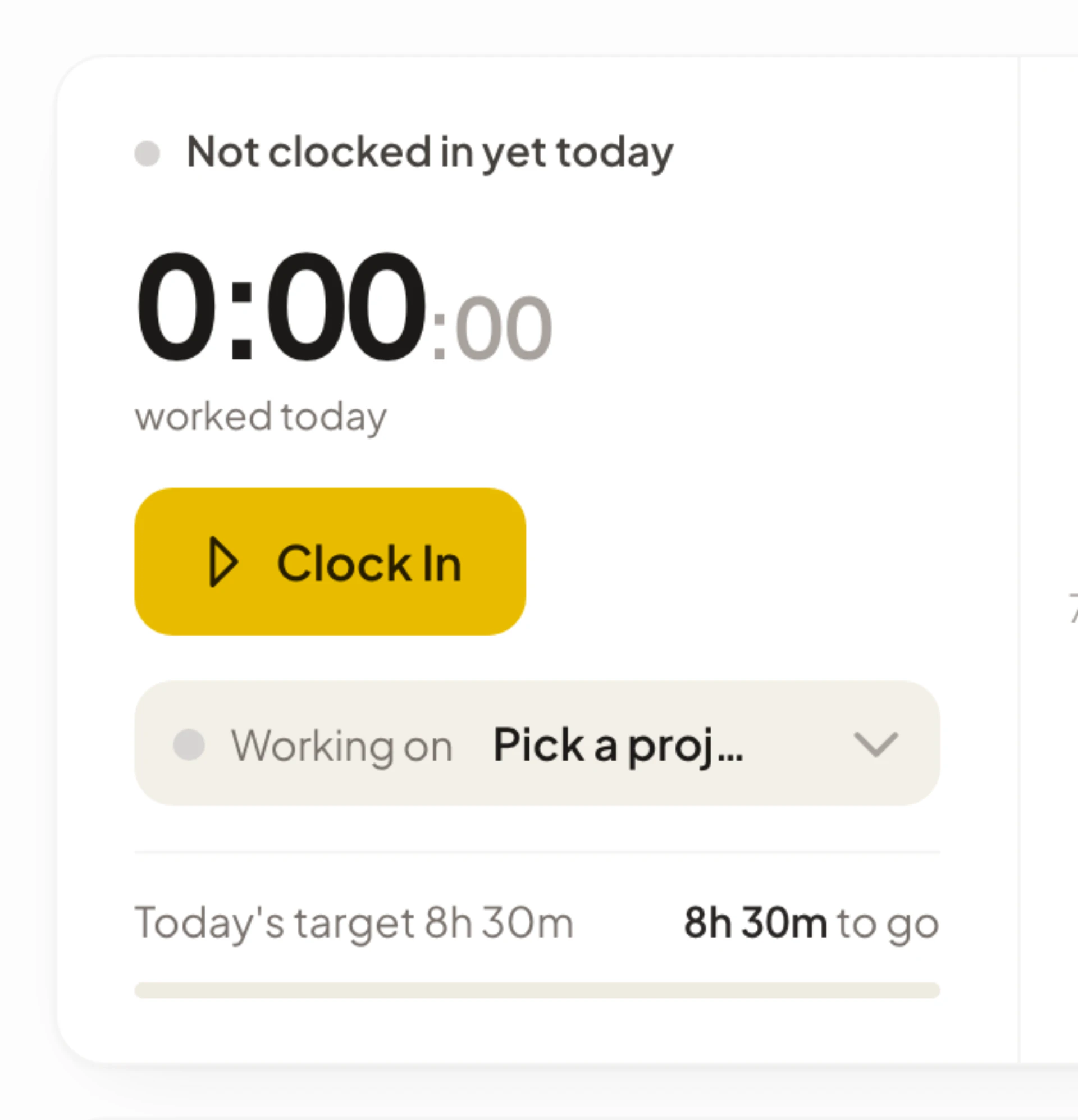
- Open Dashboard from the sidebar.
- In the clock card, select Clock In.
If you see “You must be assigned to a team to clock in”, ask your admin to add you to a team. The full walk-through, including breaks and choosing a project, is in Clock in and take a break.
Connect your chat app
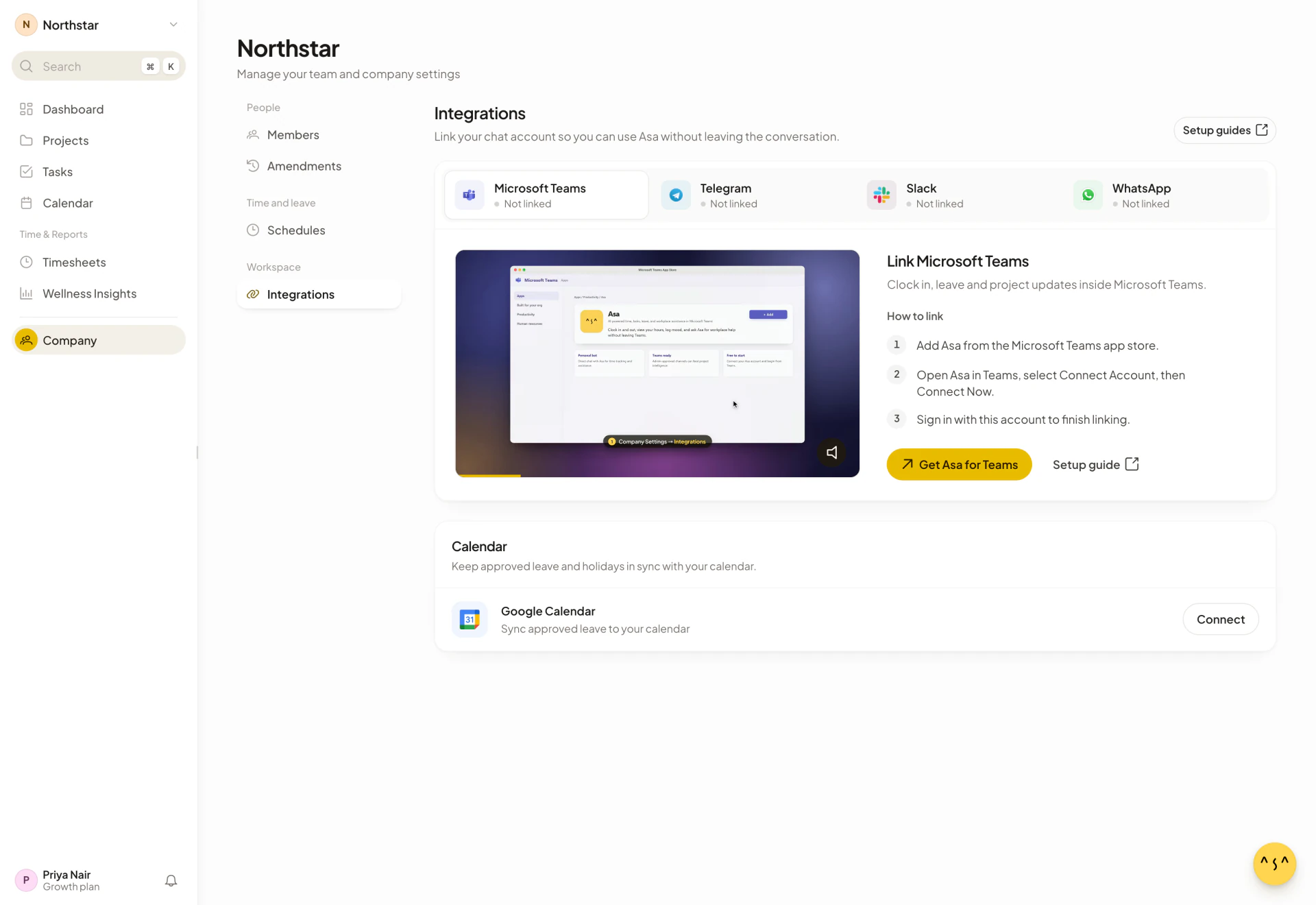
If your company uses Slack, Microsoft Teams, Telegram or WhatsApp with Asa, you can clock in and ask Asa questions from there. Asa answers with a Connect button until you link your account once per chat app. See Integrations overview and the guide for your app.
Log how you feel
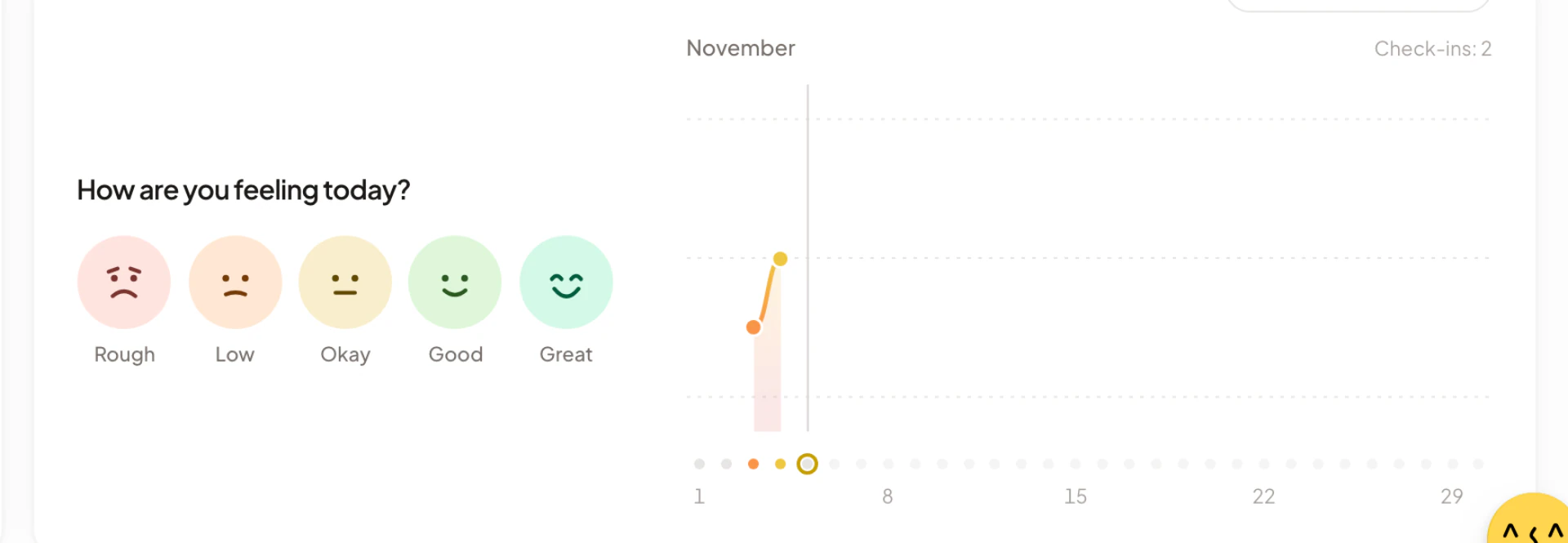
The Mood Tracker card on your Dashboard takes under a minute, once a day. Check-ins are linked to you, so read Who can see what first. See Mood check-ins.
Where to go next
- Find your way around Asa.Team explains the sidebar, search and the account menu.
- View, correct and export timesheets shows your hours and how to fix a wrong entry.
- How to request and approve time off covers leave requests.
- Troubleshooting lists the messages you may see and what to do.